How to Speed Up a Slow Android Phone in 2026: 15 Proven Fixes
Learning how to speed up a slow Android phone can feel like getting a new device for free, because most Android slowdowns are not caused by ageing hardware alone — they are caused by a full storage drive, dozens of apps running in the background, an overloaded home screen, and settings that quietly drain performance. A phone that took years to slow down can often be restored to something close to its original speed in a single afternoon, with no purchases and no technical expertise required. The fixes below are ordered from the quickest wins to the deeper solutions, so you can stop as soon as your phone feels fast enough — though working through all fifteen will give you the best result.
This guide explains exactly how to speed up a slow Android phone in 2026, covering every major cause of lag: storage, RAM, background apps, battery health, software updates, animations, and the apps that secretly consume the most resources. We will also cover what to do when the usual fixes do not work, how to tell whether your phone genuinely needs replacing, and the maintenance habits that keep a phone fast for years. These steps work on Samsung, Google Pixel, Xiaomi, OnePlus, Motorola, and most other Android phones, with small menu differences noted where they matter.
How to Speed Up a Slow Android Phone: Start by Finding the Real Cause
Before changing anything, spend two minutes diagnosing why your phone is slow, because the fix depends on the cause. Open Settings, then Battery, and look at which apps have used the most battery in the last 24 hours — battery hogs are usually performance hogs too. Then open Settings, then Storage, and check how full your storage is. As a rule of thumb, an Android phone with less than 10 percent free storage will slow down noticeably, because the system needs free space for caches, updates, and temporary files. If your storage is nearly full, that is almost certainly your main problem, and the storage fixes below will help more than anything else.
Also notice when the slowness happens. If the phone is slow all the time, even on the home screen, the cause is likely storage, an overloaded system, or ageing hardware. If only one app is slow, the problem is probably that app — clear its cache, update it, or reinstall it. If the phone is slow mainly when hot, or the battery drains fast at the same time, heat and battery health may be involved. This quick diagnosis stops you wasting time on fixes that do not match your problem, and it gives you a baseline: after each fix, check whether the phone feels faster, so you know what actually worked.
A useful baseline test is simple: restart your phone, then open your three most-used apps and time roughly how long each takes to become usable. Write the times down, or just remember the feel. Repeat the test after your fixes. If apps open in half the time, your work has paid off. If nothing changes, the deeper fixes later in this guide — or a factory reset — are the next step.
Fix 1–3: Free Up Storage, the Biggest Single Win
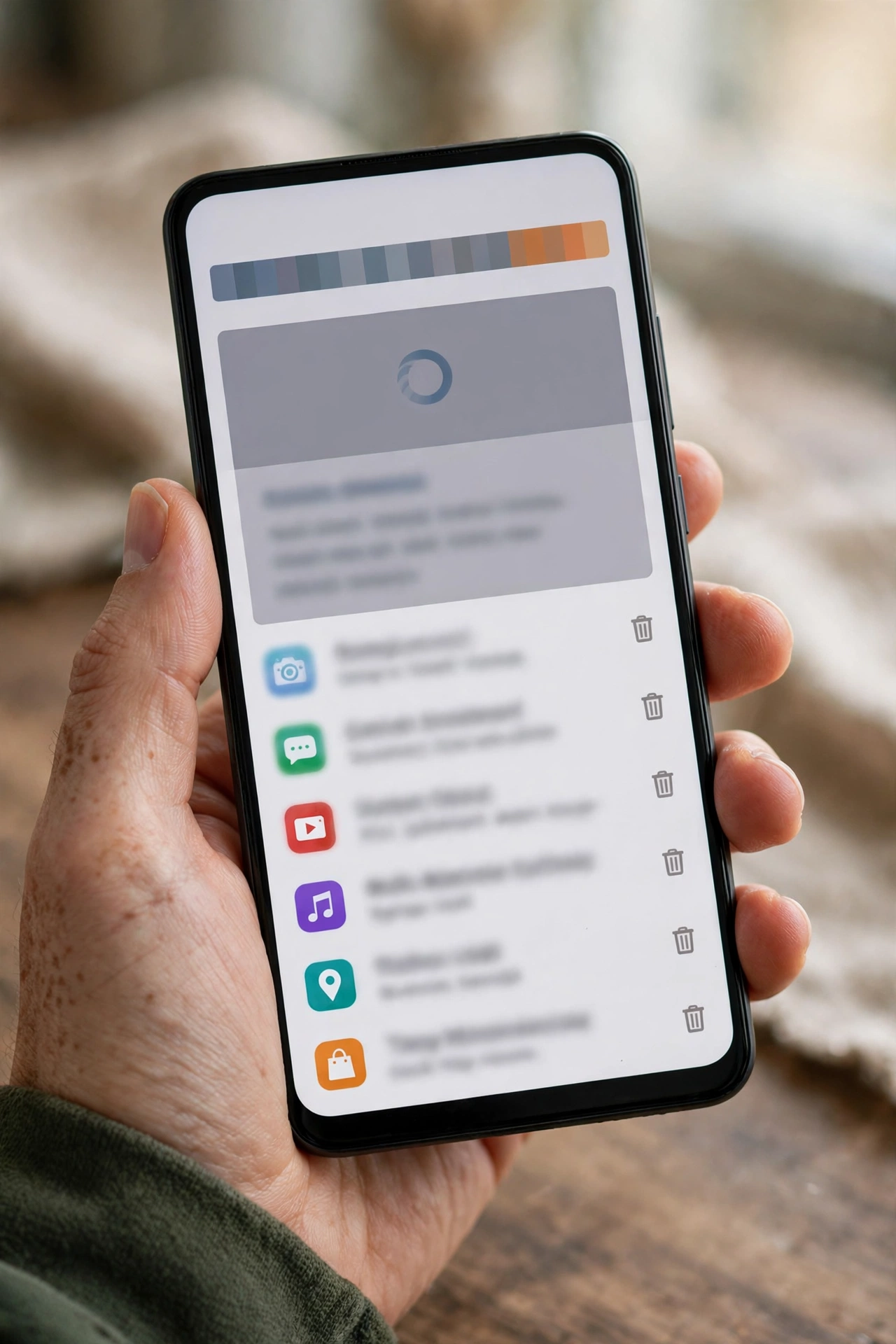
Storage is the number one cause of Android slowdowns, and fixing it is straightforward. First, open Settings, then Storage, and look at the breakdown: apps, photos and videos, audio, and system files. Photos and videos are usually the biggest category. Open Google Photos and check whether backup is on — if your photos are backed up to the cloud, you can safely use the “Free up space” option in Google Photos to remove local copies of backed-up photos, which often frees several gigabytes at once. Our guide on how to manage Google Photos storage space walks through this in detail, including what to do when your Google storage itself is full.
Second, clear cached data for your biggest apps. Go to Settings, then Apps, select an app such as Chrome or a social media app, then Storage, and tap Clear Cache. This removes temporary files without deleting your logins or personal data — it is safe and often frees hundreds of megabytes per app. Do not confuse Clear Cache with Clear Data: Clear Data resets the app completely, deleting logins and settings, so only use it for an app you are happy to set up again. Clearing caches monthly is a good maintenance habit, and browsers in particular accumulate large caches; our guide on how to stop Chrome draining battery on Android also covers Chrome-specific cleanup.
Third, uninstall apps you do not use. Be honest: most people carry twenty or more apps they opened once and forgot. Each one takes storage, and many run background processes or check for updates. Go through your app drawer, uninstall anything you have not used in a month, and consider whether heavy apps have a lighter alternative — many social networks and news apps offer “Lite” versions that use far less storage and RAM. Aim to keep at least 15 to 20 percent of your storage free after cleanup; that headroom alone can transform a sluggish phone.
Fix 4–6: Tame Background Apps and Battery Drain
Android lets apps run in the background so they can deliver notifications and refresh content, but too many background apps compete for your phone’s processor and memory, and the result is lag everywhere. The fix is to restrict the worst offenders. Go to Settings, then Battery, then Battery Usage, and identify apps using a lot of battery in the background. For each one you do not need instant notifications from, go to its App Info page, then Battery, and set it to Restricted or Optimised. Restricted apps cannot run freely in the background, which saves both battery and performance — but do not restrict messaging apps or alarms you rely on, or their notifications will be delayed.
Next, review which apps are allowed to start automatically. On Samsung phones, this is under Settings, then Battery and device care, then Battery, then Background usage limits, where you can put unused apps to sleep. On Pixel phones, Adaptive Battery learns your usage patterns and limits apps you rarely open — make sure it is turned on under Settings, then Battery, then Adaptive Battery. On Xiaomi and other brands, look for autostart permissions in the security or permissions settings and disable autostart for apps that do not need it. These settings sound technical, but they amount to one idea: only the apps you actually use should be allowed to run when you are not looking at them.
Also check your widgets and live wallpapers. A home screen covered in widgets that refresh constantly — weather, news, stocks, social feeds — consumes memory and battery all day. Keep two or three widgets you genuinely check, remove the rest, and switch from a live wallpaper to a static image. The visual difference is minor, but the performance saving on an older phone is real. Similarly, if you use a third-party launcher with heavy animations and effects, try the phone’s default launcher for a week; you may be surprised how much snappier the phone feels.
How to Speed Up a Slow Android Phone With Software Updates and Animations

Software updates are a double-edged sword for older phones: major Android version updates sometimes add features that strain old hardware, but security updates and app updates usually improve performance and fix the bugs that cause lag. The right approach is to keep your phone’s system software and your apps updated, but not to chase every beta or major version on day one for a very old device. Check for system updates under Settings, then System, then Software update, and update your apps through the Play Store. Android’s official site lists current version features and device support, which helps you judge whether a major update suits your phone. If a specific app update makes things worse, you can uninstall its updates from its App Info page and wait for the next version.
Reducing animations is one of the most satisfying speed fixes because the effect is instant. Android’s window and transition animations make the phone feel polished, but they also add a delay to every action. To reduce them, enable Developer Options by going to Settings, then About phone, and tapping Build number seven times. Then, under Settings, then System, then Developer options, set Window animation scale, Transition animation scale, and Animator duration scale to 0.5x instead of 1x. Your phone will feel dramatically faster because every screen opens in half the time — and you can always turn animations back up if you miss the effect. While you are in Developer Options, also check “Background process limit” — leaving it on the standard setting is best for most users, but if your phone has very little RAM, limiting background processes to four can help.
Finally, build a restart habit. Android phones are designed to run for weeks without restarting, but a weekly restart clears memory leaks, kills runaway background processes, and applies pending updates. If your phone feels slow and you cannot remember the last time you restarted it, restart it now — many users report an immediate improvement from this one step alone. Schedule it if it helps: restart every Sunday evening, and your phone starts each week fresh. For phones that also struggle with storage-heavy messaging, our guide on how to transfer WhatsApp chats to a new Android phone is useful if you eventually move to a new device, since WhatsApp media is often a hidden storage hog.
Fix 10–12: Battery Health, Heat and Network Settings
Battery health affects speed more than most people realise. As a lithium battery ages, its maximum capacity falls, and on some phones the system throttles performance to prevent unexpected shutdowns when the battery cannot deliver peak power. Check your battery health if your phone offers it — Samsung shows it under Battery and device care, Pixel shows battery information in Settings, and third-party apps such as AccuBattery can estimate capacity on any phone. If your battery health is below 80 percent and the phone is slow and dies quickly, a battery replacement — usually far cheaper than a new phone — can restore both battery life and speed.
Heat is the other hidden throttle. A phone that is hot slows itself down deliberately to protect its components, so a phone that is always warm will always feel slow. Common heat causes include gaming while charging, a thick case that traps heat, direct sunlight, and a failing battery. Remove the case during heavy use, avoid gaming while plugged in, and do not leave the phone on a car dashboard in summer. If your phone is hot for no obvious reason, check Battery Usage for a runaway app and force-stop it — a single misbehaving app can heat a phone and drain its battery in hours.
Network settings can also cause apparent slowness. If apps load slowly but the phone itself feels responsive, the problem may be your connection, not the device. Toggle Wi-Fi off and on, forget and rejoin a troublesome network, and reset network settings (Settings, then System, then Reset options, then Reset Wi-Fi, mobile and Bluetooth) if connectivity problems persist — this does not delete your personal data, only saved networks and Bluetooth pairings. On mobile data, check that you are not in a weak-signal area, since a phone struggling for signal burns battery and feels slow as apps wait for data.
How to Speed Up a Slow Android Phone: Reset, Lite Apps and When to Upgrade

If you have worked through the fixes above and the phone is still slow, the next step is a factory reset. This erases everything and returns the phone to its out-of-the-box state, which removes years of accumulated clutter, corrupt caches, and misbehaving apps in one stroke. Before resetting, back up everything: photos to Google Photos, contacts and calendar to your Google account, WhatsApp chats to Google Drive, and any files to Google Drive or a computer. Then go to Settings, then System, then Reset options, then Erase all data, and follow the prompts. After the reset, reinstall only the apps you actually use, one at a time, and test the phone’s speed before adding each batch — you may discover that a single app was the culprit all along.
After a reset, consider switching to lighter versions of heavy apps. Facebook Lite, Messenger Lite, and similar lightweight apps use a fraction of the storage and RAM of their full versions, and many news and shopping apps offer a mobile website that works perfectly well in Chrome without an app at all. The fewer heavy apps on your phone, the longer it stays fast. Also reconsider your launcher and keyboard: the default options are usually the most efficient, while heavily customised third-party keyboards and launchers can consume surprising resources.
Finally, know when to upgrade. A factory reset that does not help, a battery below 80 percent health, a phone that no longer receives security updates, or hardware damage such as a swollen battery are all signs that the phone has genuinely reached the end of its useful life. As a guide, most Android phones receive three to five years of updates; beyond that, app compatibility and security become real concerns, not just speed. If you do upgrade, buy with longevity in mind: at least 128 GB of storage, 8 GB of RAM, and a manufacturer with a long update promise will keep your next phone fast for years. If you are shopping on a budget, our guide to the best Android tablets under £200 in the UK shows how far modest hardware can go when it is well chosen, and the same value logic applies to phones.
Maintenance habits that keep an Android phone fast
- Restart your phone once a week to clear memory and background processes.
- Clear app caches monthly, especially for browsers and social media apps.
- Keep at least 15 to 20 percent of storage free at all times.
- Uninstall apps you have not used in a month — be ruthless.
- Keep system software and apps updated, but avoid day-one major updates on very old phones.
- Restrict background activity for apps that do not need instant notifications.
Frequently Asked Questions
Will a factory reset speed up my Android phone?
Usually, yes — often dramatically, because it removes years of accumulated clutter and misbehaving apps. Back up photos, contacts, chats, and files first, since a reset erases everything on the phone.
Is it safe to clear app caches?
Yes. Clearing cache removes temporary files only; your logins, settings, and personal data stay intact. Clearing data is different — it resets the app completely — so use Clear Cache for routine cleanup.
Does a full storage drive slow down Android?
Yes, significantly. Android needs free space for caches, updates, and temporary files. Below 10 percent free space, slowdowns are common; aim to keep 15 to 20 percent free.
Do antivirus apps speed up Android phones?
No. Most “booster” and “cleaner” apps do little and some harm performance by running constantly themselves. Android’s built-in Play Protect handles malware scanning; manual cleanup and the fixes in this guide are more effective than any booster app.
How long should an Android phone stay fast?
With reasonable maintenance, three to five years is realistic. After that, battery ageing, lack of software updates, and heavier apps can make even a well-maintained phone feel slow.
Does reducing animations really help?
Yes, immediately. Setting animation scales to 0.5x in Developer Options halves the delay on every screen transition, which makes the phone feel much faster even though raw performance is unchanged.
Should I replace the battery or buy a new phone?
If the phone is otherwise fine and still receives updates, a battery replacement is usually far cheaper and can restore both battery life and speed. If the phone no longer gets security updates or a reset does not help, upgrading makes more sense.
Key Takeaways
- Storage is the biggest cause of slowdowns — free up space until at least 15 to 20 percent is available.
- Clear app caches regularly, and uninstall apps you have not used in a month.
- Restrict background activity for battery-hogging apps you do not need instant alerts from.
- Reduce animations to 0.5x for an instant feeling of speed.
- Restart weekly, keep software updated, and watch battery health and heat.
- A factory reset is the deepest fix — back up first, then reinstall only the apps you use.
- Replace the battery if health is below 80 percent; upgrade only when updates end or a reset fails.
Conclusion
Knowing how to speed up a slow Android phone is mostly about doing the unglamorous maintenance that nobody does: freeing storage, clearing caches, taming background apps, restarting regularly, and reducing animations. Work through the fifteen fixes in order, testing as you go, and most phones recover a large share of their original speed without spending a penny. If the phone still struggles after a factory reset, you will at least know the problem is hardware, not clutter — and you can upgrade with confidence instead of guessing. Start with the quick wins today: check your storage, clear your biggest app caches, and restart your phone. You may be surprised how much of the “old phone” feeling was just a full drive and a few runaway apps.