How to Use Google Voice Typing on Android and PC in 2026
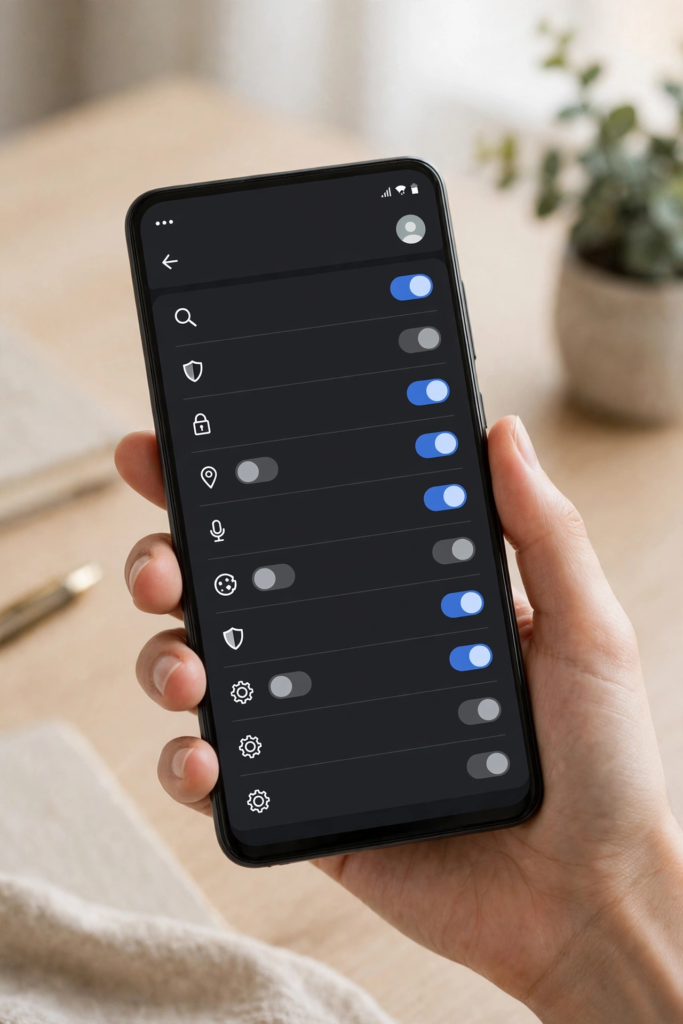
Google’s voice typing has quietly become one of the most useful tools on Android phones and on desktop computers, and in 2026 it is good enough to use for far more than the occasional text message. Whether you want to write a long email without touching the keyboard, take notes while your hands are busy, draft a blog post, or simply reduce the strain of typing all day, learning how to use google voice typing on android and pc properly will save you real time. This guide explains how to turn it on, how to speak punctuation and formatting commands, how to fix the mistakes it makes, and how to use it safely for work, study and everyday writing.
The core idea is simple: instead of tapping out every word, you speak, and Google’s speech recognition turns your words into text. On Android, this works through the keyboard microphone in almost every app where you can type. On a PC, the most reliable route is Google Docs voice typing in Chrome, which gives you a dedicated microphone and a richer set of commands. The technology behind both is the same family of speech models, trained on enormous amounts of spoken language, and the results in 2026 are impressively accurate for clear, well-paced speech in a quiet room. That last point matters: voice typing is not magic, and the quality of your microphone, your environment and your speaking style all affect the result.
Before we get into the steps, it helps to set expectations. Voice typing is excellent for first drafts, notes, messages and short documents. It is less ideal for text that needs perfect formatting, for code, for passwords or for highly technical terms that the recogniser may not know. The best users treat it as a first pass: dictate quickly, then edit with the keyboard. Used that way, it can easily double your writing speed for many tasks, and it is a genuine accessibility tool for people who find typing painful or difficult. If you have never tried it seriously, the next sections will take you from a first test to confident daily use.
What Is Google Voice Typing?
Google voice typing is a speech-to-text feature built into Gboard, Google’s keyboard for Android, and into Google Docs on desktop. On Android, tapping the microphone on the keyboard lets you dictate into any text field, from a messaging app to a document. On a PC, opening Google Docs in Chrome and choosing Tools, then Voice typing, opens a small microphone panel that transcribes your speech directly into the document, with support for punctuation commands and basic formatting.
The feature is free, and it does not require a separate app beyond Gboard on Android and a Google account with Chrome on desktop. It works in many languages, and you can switch languages from the keyboard settings or from the voice typing panel. Accuracy has improved steadily as Google’s models have become better at understanding accents, natural phrasing and context, although, as with any speech system, it still struggles occasionally with names, unusual words and heavy background noise.
It is worth distinguishing voice typing from Google Assistant and from voice search. Google Assistant is a voice-controlled helper that can answer questions, set reminders and control your phone. Voice search lets you speak a query into Google Search. Voice typing, by contrast, is specifically about turning your spoken words into written text that you can edit, send or save. The three features share speech technology, but they are used in different ways, and this guide focuses on dictation.
Getting Started: What You Need Before You Dictate
On Android, you need a phone running a reasonably recent version of Android, with Gboard installed as your keyboard. Most Android phones ship with Gboard already, but if yours uses a different keyboard, you can install Gboard free from the Play Store and set it as your default keyboard. You also need microphone permission for Gboard, which Android will ask for the first time you tap the microphone. Granting that permission is essential: without it, the keyboard cannot hear you at all.
On a PC, you need Google Chrome, a Google account and a microphone, either built into your laptop or connected as a headset or external microphone. Google Docs voice typing is designed for Chrome, so using another browser may cause problems, even if that browser also supports microphone access. You also need an internet connection, because recognition happens on Google servers rather than entirely on your device, although some Android devices support offline speech recognition for certain languages if you download the language pack in advance.
Environment matters more than equipment for most people. A quiet room, a microphone held at a sensible distance, and a natural speaking pace will do more for accuracy than an expensive headset, although a headset does help in noisy offices or busy homes. If you plan to dictate regularly, a simple wired or wireless headset with a boom microphone is a worthwhile investment, and it has the added benefit of keeping your dictation private from people nearby.
How to Use Google Voice Typing on Android: Step by Step
Start by opening any app where you can type, such as Messages, Gmail, Keep or Docs, and tap into a text field so the keyboard appears. Look for the microphone icon on the keyboard, which is usually in the top row or on the suggestion strip, depending on your Gboard layout. Tap the microphone, wait for the listening indicator, and start speaking. Your words will appear as text in real time, with a short delay while the recogniser processes your speech.
If you do not see a microphone on your keyboard, check your on-screen keyboard settings. Make sure Gboard is selected as your keyboard and that voice input is enabled. Exact menu names vary by manufacturer and Android version — Samsung, Pixel, Xiaomi and other brands organise settings slightly differently — so if a menu looks different on your phone, use the search box at the top of Settings and search for “voice typing” or “Gboard”. Google’s own support pages explain the current steps for Pixel and Gboard, and they are worth checking if your menus have changed after a software update.
Your first dictation session is a good time to test the basics in a low-pressure setting, such as a note in Google Keep. Try a short sentence first, then a longer one, and watch how punctuation is handled. By default, Google voice typing adds some punctuation automatically, but you will get cleaner results if you speak punctuation aloud — saying “comma”, “full stop”, “question mark” or “new paragraph” at the right moment. This feels strange at first, but it quickly becomes habit, and it is the single biggest difference between messy dictated text and text that needs only light editing. Speak at a natural pace rather than rushing or over-enunciating every syllable, and keep the phone reasonably close to your mouth without covering the microphone.
Setting Up Voice Typing on Your Android Phone
Good setup makes everything else easier. First, make sure Gboard is up to date through the Play Store, because newer versions include accuracy improvements and new language support. Next, open Gboard settings — you can usually do this by opening the keyboard and tapping the settings gear icon, or by going to Settings, then System, then Languages and input, then On-screen keyboard, then Gboard. Inside Gboard settings, tap Voice typing and check that it is switched on. If you speak more than one language, add languages here so the recogniser can switch appropriately, and check whether offline speech recognition is available for your main language, which lets you dictate without an internet connection in some situations.
Language settings matter more than most people realise. If your phone is set to English (United States) but you speak with a strong British accent and use British spellings, the system will still usually cope, but switching the primary language to English (United Kingdom) can improve recognition of words, place names and phrasing. The same applies in reverse. You can also add a second language if you regularly mix languages in the same message, although mixed-language dictation is less reliable than dictating in one language at a time. If you regularly dictate in a language other than English, download that language pack for offline use where offered, and test it before you rely on it for an important document.
Permissions are another common stumbling block. Voice typing needs microphone permission to work. If you denied that permission in the past, or if a system update reset it, tapping the microphone may do nothing or show a permission prompt. Go to Settings, then Apps, then Gboard, then Permissions, and make sure Microphone is allowed. Also check that the Google app has microphone permission if your phone uses Google voice services for recognition. While you are there, make sure battery optimisation is not aggressively shutting down Gboard in the background, which can occasionally cause the keyboard to behave oddly, although this is rare on most modern phones.
Voice Typing Commands and Punctuation You Should Know
Once the basics work, voice commands turn dictation from a simple transcription tool into a genuinely useful writing method. The most important commands are punctuation commands. Say “comma” for a comma, “full stop” or “period” for a full stop, “question mark” for a question mark, “exclamation mark” for an exclamation mark, “colon” for a colon and “semicolon” for a semicolon. For line breaks, say “new line” to move to the next line and “new paragraph” to start a new paragraph. For quotation marks, say “open quote” and “close quote”. For brackets, say “open bracket” and “close bracket”. Practising these few commands will transform your results.
Beyond punctuation, you can use simple editing phrases in some apps, although support varies. In Google Docs voice typing on a PC, there is a much richer set of commands for selecting text, formatting, moving the cursor and inserting headings, which are covered later in this guide. On Android, editing is usually easier with a mix of voice and touch: dictate a chunk of text, tap to place the cursor where you need a correction, and either type the fix or dictate the replacement words. Do not try to dictate a perfect document in one continuous take. Professional users of dictation usually dictate in short sections, pause to review, correct any errors, and then continue. That rhythm is faster overall than dictating a long passage and then hunting through it for mistakes.
Numbers, email addresses and web addresses need care. Saying a phone number or a long number digit by digit usually works better than saying it as a single large number. For email addresses, say “at” for the @ symbol and “dot” for a full stop, for example “name at example dot com”, and then check the result carefully, because a single misheard letter can change an address completely. The same caution applies to passwords, codes and proper names: voice typing is not the right tool for dictating a password, and you should never speak sensitive credentials aloud in a public place or into a device you do not trust. For everyday writing, however, names of people and places are usually recognised well if you speak them clearly and add them to your personal dictionary where your keyboard offers that option.
How to Use Google Voice Typing on Android in Different Apps
One of the strengths of learning how to use google voice typing on android is that the same microphone button works almost everywhere you can type. In messaging apps, it is ideal for longer replies that would be tedious to type, especially when you are walking or carrying something. In email, it helps you clear your inbox faster: dictate a reply, read it back, fix any errors and send. In note-taking apps such as Google Keep, it is perfect for capturing ideas before they disappear, and because Keep syncs across devices, a note dictated on your phone is available on your PC later. If you use Keep for lists and reminders, you may also like our guide to how to use Google Keep effectively, which covers labels, reminders and sharing.
In Google Docs on Android, voice typing works through the keyboard microphone in the same way, although the full voice-typing toolbar with formatting commands is a desktop feature. If you write documents on your phone regularly, it is often better to dictate a rough draft on the phone and format it later on a PC. In search and in the Google app, the microphone lets you search by voice, which is different from dictation but uses the same recognition: tap the microphone in a search bar and speak your query. In social apps, voice typing can speed up captions and comments, but read them before posting, because autocorrect and speech errors can change meaning, and a public post is harder to quietly fix than a private note.
Accessibility is an important part of this story. For people with limited mobility, repetitive strain, arthritis or visual difficulties, voice typing can make a phone genuinely easier to use. Android also includes broader accessibility features, such as Voice Access, which goes further than dictation and lets you control the whole phone by voice. If dictation alone is not enough for your needs, exploring those accessibility settings is worthwhile, and Google’s support documentation explains what each option does. Even if you do not need accessibility features yourself, understanding them helps you choose the right setup for family members who might benefit.
Using Google Voice Typing on a PC with Google Docs
On a PC, the easiest Google voice typing option is inside Google Docs. Open Chrome, sign in to your Google account, open a document in Google Docs, then click Tools in the menu and choose Voice typing. A small microphone panel appears. Click the microphone, choose your language from the drop-down if needed, and start speaking. Your words appear in the document, and you can click the microphone again to stop. This works best in Chrome on a desktop or laptop with a decent microphone, whether built in or a headset. A headset usually gives better accuracy than a laptop microphone in a noisy room, because it picks up less background sound.
Google Docs voice typing supports a much wider command set than the Android keyboard. You can say “select paragraph”, “bold”, “italics”, “heading one” and similar commands to format as you go, although most people find it easier to dictate plain text first and format afterwards. You can also insert punctuation in the same way as on Android, and you can move around the document with commands such as “go to end of paragraph”. The full command list is published in Google Docs support documentation, and it is worth bookmarking if you plan to dictate regularly on a PC. Commands can vary slightly by language, so check the list for your language rather than assuming an English command works everywhere.
There are limits to be aware of. Google Docs voice typing requires an internet connection, because recognition happens on Google servers. It works in Chrome, and while other browsers may support a microphone permission, Docs voice typing is designed for Chrome, so using Chrome avoids most compatibility problems. It also works best in a quiet room. If you share an office or work from a busy home, a headset with noise reduction makes a real difference. Finally, remember that anything you dictate is processed to produce text; if you are working on confidential material, check your organisation’s policy on cloud-based dictation before using it for sensitive documents, just as you would for any cloud service.
Voice Typing on Android for Writers, Bloggers and Students
For writers, voice typing is best used as a drafting tool. Many bloggers find that speaking a first draft is faster than typing it, because speaking encourages a natural flow and stops you from editing every sentence as you write it. Dictate the whole section, then switch to keyboard editing to tighten the wording, check facts and fix punctuation. This two-stage process — speak first, edit second — is how most experienced dictation users work, and it avoids the frustration of trying to produce polished text in a single spoken pass. If you dictate blog drafts on your phone and later publish them online, keeping a consistent workflow for titles, headings and links matters just as much as the draft itself.
Students can use voice typing for revision notes, essay outlines and quick summaries of lectures, but it is important to review dictated notes for accuracy, especially for technical terms, names and dates, which speech recognition can mishear. Saying technical terms slowly and spelling unusual words aloud when needed can help. Teachers may find voice typing useful for feedback on student work and for creating lesson materials quickly. If you teach with Google tools, our guide to how to use Google Classroom covers classroom setup alongside other Google Workspace features that pair well with dictation.
Bloggers and content creators who regularly produce written work also need a way to get that work in front of readers once it is written. After you have dictated and edited a post, distribution matters: a well-written article still needs an audience. For writers exploring that side of publishing, a guest post marketplace can be one route to wider reach, alongside social sharing, search optimisation and email newsletters. The key point is to keep the writing step and the distribution step separate in your workflow: dictate cleanly, edit carefully, and only then think about where the finished piece will be published.
Practical Tips to Improve Accuracy
Accuracy improves quickly with a few habits. First, reduce background noise where you can: move away from a television, close a window facing a busy road, or use a headset. Second, speak naturally but clearly, at a steady pace, and avoid mumbling the ends of sentences. Third, keep your phone’s microphone uncovered — a case, a finger or a hand over the bottom of the phone can muffle your voice. Fourth, dictate in short chunks and review each chunk before continuing, rather than dictating for ten minutes without looking at the screen. Fifth, add unusual names and technical terms to your keyboard’s personal dictionary if that option is available, so they are recognised correctly next time.
It also helps to know when not to use voice typing. In a very noisy environment, in a meeting where speaking aloud would disturb others, or when you need exact formatting, symbols or code, typing is usually faster and more reliable. Voice typing is also less suitable for languages or dialects that your phone’s language pack does not support well. In those cases, typing in your preferred language, or using a translation tool, may be better. Our guide to using Google Translate offline on Android is useful if you regularly work across languages. Choosing the right tool for each task is part of using voice typing well.
Finally, keep your software updated. Speech recognition models improve over time, and updates to Gboard, the Google app and Android itself often include accuracy and language improvements. If voice typing suddenly gets worse after an update, check whether a language pack needs to be re-downloaded or whether a setting has changed, and restart your phone, which resolves a surprising number of temporary keyboard problems. If accuracy is poor only in one app, test dictation in another app to find out whether the problem is with the app or with voice typing generally.
Fixing Common Google Voice Typing Problems
The most common problem is the missing microphone icon. This usually means you are using a keyboard without voice input, or voice typing is disabled in Gboard settings. Switch to Gboard, enable voice typing, and the icon should appear. If the microphone appears but tapping it does nothing, check microphone permission for Gboard and for the Google app, and make sure no other app is currently using the microphone. Restarting the phone also helps if the keyboard has become unresponsive after a long session.
Poor accuracy has several possible causes. Check that the correct language is selected, reduce background noise, move the phone closer, and speak more clearly. If words are consistently misrecognised, try switching the language variant — for example, between English (United Kingdom) and English (United States) — and see which performs better for your accent. If voice typing works offline poorly but well online, or vice versa, check whether the offline language pack is installed and up to date. If dictation stops after a few seconds, you may be hitting a pause or timeout in the app you are using; simply tap the microphone again and continue from where you left off.
Another frequent issue is punctuation appearing as words, such as the word “comma” being typed instead of a comma. This usually happens when the pause before or after the command is too short, or when the system is in a mode that does not support spoken punctuation. Pause briefly, say the command clearly, and continue. If the problem persists in one particular app, test in another app: some third-party apps handle keyboard input differently, and their text fields may not support all voice-typing features. In that case, dictate in a notes app and paste the text into the other app, which is a reliable workaround.
Privacy and security deserve a short note. Voice typing sends your speech to Google servers for recognition, except where offline recognition is used. That is normal for cloud-based speech services, but it means you should avoid dictating passwords, bank details, medical information or other highly sensitive material by voice, especially in public. If you are concerned about your voice data, review your Google account activity controls and the privacy information published by Google, which explains what is stored and how to manage or delete it. Protecting your account overall is equally important: our guide to protecting your Google account from hackers covers two-step verification, password checks and account recovery, all of which matter if you use Google services daily.
Frequently Asked Questions
Is Google voice typing free?
Yes, Google voice typing through Gboard on Android and through Voice Typing in Google Docs is free to use with a Google account, although you need an internet connection for most features and a device that supports the keyboard or browser tool. No separate subscription is required for the basic dictation features described in this guide.
Does voice typing work offline on Android?
It can, in some cases, if you have downloaded the offline speech recognition pack for your language in Gboard settings. Offline accuracy may be lower than online accuracy, and some features may be limited. If offline dictation does not work, connect to Wi-Fi or mobile data and try again.
Why is my voice typing not accurate?
Common causes are background noise, the wrong language selected, a microphone that is too far away, speaking too quickly or too quietly, and an outdated keyboard app. Reduce noise, check your language setting, update Gboard, and dictate in short sections so you can spot and correct errors early.
Can I use voice typing in WhatsApp, Gmail and other apps?
Yes, in almost any app where a keyboard appears, you tap the microphone on Gboard and dictate. The text is inserted wherever the cursor is. A few apps handle input differently, so if one app behaves oddly, dictate in a notes app and paste the result across.
How do I add punctuation when dictating?
Say punctuation aloud: “comma”, “full stop”, “question mark”, “new paragraph”, “open quote” and “close quote” are the most useful commands. Pause briefly around the command so it is recognised as a command rather than as a word to type.
Is voice typing safe for private documents?
For everyday writing it is widely used, but cloud-based recognition processes your speech on Google servers, except for offline recognition. Avoid dictating passwords, financial details or highly sensitive information by voice, and check your Google account privacy controls if you want to manage stored voice activity.
Can I use voice typing on a PC without Google Docs?
Windows and ChromeOS include their own dictation tools, and Chrome supports voice input in some web apps, but Google Docs Voice Typing in Chrome is the most straightforward Google option on a PC. Check the support pages for your operating system if you need system-wide dictation outside the browser.
Key Takeaways
- On Android, tap the microphone on Gboard to dictate anywhere you can type, and speak punctuation aloud for cleaner results.
- Set the correct language, allow microphone permission, update Gboard and download an offline language pack if you need offline dictation.
- On a PC, use Tools then Voice Typing in Google Docs in Chrome for dictation with formatting commands.
- Dictate in short sections, review each section, and edit by keyboard afterwards — this is faster than trying to dictate a perfect document in one pass.
- Reduce background noise, keep the microphone uncovered and use a headset on a PC for the best accuracy.
- Never dictate passwords or highly sensitive details by voice, and check Google’s privacy controls for managing voice activity.
Conclusion
Learning how to use google voice typing on android is a small investment of time that pays off every day you write on your phone or computer. Start with the microphone key in Gboard, practise punctuation commands, set your language correctly and dictate in short, reviewed sections. Add Google Docs voice typing on your PC for longer documents, and keep your apps updated so you benefit from accuracy improvements. With those habits in place, voice typing becomes a reliable part of your writing workflow — a way to capture ideas quickly, answer messages faster and draft documents without being tied to a keyboard. Try it today on a short note, and build up to longer pieces as your confidence grows.
For more help with Google services on Android, see Google’s official support documentation on Gboard voice typing, Google Docs voice typing and Android accessibility features. Features and menu names may vary by device and version, so check the official page for your phone if a setting looks different.