How to Delete Your Google Search History on Android in 2026
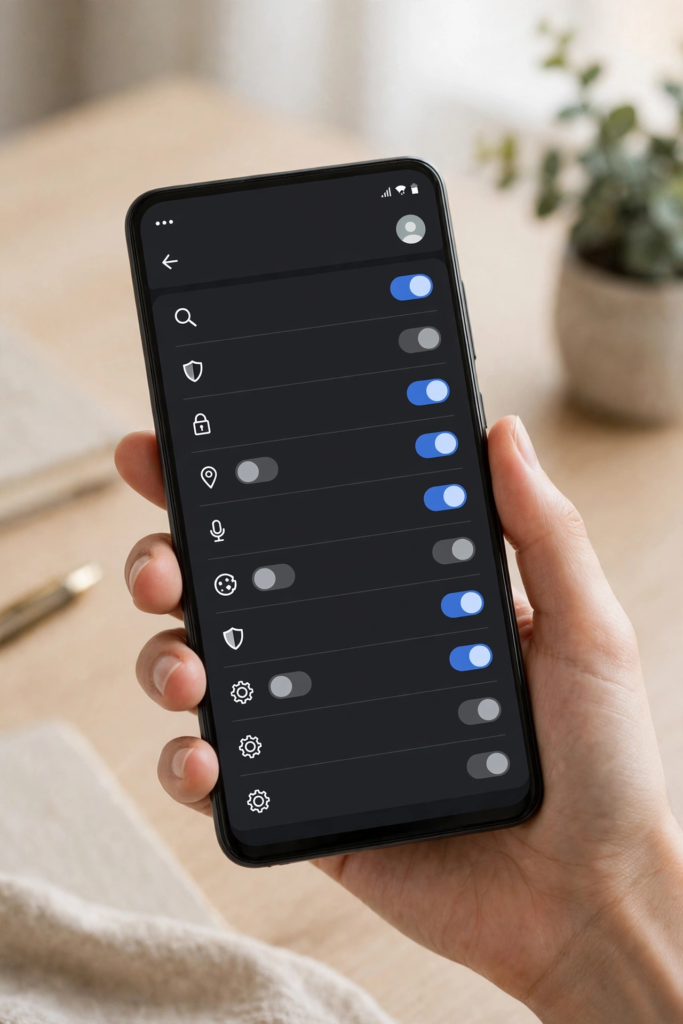
Learning how to delete google search history on android is one of the simplest privacy habits you can build, and it takes less than a minute once you know where the controls live. Every search you make in the Google app or in Chrome while signed in to your Google account is saved to your Google account activity. That history helps Google personalise results and suggestions, but it also builds a detailed record of what you have searched for, when you searched, and on which device. If you share your phone, sell it, lend it to a family member, or simply prefer a cleaner digital footprint, deleting that history regularly is a sensible step.
There is an important distinction to understand before you start: your Google search history is not the same thing as your Chrome browsing history. Search history is the record of the queries you typed into Google Search, and it is stored in your Google account under Web and App Activity. Browsing history is the record of the web pages you visited in Chrome, stored in the browser. Deleting one does not automatically delete the other, and this guide covers both, so that nothing is left behind by accident. It also covers auto-delete, which lets Google remove your activity automatically after three, eighteen or thirty-six months, so you do not have to remember to do it yourself.
Menus and option names vary slightly between phone brands and Android versions. Samsung, Pixel, Xiaomi and other manufacturers arrange Settings differently, and the Google app updates its layout from time to time. The steps below follow the standard layout used in 2026, and if a menu looks different on your phone, use the search box at the top of Settings or inside the Google app to find the option by name. You will need to be signed in to the Google account whose history you want to delete, and you should check that you are signed in to the right account if you use more than one, because history is stored per account, not per phone.
How to Delete Google Search History on Android in the Google App
The quickest way to learn how to delete google search history on android is inside the Google app itself. Open the Google app on your phone and tap your profile picture or initial in the top-right corner. In the menu that appears, tap Search history. This opens your search activity, showing your recent searches in reverse chronological order, grouped by day. From here you can delete a single search, a whole day, or a custom range. To delete one item, tap the cross or the three-dot menu next to that search and choose Delete. To delete a larger group, tap Delete at the top of the screen and choose your time range.
The time-range options are the key to doing this properly. You can delete the last hour, the last day, all time, or a custom range with a start and end date. If you are clearing history because you want a fresh start, choose All time. If you only want to remove something recent, for example searches you made while researching a surprise gift, choose Last hour or Last day so you keep the rest of your useful history intact. After you choose a range, Google shows a confirmation screen explaining what will be deleted; tap Delete to confirm. The items disappear immediately, although Google notes that it may take some time for the deletion to be fully reflected across all of its systems.
There is also a shortcut that many people miss. In the Google app, tap your profile picture, then tap Search history, and look for the Delete option with a small clock icon. Some versions of the app also show a “Delete last 15 minutes” quick option, which is ideal when you have just searched for something private and want it gone straight away. If you do not see it, your app may need an update through the Play Store, or the option may have moved in a newer layout. Updating the Google app is worth doing anyway, because privacy controls and activity screens change regularly, and an outdated app can hide the newest deletion options.
How to Delete Google Search History on Android in Chrome
If you search through Chrome on your Android phone, your queries are also saved, and deleting them from Chrome is a separate but equally simple process. Open Chrome, tap the three-dot menu in the top-right corner, and tap History. You will see a list of the pages you have visited, including Google search results pages. To delete individual entries, tap the cross next to each one. To clear a larger set, tap Clear browsing data at the top of the History screen, choose a time range such as Last hour, Last 24 hours, Last 7 days or All time, make sure Browsing history is ticked, and tap Clear data.
Be careful with the other tick boxes on the Clear browsing data screen. Cookies and site data and Cached images and files are separate from history. Clearing cookies will sign you out of most websites, which is inconvenient if you do not want to sign back in everywhere, so leave those boxes unticked unless you specifically want a full clean-up. The Advanced tab in the same screen lets you clear saved passwords, autofill data and site settings, but those are rarely part of a search-history clean-up and you should leave them alone unless you know you want them removed. The basic tab with browsing history ticked is all you need for this task.
It is worth knowing that deleting Chrome history on your phone also affects Chrome on other devices if you have Chrome sync turned on. When sync is active, your history is shared across your phone, tablet and computer under the same Google account, and deleting it on one device removes it from the synced set. If you want to delete history only on your phone without touching other devices, you can temporarily turn off sync in Chrome settings, but for most people the synced deletion is the desired behaviour, because it means the history is genuinely gone rather than still sitting on a laptop at home. For more on keeping your Google services tidy, see our guide to how to free up Gmail storage space, which covers another area where old Google data quietly accumulates.
How to Delete Google Search History on Android with My Activity
My Activity is the most powerful place to manage your search history, because it shows everything Google has saved, including searches made in the Google app, Chrome, YouTube, Maps and other Google services. To open it, go to your Google account page, tap Data and privacy, then scroll to History settings and tap My Activity. You can also open it from the Google app by tapping your profile picture, then Manage your Google Account, then Data and privacy, then My Activity. The page shows a timeline of your activity, with a search box at the top and filters that let you narrow by date or product.
From My Activity you can delete activity in several precise ways. Use the Delete drop-down to remove the last hour, the last day, all time, or a custom range, exactly as in the Google app. You can also use the search box to find activity containing a specific word and delete only those results, which is useful if you want to remove searches about one topic while keeping everything else. To delete a single entry, tap the three-dot menu next to it and choose Delete. To delete a full day, tap the trash icon next to that day’s date heading. This level of control is why My Activity is the best option when you want a thorough clean-up rather than a quick wipe.
One thing to check while you are in My Activity is which products are actually saving activity. Under History settings you will see Web and App Activity, Location History and YouTube History. Search history is controlled by Web and App Activity, but if you want a broader privacy reset you can review the others too. Turning off Web and App Activity stops Google saving future searches, but it does not delete what is already saved; you must still delete the existing history separately. Also remember that deleting activity from My Activity removes it from your account view, and Google says the deletion is applied across its systems, although some anonymised or aggregated data may be retained for service purposes. For the official explanation, see Google’s support page on deleting your search history.
How to Set Up Auto-Delete for Google Search History on Android
If you do not want to delete your search history by hand every few weeks, auto-delete does it for you. Open My Activity, tap the Web and App Activity card or go through Data and privacy, then History settings, then Web and App Activity. Look for the auto-delete option and choose how long Google should keep your activity: three months, eighteen months or thirty-six months. Once you pick a period and confirm, Google automatically deletes activity older than that, on a rolling basis, without you having to do anything else.
Choosing the right period is a balance between privacy and convenience. Three months keeps your history very short, which is best for privacy, but it also means Google has less of your activity to personalise results, suggestions and recommendations. Eighteen months is the default on many newer accounts and is a reasonable middle ground. Thirty-six months keeps the most history and the most personalisation. There is no single right answer, and you can change the setting at any time, so start with the shortest period you are comfortable with and adjust it later if you miss the personalised suggestions. Note that auto-delete only applies to activity from the date you turn it on; it deletes old activity gradually as it passes the chosen age, rather than wiping everything immediately.
Auto-delete is especially useful on a shared family phone or a phone you use for work and personal searches together, because it limits how far back anyone could look. It is also worth setting up on any secondary Google accounts you use, since the setting is per account. While you are reviewing these settings, it is a good moment to check the rest of your phone’s performance and storage, because a phone full of old data often feels slow for unrelated reasons. Our guide to how to speed up a slow Android phone walks through a full clean-up that pairs well with a history clear-out.
How to Delete Google Search History on Android for a Specific Time Range
Sometimes you do not want to delete everything. You may want to remove searches from one particular evening, one weekend, or one week while keeping the rest. The custom range option handles this precisely. In the Google app, go to your profile picture, then Search history, then Delete, then Custom range. Pick a start date and an end date on the calendar and confirm. In My Activity the same option is under the Delete drop-down, labelled Custom range. Google deletes only the activity inside those dates, leaving everything before and after untouched.
This is the right tool for the most common real-life reason people clear search history: removing a specific set of searches they do not want someone else to see, such as gift research, health questions, job hunting, or a surprise trip. It is also useful after lending your phone to someone, because you can delete just the period they used it. Be precise with the dates, and remember that activity is recorded in your account’s time zone, so if you searched late at night, the entry may fall on the next day’s date. When in doubt, widen the range by a day on each side; deleting a little extra history costs nothing, but missing the entries you meant to remove defeats the purpose.
If you are deleting history because you are preparing to sell or give away your phone, a custom range is not enough. In that case, delete all time, sign out of your Google account, and then factory reset the phone so no local data remains. A history deletion only removes the account record; the phone itself may still hold cached data, downloaded files and signed-in apps. Removing the account and resetting the device is the complete handover process. Our guide to how to check Android battery health is also worth a look before you sell a phone, since battery condition is one of the first things a buyer asks about.
What Happens When You Delete Your Google Search History
Deleting your search history removes those searches from your account activity, and Google stops using the deleted items to personalise your results. In practice, you may notice that search suggestions become less tailored for a while, autocomplete offers fewer personalised completions, and recommendations in the Google app and Discover feed feel more generic. This usually settles down as you build up new activity, and many people find the trade-off worthwhile. Your saved bookmarks, saved passwords and signed-in sessions are not affected by deleting search history, and your Google account itself is unchanged.
Deleting history does not delete your Google account, your emails, your photos, or your files in Drive. It also does not make you anonymous on the internet: websites you visit can still see your visit, your mobile network and Wi-Fi provider can still see traffic patterns, and Google services may still collect other kinds of data covered by separate settings, such as location or YouTube activity, unless you manage those too. Think of deleting search history as clearing one specific record, not as a complete privacy reset. If you want a broader reset, work through the History settings in your Google account one product at a time, and review app permissions in Android Settings as well.
There is also a common misunderstanding worth clearing up: deleting search history does not speed up your phone. Search history is stored in your Google account in the cloud, not as a heavy file on your device, so removing it has no meaningful effect on storage or performance. If your phone feels slow, the cause is more likely low storage, too many background apps, or an ageing battery, and those need different fixes. Clearing Chrome’s cached images and files can free some space, but that is separate from search history and is covered in the Chrome section above.
How to Pause Google Search History on Android
Deleting history removes the past; pausing it stops Google saving the future. To pause, open your Google account, go to Data and privacy, then History settings, then Web and App Activity, and turn the setting off. Google will ask you to confirm and may warn you that some features, such as personalised search results and recommendations, will work less well. You can also choose to pause only for certain products or to keep activity saving on but with auto-delete enabled, which is a middle path many people prefer.
Pausing is a good choice if you are about to do a block of searches you do not want recorded at all, such as researching a sensitive health matter or planning a surprise. Turn it off, do your searches, then turn it back on afterwards if you want personalisation to resume. Remember that pausing does not delete anything already saved, so combine it with a deletion of the relevant period if there is existing history you also want gone. Also check whether you have more than one Google account signed in on the phone, because the pause applies per account; you may need to repeat it on a second account if you search while signed in to that one.
Some people prefer to use Incognito mode in Chrome instead of pausing history. Incognito mode does not save browsing history or cookies on the device, and searches made in an Incognito tab are not saved to your Google account in the usual way, provided you are not signed in to a Google account inside that tab. However, Incognito is not invisible: your activity can still be visible to websites you visit, your employer or school, and your internet service provider. It is a useful tool for a quick private session, but it is not a substitute for managing your account history settings. For day-to-day privacy, a combination of auto-delete and occasional manual deletion is more reliable than relying on Incognito alone.
Fixing Common Problems When Deleting Search History on Android
If the Delete option does not appear, or deleted searches keep coming back, work through the likely causes in order. First, check that you are signed in to the correct Google account. Many people have a personal account and a work account on the same phone, and deleting history from one leaves the other untouched. In the Google app, tap your profile picture and check which account is active, then switch accounts and repeat the deletion if needed. Second, update the Google app and Chrome through the Play Store, because an outdated app can show an old layout where the Delete controls are in a different place or missing entirely.
Third, check whether Chrome sync is re-adding history. If you delete history on your phone but Chrome sync is on and another device still holds that history, it can sync back. Delete the history from My Activity, which is the account-level record, rather than only from one device’s local Chrome history, and make sure all devices signed in to the same account are updated. Fourth, if you are on a work or school account, your administrator may control activity settings, and some deletion options may be disabled or managed centrally. In that case, speak to your administrator, because the controls are not something you can override from the phone.
Finally, if a specific search will not delete, try deleting it from My Activity in a desktop browser rather than on the phone. Open My Activity on a computer, sign in to the same account, find the item and delete it there. The desktop view sometimes exposes controls that are harder to reach on a small screen. If the item still appears after deletion, wait a short while and refresh, because Google notes that deletion can take time to be reflected everywhere. For official troubleshooting steps, Google’s support page on managing your Google account activity is the best reference.
Frequently Asked Questions
How do I delete all my Google search history on Android at once?
Open the Google app, tap your profile picture, then Search history, then Delete, then All time, and confirm. Alternatively, open My Activity, use the Delete drop-down, choose All time, and confirm. This removes every saved search in that Google account.
Does deleting Google search history on Android delete my Chrome history too?
Not automatically. Search history lives in your Google account under Web and App Activity, while Chrome browsing history lives in the browser. Delete both separately: use the Google app or My Activity for search history, and Chrome’s History screen, then Clear browsing data, for browsing history.
Can I delete Google search history for just the last 15 minutes?
Yes, in many versions of the Google app there is a quick “Delete last 15 minutes” option under your profile picture and Search history. If you do not see it, use the Delete menu and choose Last hour, or use a custom range in My Activity covering the same period.
Does deleting my search history sign me out of Google?
No. Deleting search history does not sign you out of your Google account, and it does not delete your emails, photos, Drive files or saved passwords. It only removes the record of your searches from your account activity.
Can I stop Google saving my search history in future?
Yes. In your Google account, go to Data and privacy, then History settings, then Web and App Activity, and turn it off. This stops future searches being saved, but it does not delete history already saved, so delete that separately first.
Will deleting my search history affect my search results?
It can make results and suggestions less personalised for a while, because Google has less of your activity to learn from. Autocomplete and Discover recommendations may feel more generic until new activity builds up. This is normal and usually settles within days or weeks.
Why does my deleted search history keep coming back?
The most common causes are being signed in to the wrong account, Chrome sync restoring history from another device, or deleting only local browser history instead of the account-level record in My Activity. Delete from My Activity while signed in to the correct account, and check sync settings on your other devices.
Is auto-delete better than deleting history manually?
Auto-delete is more reliable because it runs without you remembering, and it keeps your history to a fixed age such as three or eighteen months. Manual deletion gives you immediate control for specific periods. Most people do best with auto-delete turned on plus an occasional manual deletion when they need something removed straight away.
Key Takeaways
- Search history and Chrome browsing history are different records; delete both if you want a complete clean-up.
- The fastest deletion is in the Google app: profile picture, Search history, Delete, then choose a time range or All time.
- My Activity gives the most control, including custom date ranges and searching for specific terms to delete.
- Auto-delete keeps your history to three, eighteen or thirty-six months automatically, so you do not have to remember.
- Pausing Web and App Activity stops future searches being saved, but it does not delete history already stored.
- Check you are signed in to the correct Google account, because history is stored per account, not per phone.
- Deleting history does not sign you out, delete your files, or speed up your phone; it simply removes the search record.
Conclusion
Now you know how to delete google search history on android in every way that matters: a quick wipe in the Google app, a thorough clean-up in Chrome, precise control in My Activity, and automatic protection with auto-delete. Start by deleting the history you no longer want, then turn on auto-delete so the job takes care of itself in future, and pause activity saving whenever you want a session to leave no record at all. Check which account you are signed in to before you begin, and remember to clear both search history and browsing history if you want nothing left behind. With those habits in place, your Android phone stays useful and personalised without keeping a longer record of your searches than you are comfortable with.