How to Fix Google Play Store Payment Errors on Android in 2026

Learning how to fix Google Play Store payment errors can save you from a frustrating loop of declined cards, vague error messages, and purchases that never complete. You tap Buy, the Play Store says your payment was declined or could not be processed, and you are left wondering whether the problem is your card, your bank, your Google account, or the Play Store itself. In most cases, the cause is simple: an expired card, a wrong billing address, a country mismatch, or a temporary hold from your bank. This guide walks you through each cause in order, from the quickest checks to the deeper fixes, so you can get back to buying apps, games, and subscriptions without guessing.
This guide covers the most common Play Store payment errors on Android in 2026, including declined cards, insufficient funds messages, errors when adding a payment method, and problems with family payments and subscriptions. You will learn how to check your card and bank, update your payment method in Google Play, clear the Play Store cache safely, remove and re-add a payment method, fix country and region problems, and contact Google support when nothing else works. Follow the steps in order and test a small purchase after each fix, so you know exactly which step solved the problem.
Common Google Play Store Payment Errors Explained
Related: Best Google Apps for Android Productivity in 2026
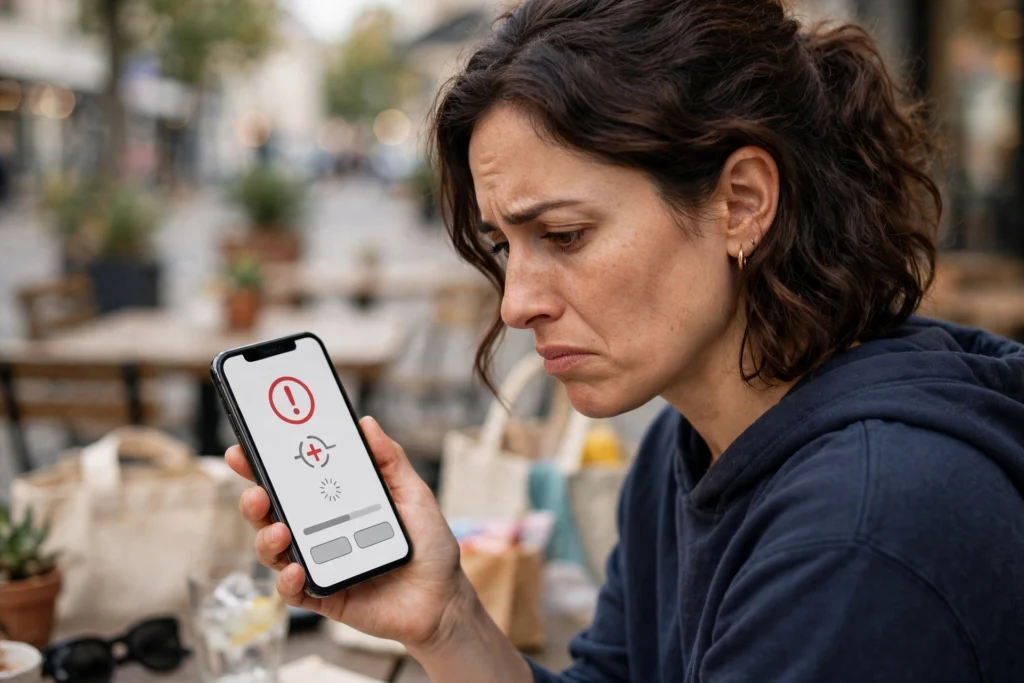
Play Store payment errors appear in several forms, and the message you see is often the best clue to the cause. “Your payment was declined” usually means your bank refused the transaction, often because the card has expired, the billing address does not match, or the bank flagged the purchase as unusual. “Insufficient funds” means the account does not have enough money for the purchase, including any tax or pending hold. “Payment method declined” can also appear when a card is blocked for online or international payments, which is common with some debit cards.
Other messages point to your Google account rather than your card. “This payment method is not valid in your country” or a country error usually means your Google Play country does not match the country where your card was issued. “Unable to process your payment” can mean a temporary Play Store problem, a problem with Google’s payment system, or a card that needs verification. “OR-CCSEH-05” and similar codes are Google payment error codes that often relate to a card that needs to be verified or re-added. You do not need to memorise every code; the fixes below cover the causes behind most of them.
Before you change anything, check whether the problem is on Google’s side. Visit the Google Play status page or search for Play Store outages, and try a different Wi-Fi or mobile data connection. If the Play Store itself is down or your connection is unstable, no card change will help. If other people are reporting the same error at the same time, wait an hour and try again. If the problem is only on your device and your account, work through the steps below.
How to Fix Google Play Store Payment Errors: Check Your Card and Bank First

Start with the simplest cause: the card itself. Open Google Play, tap your profile icon, tap Payments and subscriptions, and tap Payment methods. Check that the card you want to use is listed, that its expiry date is in the future, and that the last four digits match the card in your hand. If the card expired recently, your bank may have sent a replacement with a new expiry date and security code, and the old details in Google Play will keep failing until you update them.
Next, check the billing address. Tap the card in Payment methods, tap Edit, and compare the name, address, and postcode with the address your bank holds for you. A single wrong digit in a postcode or a house number can cause a decline, because banks check the billing address as part of the security check. If you moved house recently, update the address with your bank first, then update it in Google Play to match. The same applies to the name on the card: use the name exactly as it appears on the card.
Then check with your bank. Log in to your banking app and look for a declined transaction, a fraud alert, or a message asking you to confirm the purchase. Some banks block Play Store purchases by default for online or international payments, or they place a temporary hold after an unusual purchase. Call the number on the back of your card or use your banking app to confirm the payment and ask the bank to allow Google Play transactions. If you are using a debit card, check that it is enabled for online purchases, because some debit cards are set to in-store use only until you change the setting.
How to Update Your Payment Method in Google Play

If your card details are wrong or out of date, updating them in Google Play is the next step. Open Google Play, tap your profile icon, tap Payments and subscriptions, tap Payment methods, and tap the card you want to fix. Tap Edit to change the expiry date, security code, billing address, or name, and save the changes. If the card is no longer valid, tap Remove, then tap Add payment method and enter the new card details from scratch. Adding the card again forces Google to verify it, which often clears an old error.
You can also manage payment methods at Google Play payment methods on a computer, where it is easier to type a long address and check each field. Sign in with the same Google account you use on your phone, click Payment methods, and edit or add the card there. The changes sync to your phone within a few minutes. After you update a card, try a small purchase or a free app with an in-app purchase to test it, rather than retrying a large purchase straight away.
If you have more than one payment method, try a different one. Tap the price on the app or subscription page, tap the payment method shown, and choose another card or PayPal if it is available in your country. If the second method works, the problem is with the first card, not with your Google account. Keep the working method as your default until you have fixed the other card with your bank. For help with wallet and payment setup in the UK, see our guide on how to use Google Wallet on Android in the UK.
How to Fix Google Play Store Payment Errors by Clearing the Cache

A corrupted cache can stop the Play Store from processing payments correctly, even when your card is fine. Clearing the cache is safe and does not delete your apps, purchases, or account. Open Settings on your Android phone, tap Apps, tap See all apps, find Google Play Store, tap Storage and cache, and tap Clear cache. Then reopen the Play Store and try the purchase again. In many cases, this alone fixes a payment error that appeared after an app update or a failed purchase.
If clearing the cache does not help, clear storage as well, but understand what it does first. Clearing storage resets the Play Store app to its initial state, signs you out of the Play Store app, and removes its temporary data. It does not delete your installed apps or your Google account. After you clear storage, open the Play Store, sign in again if asked, and try the purchase. Do the same for Google Play services if the problem continues: open Settings, tap Apps, find Google Play services, tap Storage and cache, and tap Clear cache. Do not clear data for Google Play services unless Google support asks you to, because it can affect other apps.
After clearing the cache, restart your phone. A restart clears temporary system states that can interfere with payments, especially after a system update. Then open the Play Store, check that you are signed in to the correct Google account, and try the purchase once more. For a full walkthrough of clearing cache without losing data, see our guide on how to clear cache on an Android phone safely.
How to Fix Google Play Store Payment Errors by Removing and Re-Adding Your Payment Method
When a card keeps failing even though the details look right, removing it and adding it again often fixes the problem. Google may have stored an old verification state or an incomplete token for the card, and re-adding it creates a fresh one. To do this, open Google Play, go to Payments and subscriptions, tap Payment methods, select the card, and tap Remove. Confirm the removal, then tap Add payment method and enter the card details carefully, including the correct billing address and postcode.
Google may make a small temporary charge, often less than one pound or dollar, to verify the card. This charge is refunded automatically and should disappear from your bank statement within a few days. If the verification fails, check the security code and expiry date again, and make sure the card is not blocked for online use. If you are adding a card from a different country to the one set in your Google Play country, the add will fail, which is covered in the next section.
Do not remove and re-add the same card more than a few times in a short period, because repeated failed attempts can trigger a temporary block from your bank or from Google. If the card fails twice, stop, check the details with your bank, and try a different payment method or wait a few hours before trying again. If you use a virtual card or a card from a digital bank, check that the virtual card is active and that it has not been frozen or replaced since you added it to Google Play.
Fix Country and Region Mismatches
Country mismatches are one of the most common causes of Play Store payment errors, and they are also one of the most confusing. Google Play has a country setting that controls which apps, prices, and payment methods you can use. Your payment method must be issued in the same country as your Play country, and your billing address must match that country. If you moved to a new country, changed your address, or are using a card from another country, payments will fail until the countries match.
To check your Play country, open Google Play, tap your profile icon, tap Settings, tap General, and tap Account and device preferences. Your country is shown there. To change it, you need to be physically in the new country, have a payment method issued in that country, and update your Google Pay profile address to the new country. Google only lets you change your Play country once a year, so do not change it for a short trip. If you are travelling, wait until you return home before changing it, or use a payment method from your home country.
If you recently moved, update your Google Pay profile first. Go to Google Play country help, sign in, and check the country in your payments profile. Update the address to your new home, add a local payment method, and then change your Play country in the app. After the change, your old payment methods from the previous country may stop working, and some subscriptions may need to be cancelled and repurchased in the new country. This is normal, and it is better to fix it properly than to keep retrying a card that will never work in the wrong country.
Fix Family Payment and Subscription Errors
Family payment errors have their own causes. In a Google family group, only the family manager’s payment method can be used for family purchases, unless the family manager has set up a family payment method. If you are a family member and your own card is being declined for a shared purchase, check whether the purchase is set to use the family payment method. The family manager can check this in Google Play under Payments and subscriptions, then Family, and then Manage family payment method.
Subscription errors are often caused by a card that expired after the subscription started. Open Google Play, tap your profile icon, tap Payments and subscriptions, tap Subscriptions, and tap the subscription that failed. Check the payment method shown and update it to a working card. Google will usually retry the payment automatically within a few days, but you can also tap Update payment or Resubscribe to force a retry. If the subscription was cancelled because the payment kept failing, you may need to subscribe again after fixing the card.
For children in a family group, purchase approvals can also block a payment. If a child tries to buy an app and the parent does not approve it in time, the purchase fails. The parent should check their email or Google Family Link app for the approval request and approve it promptly. If approvals are not arriving, check that the parent’s email address is correct and that notifications for Family Link are turned on.
Error Codes and What They Mean
Google Play sometimes shows an error code instead of a clear message. The code OR-CCSEH-05 usually means the card needs verification or the payment profile has a problem. Try removing and re-adding the card, and check that the billing address matches your bank. Error OR-BIBED-01 and similar codes often mean the card was declined by the bank, so contact your bank first. Error BM-CPH-01 can mean a problem with your Google Pay profile, such as a missing address or a country mismatch, so check your payments profile on a computer.
Error 403 or a message that the purchase could not be completed can mean a temporary Play Store problem. Clear the cache, restart the phone, and try again on a different connection. If the same error appears for every purchase and every payment method, the problem is more likely with your Google account than with a single card. Check that your account is not restricted, that you have not exceeded a purchase limit, and that your Google Pay profile is complete with a name, address, and phone number.
Keep a note of the exact error code and message you see, because Google support will ask for it. Take a screenshot of the error screen, including the time and the app you were trying to buy. This helps support identify the cause faster than a general description. Do not keep retrying the same purchase many times in a row, because repeated declines can trigger a temporary block that makes the problem worse.
When to Contact Google Support
If you have checked your card, updated your payment method, cleared the cache, fixed the country, and the payment still fails, it is time to contact Google support. Open Google Play, tap your profile icon, tap Help and feedback, and tap Contact us. Choose the payment problem that matches your error, and follow the prompts to chat or request a callback. Have your order details, error code, and screenshot ready, and be ready to confirm the last four digits of the card and the billing address.
Google support can check whether your payments profile is flagged, whether a payment was blocked for security reasons, or whether a subscription needs to be reset. They cannot fix a bank decline, so if support tells you the bank refused the payment, go back to your bank with the exact time and amount of the failed transaction. If support finds a problem with your Google account, they can guide you through fixing it, which may include verifying your identity or updating your payments profile.
While you wait for a fix, you can use an alternative way to pay if it is available. Google Play gift cards work in many countries and can be redeemed in the Play Store to add credit to your account. PayPal is also accepted in many countries and can be added as a payment method in the same Payment methods menu. These are useful workarounds for a single purchase, but they do not fix the underlying card problem, so still work through the steps above.
Preventing Play Store Payment Errors in Future
Once your payment is working again, a few habits will stop the problem from returning. Keep your card details current in Google Play, and update them as soon as your bank sends a replacement card. Set a reminder to check the expiry date a month before it runs out. Keep your billing address in Google Play matched to your bank address, and update both when you move house. Keep only the payment methods you actually use, and remove old cards, expired cards, and cards from banks you no longer use.
Turn on purchase authentication in Google Play, so every purchase needs your fingerprint, face, or Google account password. This stops accidental purchases and makes it harder for someone else to use your payment method if they pick up your phone. Open Google Play, tap your profile icon, tap Settings, tap Authentication, and tap Require authentication for purchases. Choose For all purchases for the strongest setting. You can find official guidance on payment settings on the Google Play payment help pages.
Finally, keep the Play Store and Google Play services updated, and keep your Android system updated. Payment errors are sometimes caused by an outdated Play Store version that does not handle a new bank security check correctly. Turn on automatic updates for the Play Store in its settings, and check for system updates in Settings, then System, then System update. If you are running low on Gmail storage and cannot receive bank verification emails, our guide on how to free up Gmail storage space can help you clear space quickly.
Key Takeaways
- How to fix Google Play Store payment errors starts with checking the card expiry date, billing address, and bank approval before changing anything else.
- Update the payment method in Google Play or at play.google.com, and try a different card to tell whether the problem is the card or the account.
- Clear the Play Store cache safely, restart your phone, and re-add the card if it keeps failing.
- Make sure your Google Play country matches the country where your card was issued, and update your Google Pay profile when you move.
- For family and subscription errors, check the family payment method and update the card on the subscription itself.
- Note the exact error code, take a screenshot, and contact Google support if the bank says the card is fine but Play still declines it.
- Keep card details current, remove old cards, and turn on purchase authentication to prevent future errors.
Frequently Asked Questions
Why is my card declined on Google Play when it works elsewhere?
The most common reasons are a billing address mismatch, a card blocked for online or international payments, or a bank fraud check that flagged the Play Store purchase. Check the billing address in Google Play against your bank address, confirm the card is enabled for online purchases, and ask your bank to allow Google Play transactions. The card may work in shops but still be blocked online.
How do I update my payment method on Google Play?
Open Google Play, tap your profile icon, tap Payments and subscriptions, tap Payment methods, and tap the card to edit it or remove it and add a new one. You can also manage payment methods at play.google.com on a computer. After updating, test with a small purchase to confirm the new details work.
What does error OR-CCSEH-05 mean?
It usually means the card needs verification or there is a problem with your Google payments profile. Remove the card, re-add it with the correct billing address, and check that your payments profile has a complete name and address. If it still fails, contact Google support with the error code and a screenshot.
Can I change my Google Play country to fix a payment error?
Only if you have genuinely moved to a new country. You need to be in the new country, have a payment method issued there, and update your Google Pay address. You can only change your Play country once a year, so do not change it for a holiday. If you are travelling, use a card from your home country instead.
Will clearing Play Store data delete my apps?
No. Clearing the Play Store cache or storage does not delete your installed apps, purchases, or Google account. It resets the Play Store app and signs you out of the app, so you may need to sign in again. Your apps and purchases remain tied to your Google account and can be reinstalled from your library.
How do I fix a subscription payment that keeps failing?
Open Google Play, go to Payments and subscriptions, tap Subscriptions, tap the failed subscription, and update its payment method to a working card. Google will retry the payment automatically, or you can tap to retry it. If the subscription was cancelled, subscribe again after fixing the card.
Can I use PayPal or a gift card instead?
Yes, in many countries. PayPal can be added as a payment method in Google Play, and Play gift cards can be redeemed to add credit to your account. These are useful workarounds for a single purchase, but they do not fix a broken card, so still update the card details with your bank if you want to keep using it.
How long does a bank verification charge take to disappear?
A small temporary verification charge, often less than one pound or dollar, usually disappears within a few days. It is a hold, not a real purchase, and your bank should remove it automatically. If it is still there after a week, contact your bank with the date and amount of the charge.
Conclusion
Knowing how to fix Google Play Store payment errors is mostly about working through the causes in order: card, address, bank, payment method, cache, country, and account. Most errors are fixed in the first three steps, and the rest are usually a country mismatch or a card that needs to be removed and re-added. Keep your card details current, turn on purchase authentication, and note the exact error code if you need to contact support. With the steps in this guide, you can fix the error yourself in most cases and get back to buying apps, games, and subscriptions without the frustration of repeated declines.