Google Nest Hub Setup Guide 2026: Build Your Smart Home
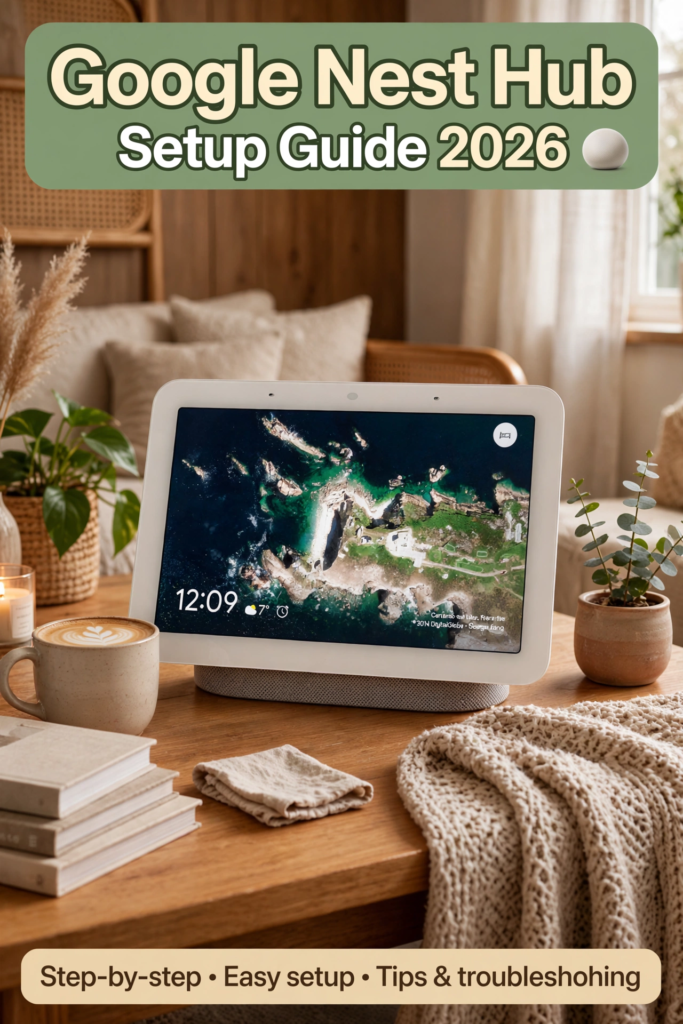
The Google Nest Hub is the friendliest front door into the smart home: a compact smart display that shows your photos, plays your music, controls your lights and thermostat, answers questions, and runs your morning routine — all with your voice or a tap. This complete google nest hub setup guide walks you through everything in 2026, from choosing the right model and unboxing to step-by-step setup, connecting smart devices, building routines, tightening privacy controls, and fixing the most common problems.
Whether this is your first smart display or you are adding a second Hub to the bedroom, you will have it fully running in about twenty minutes. Before we start, make sure your Google account is secured — our secure your Google account guide is worth five minutes since your Hub will be signed into it.
Which Nest Hub Model Should You Buy?
Google’s lineup is refreshingly simple. The Nest Hub (2nd gen) is the compact 7-inch model — perfect for a nightstand or kitchen counter, with sleep tracking via Soli radar and a speaker that punches above its size. The Nest Hub Max adds a 10-inch display, a camera for video calls and gesture controls, and noticeably bigger sound — better for living rooms and kitchens where you will watch videos. Browse current models and bundles on the Google Store.
Key differences that matter in 2026: the Max’s camera enables Duo/Meet video calls and face-based personalization, while the camera-free standard Hub is the privacy-conscious pick for bedrooms. Both run the same software, support the same smart home standards including Matter, and receive the same feature updates. Buy the size that fits the room, not the spec sheet.
Unboxing: What’s in the Box
Inside you will find the Nest Hub itself, a power adapter with a generously long cable, and a quick-start card. There is no remote, no batteries, no assembly — the device is a single sealed unit with a fabric-wrapped base. Place it where you will actually use it: the kitchen counter for recipes and timers, the nightstand for alarms and sleep tracking, or the living room for media control. Keep it within good Wi-Fi range of your router, away from microwaves and thick walls that degrade the signal.
Google Nest Hub Setup Guide: Step-by-Step
Step 1: Install the Google Home app
On your Android phone or iPhone, install the Google Home app and sign in with the Google account you want on the Hub. This account controls your calendar, photos, music subscriptions, and personalized results — choose wisely, because switching later means resetting the device. For app inspiration while you are at it, see our best Android apps of 2026.
Step 2: Plug in and power on
Connect the power adapter and place the Hub where you want it. It boots in under a minute and displays a welcome screen with a setup code. Keep your phone nearby with Bluetooth and location enabled — the Home app uses both to find the device.
Step 3: Add the device in Google Home
In the Google Home app, tap the + button, choose Set up device, then New device. The app should discover your Hub automatically; if not, make sure your phone is on the same 2.4GHz-capable Wi-Fi network you plan to use (most Hubs prefer 2.4GHz during setup even if they later use 5GHz). Confirm the four-digit code shown on the Hub matches the app, choose which “home” it belongs to, and pick the room.
Step 4: Connect to Wi-Fi
Select your Wi-Fi network and enter the password. This is the step where most setups stall: double-check the password, move the Hub closer to the router temporarily, and if your router has separate 2.4GHz and 5GHz network names, try the 2.4GHz one first — it penetrates walls better during initial setup.
Step 5: Personalization settings
The app will ask about Voice Match (recognizing your voice for personal results), Face Match (on the Max), and personal results (calendar, reminders, photos). Enable Voice Match for a truly personal assistant; leave personal results on only if you trust everyone who can see the screen. You can refine all of this later — the official Google Nest support center documents every toggle.
Step 6: Link your services
Connect your music service (YouTube Music, Spotify), video services (YouTube, Netflix, Disney+), and photo source (Google Photos albums for the ambient photo frame). Set your default TV if you have a Chromecast — saying “play Stranger Things” will then target the right screen automatically.
Step 7: Finish and test
Complete the tutorial cards and run a quick test: “Hey Google, what’s the weather today?” followed by “Hey Google, set a timer for five minutes.” If both work, your google nest hub setup guide journey is essentially complete — the rest is customization.
Connecting Smart Home Devices
This is where the Hub earns its keep. In the Google Home app, tap + > Set up device > Works with Google to link smart bulbs, plugs, thermostats, cameras, doorbells, and locks from Philips Hue, TP-Link, Ecobee, Ring, and hundreds more. In 2026, look for the Matter logo when buying new devices — Matter is the universal standard that guarantees cross-platform compatibility, and the Nest Hub works as a Matter controller and Thread border router.
After linking, assign each device to its room (“Living Room Lamp” in “Living Room”). Room assignment is what makes natural commands work: standing in the living room and saying “turn off the lights” targets that room’s lights. Name devices conversationally — “bedroom lamp” beats “TP-Link KL130_7F2A” every time.
Building Routines That Run Your Day
Routines chain multiple actions to a single command or schedule. In the Home app, go to Automations > Add and try these starter routines:
- “Good morning”: turns on bedroom lights, reads the weather and calendar, then plays the news.
- “I’m leaving”: turns off all lights, locks the door, sets the thermostat to eco mode, and arms cameras.
- “Movie time”: dims living room lights to 20%, turns on the TV, and sets phones to Do Not Disturb.
- Sunset routine: automatically turns on porch and hallway lights at sunset every day.
- Bedtime: locks doors, sets an alarm, plays white noise, and dims the display.
Household routines can be triggered by voice, schedule, sunrise/sunset, or device events (like a door sensor opening). Start with two or three; you will naturally expand them once you feel the convenience. Gemini-powered assistance, covered in our Google Gemini AI assistant guide, is making these routines steadily more conversational and capable.
Using It as a Photo Frame, TV Remote, and More
The Hub’s ambient photo frame mode is many owners’ favorite feature: it cycles through your Google Photos albums when idle, turning a gadget into a living picture frame. In Home app settings, choose specific albums (family, vacations) rather than your entire library to avoid awkward surprises when guests visit.
As a media controller, the Hub plays YouTube and music with voice commands, shows lyrics and album art, and — paired with a Chromecast — becomes a touch remote for your TV: pause, volume, and content search without hunting for the clicker. In the kitchen, it shines with step-by-step recipes (“Hey Google, show me a chicken curry recipe”), unit conversions, and multiple named timers.
Privacy Controls You Should Know
A microphone in your home deserves scrutiny. The Hub has a physical mic mute switch on the back — slide it and the microphone is electrically disconnected (an orange indicator confirms). Use it during sensitive conversations. In the Home app, review Digital Wellbeing filters to restrict content for kids, and visit your Google Account’s activity controls to auto-delete voice recordings every 3 months.
On the Hub Max, you can disable the camera with the same physical switch, turn off Face Match, and enable a “camera off” indicator. Remember that ultrasound-based presence sensing (used to show personalized info when you approach) can also be disabled if you prefer. Privacy is a spectrum — configure it to match your comfort, and revisit the settings quarterly since updates occasionally add new toggles.
Troubleshooting Common Problems
Hub won’t connect to Wi-Fi
Restart your router and the Hub, confirm the Wi-Fi password, and temporarily move the Hub within a few meters of the router. If your network uses WPA3-only security or MAC filtering, switch to WPA2 or whitelist the Hub’s MAC address (found in Home app device settings). Mesh networks occasionally confuse setup — try connecting through the nearest node.
“Hey Google” not responding
Check the mic mute switch first — it is the culprit more often than anyone admits. Then retrain Voice Match in the Home app (voices change, and retraining fixes most recognition drift), reduce background noise, and speak from within a few meters. If one person is consistently unrecognized, have them complete Voice Match on their own phone.
Smart device not responding
Ask the Hub to “sync my devices,” then check the manufacturer’s app — if the device is offline there too, the problem is the device, not the Hub. Re-link the manufacturer’s service in the Home app if commands fail after a password change. For Matter devices, ensure your Hub’s firmware is current, since Matter support improves with updates.
Display too bright at night
Enable Night mode in device settings: it dims the display, lowers the maximum volume, and turns off the camera (Max) on a schedule. Combined with the ambient light sensor, the Hub should never blast light across a dark bedroom.
Practical Tips for Power Users
- Broadcast messages: “Hey Google, broadcast dinner’s ready” announces to every Hub and speaker in the house — the modern intercom.
- Interpreter mode: “Hey Google, be my Spanish interpreter” enables real-time two-way translation.
- Guest mode: visitors can cast media without joining your Wi-Fi network.
- Continued Conversation: enable it so you can ask follow-up questions without repeating “Hey Google.”
- Speed up your phone: the Home app runs best on a responsive device — if setup feels sluggish, our guide on Android 16 features covers performance improvements in the latest OS.
- Check for firmware updates: the Hub updates automatically overnight, but a manual reboot forces a pending update to apply.
Key Takeaways
- This google nest hub setup guide gets you running in ~20 minutes: Home app, Wi-Fi, Voice Match, linked services, done.
- Choose the standard Hub for bedrooms (no camera) and the Hub Max for living rooms (video calls, bigger sound).
- Link smart devices via Works with Google and prefer Matter-certified gear for future-proofing.
- Routines are the real magic — automate mornings, leaving, bedtime, and movie nights.
- Use the physical mic switch, auto-delete voice recordings, and review privacy settings quarterly.
Google Nest Hub Setup Guide: Advanced Customization Ideas
Once the basics from this google nest hub setup guide are done, a few advanced tweaks take the experience further. Create a second Google Home “home” for a vacation property or office so devices stay organized, and use Home/Away routines with phone location sensing to automate everything when the last person leaves.
Power users of this google nest hub setup guide should also explore household contacts (so “call Mom” works for everyone), multiple timers with names (“set a pasta timer for 8 minutes and a sauce timer for 20”), and custom photo frame albums per Hub — kids’ photos in the hallway, landscapes in the bedroom. If you own multiple Hubs, set different default music services per room or enable media transfer (“move the music to the living room speaker”) to follow you through the house. Finally, revisit the Google Nest support pages after major software updates, since Google quietly adds features — like the newer Gemini-powered conversational abilities — that this google nest hub setup guide can only summarize as of 2026.
Frequently Asked Questions
How long does Nest Hub setup take?
About 15–20 minutes including Wi-Fi connection, account personalization, and linking your music and video services. Connecting smart home devices adds a few minutes per brand.
Does the Nest Hub work with iPhone?
Yes. Setup happens through the Google Home app for iOS, and all core features work. A few Android-exclusive niceties (like deeper phone integration) are unavailable, but the Hub experience is essentially identical.
Can the Nest Hub make video calls?
The Nest Hub Max can, via Google Meet, using its built-in camera. The standard Nest Hub (2nd gen) has no camera, so it supports voice calls only — a deliberate privacy design choice.
Do I need a subscription to use Nest Hub?
No. Core features — assistant, smart home control, photo frame, timers, music (with ads on free tiers) — are all free. Optional subscriptions like YouTube Premium or Spotify Premium remove ads and add features.
What is Matter, and why does it matter?
Matter is a universal smart-home standard backed by Google, Apple, Amazon, and Samsung. Matter-certified devices work across all major platforms, and your Nest Hub acts as a Matter controller — so buying Matter gear protects you from ecosystem lock-in.
Can I use Nest Hub as a baby monitor?
The Nest Hub Max’s camera can stream to your phone via the Home app, which some parents use as a basic monitor. For dedicated baby monitoring with alerts and lullabies, purpose-built monitors still do a better job.
How do I stop Google from saving my voice recordings?
In your Google Account, go to Data & Privacy > Web & App Activity and enable auto-delete (3 months recommended), or turn off voice activity saving entirely. The physical mic switch mutes the Hub instantly anytime.
Conclusion
With this google nest hub setup guide, your Hub should now be connected, personalized, and orchestrating your smart home. The real journey starts now: add one routine per week, link devices as you buy them, and let the Hub fade into the background of a home that increasingly runs itself. Twenty minutes of setup today buys years of small daily conveniences — welcome to the smart home done right.