How to Free Up Storage on Android Without Deleting Photos in 2026
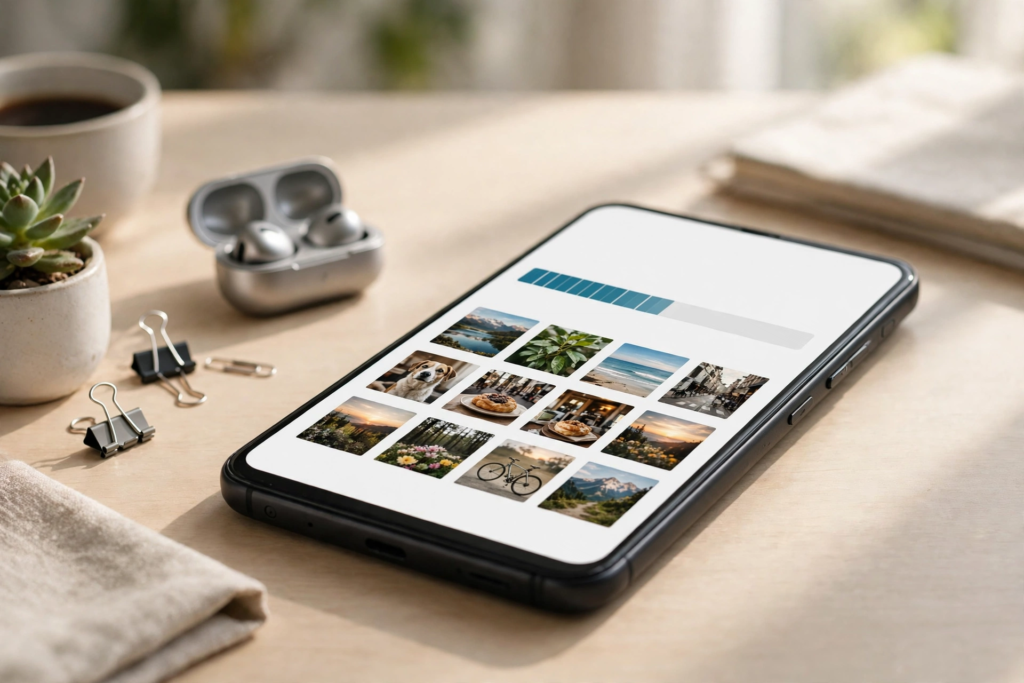
Nothing interrupts a good day faster than the “storage almost full” warning on your Android phone. It appears when you try to take a photo, install an update or download a video, and the usual advice is unhelpful: delete your photos. Your photos are memories, not clutter, and you should not have to lose them to make room. This guide shows you how to free up storage on Android without deleting photos, using safe, reversible steps that reclaim gigabytes in minutes, from clearing hidden cache files to moving your pictures to the cloud while keeping them visible on your phone.
Learning how to free up storage on Android without deleting photos is mostly about finding where the space has actually gone. On most phones, photos are not the biggest problem. The real culprits are app caches, downloaded files you forgot about, old videos, offline maps and music, and duplicate files created by messaging apps. Once you know where to look, you can free several gigabytes without touching a single photo, and you can set up your phone so the warning does not come back next month. Work through the steps below in order, checking your storage after each one, and stop as soon as you have enough free space.
First, See What Is Using Your Storage
Before deleting anything, open Settings, then Storage, and look at the breakdown by category. Android shows how much space is used by apps, photos and videos, audio, documents and system files, and many phones show a list of the largest apps. This single screen tells you where to focus: if apps take up forty gigabytes, clearing caches will help more than anything else; if documents and downloads are large, the Files app will be your best friend; and if the system itself is using a large share, a software update or a restart may help. Take a screenshot of this screen so you can compare before and after.
On Samsung Galaxy phones, the path is Settings, then Battery and device care, then Storage, which offers the same breakdown with a cleanup suggestion. On Pixel phones, Settings, then Storage shows the categories and offers a “Free up space” button that safely removes backed-up photos and files. The names vary slightly by manufacturer, but the principle is the same: measure first, then clean. Guessing wastes time and risks deleting something you wanted to keep, while a two-minute check points you at the biggest win immediately. If your phone is running low because of a full photo library, our guide to fixing Google Photos not backing up on Android is worth reading first, because a completed backup is what makes the later steps safe.
How to Free Up Storage on Android Without Deleting Photos: Clear App Cache Safely
The single most effective step in learning how to free up storage on Android without deleting photos is clearing app cache, and it is completely safe. Cache files are temporary copies of images, thumbnails and data that apps store to load faster. Over time they grow to several gigabytes, especially in browsers, social media apps and streaming services. Clearing the cache removes those temporary files but keeps your logins, settings and saved content, and the app simply rebuilds the cache as you use it again. It is not the same as clearing app data, which does erase your login and settings, so always choose cache, never data, unless you are prepared to sign in again.
To clear cache for one app, open Settings, then Apps, choose the app, tap Storage, and tap Clear cache. Start with the biggest offenders: Chrome, social media apps, streaming apps and shopping apps are usually the largest. A browser can hold more than a gigabyte of cached images, and a social media app that auto-plays videos can hold even more. Clear the cache on your five largest apps first, then check your storage again. Many people recover two to five gigabytes from this step alone, and you can repeat it monthly because the cache will build up again with normal use. If Chrome is one of your biggest apps, our guide to fixing Google Chrome running slow on Android covers cache and other speed fixes in detail.
Use the built-in storage cleaner
Most Android phones include a storage cleaner that finds junk files, duplicate files and large unused apps for you. On Pixel phones, tap “Free up space” in the Storage settings. On Samsung phones, Device care offers a cleanup that removes unnecessary files and suggests apps you have not used in months. On other brands, the Files by Google app offers a Clean tab with suggestions for junk files, large files, duplicates and backed-up media. These tools are safe when you review their suggestions before confirming, because they only select files Android considers disposable. Never approve a suggestion you do not understand, and never let a cleaner delete photos that have not been backed up yet.
How to Free Up Storage on Android Without Deleting Photos: Back Up First
Backing up your photos is the key to freeing space without losing anything, because once a photo is safely stored in the cloud, the copy on your phone becomes optional. Google Photos offers backup to your Google account, and when backup is complete you can use the “Free up space” option to remove the device copies while keeping the photos visible in the app, ready to view or download whenever you need them. The photos are not deleted: they remain in your Google Photos library, searchable and shareable, and they reappear on your phone if you download them again. This is the single biggest space saver for most people, and it is the step that makes the title of this guide possible.
Before you free up space, confirm the backup is genuinely complete. Open Google Photos, tap your profile picture, and check the backup status. It should say “Backup complete” with today’s date. If it says backup is still in progress or paused, connect to Wi-Fi, plug in the charger and wait. Only when the status confirms completion should you tap “Free up space”. If you use a limited Google storage plan, check how much space your account has left first, because photos and videos count towards your Google account storage. Google’s support pages at Google One support explain the storage plans and how to check your usage, and you can upgrade or manage your plan there if needed.
For extra safety, keep a second copy of your most important photos elsewhere as well. Our guide to backing up Google Photos to an external hard drive explains how to download your library to a computer or a drive, so you have a copy that does not depend on any single service. A second copy costs nothing but a little time, and it protects the photos that matter most: family events, holidays and pictures that cannot be taken again.
Choose the right backup quality
Google Photos offers a storage saver option that compresses photos and videos slightly to use less space, and an original quality option that keeps every pixel. Storage saver is enough for most people and uses noticeably less cloud storage, while original quality suits photographers who want the full file. You can change this setting in Google Photos under Settings, then Backup, then Backup quality. If you are short on Google account storage, switching to storage saver for future uploads and checking what is already stored can free a surprising amount of room without deleting a single picture.
Offload Apps You Rarely Use
Apps are the largest category of storage on most phones, and many of them are barely used. Open Settings, then Storage, then Apps, and sort by size. You will often find games, streaming apps and shopping apps taking up a gigabyte or more each, even though you open them once a month. Uninstall the ones you do not need: you can reinstall any app from the Play Store in under a minute, and your account data usually stays on the provider’s servers, so you will not lose your history or purchases. Start with games you have finished, duplicate apps that do the same job, and apps you installed for a single trip or event.
For apps you want to keep but rarely open, check whether they store large amounts of offline content. Streaming apps often download shows and films for offline viewing, music apps store downloaded playlists, and map apps store offline maps for whole regions. Open each app’s settings and look for downloads or offline content, then delete the items you have already watched or no longer need. A single downloaded film can use several gigabytes, and a playlist of downloaded albums can use more. Clearing these downloads frees space instantly and does not affect your account, your playlists or your watch history.
Also check for pre-installed apps you never use. Some can be uninstalled, others can only be disabled, but disabling stops them updating and frees the space their updates occupied. Go to Settings, then Apps, choose the app and tap Disable if Uninstall is not available. Be careful with system apps you do not recognise, and leave anything related to the phone, messaging or the Play Store alone. When in doubt, search for the app’s name before disabling it, or leave it untouched and focus on the large apps you installed yourself.
Clean Up Downloads, WhatsApp and Messaging Files
The Downloads folder is a graveyard of forgotten files: PDFs, installation files, documents and images you downloaded once and never opened again. Open the Files app, tap Downloads, sort by size, and delete the large files you no longer need. The same applies to documents and installation files elsewhere in storage. Be careful with files you may need later, such as tickets, boarding passes or contracts, and move those to Google Drive or email them to yourself before deleting the local copy.
Messaging apps are a hidden storage hog. WhatsApp, Telegram and similar apps save every photo, video and voice note you receive, and group chats can add hundreds of megabytes a week. In WhatsApp, open Settings, then Storage and data, then Manage storage, to see which chats use the most space and delete large videos and forwarded files you no longer need. You can also change the settings so media is not saved automatically, and set videos to download only on Wi-Fi or only when you tap them. Doing this stops the problem growing again, which is just as important as cleaning up once. The same check in Telegram and other messaging apps will often reveal gigabytes of cached media.
Move Files to the Cloud and an SD Card
Cloud storage is the easiest way to keep files accessible without keeping them on your phone. Google Drive stores documents, PDFs and files that you can open from any device, and removing the local copy frees space immediately. Move large documents, work files and videos you rarely watch to Drive, then delete the local copies once you have confirmed they are uploaded. Google Drive is available at Google Drive support if you need help with uploads or sharing settings, and the Files app can move items to Drive directly.
If your phone has a microSD card slot, a memory card is a cheap way to add storage for photos, videos and music. Move your media to the card through the Files app or the camera settings, and set the camera to save new photos to the card in future. Not all phones support microSD cards, and the card is slower than internal storage, so it suits media and documents better than apps. Buy a reputable brand and a card rated for your phone, because a cheap card can be slow and unreliable. If your phone has no card slot, cloud storage and regular cleanups are the better long-term answer.
Clear Browser Data and Offline Content
Your browser stores cached images, cookies and downloaded files, and over months that cache can grow to more than a gigabyte. In Chrome, open Settings, then Privacy and security, then Delete browsing data, and clear cached images and files for all time. Keep cookies and site data unless you are happy to sign in to websites again, because clearing cookies logs you out everywhere. Do the same in any other browser you use, and check the downloads folder inside the browser for files you no longer need.
Offline content hides in several places beyond the browser. Map apps store downloaded regions, podcast apps store downloaded episodes, and music apps store downloaded playlists. Open each app and check its downloads section, deleting anything you have already listened to or watched. Podcast apps in particular can accumulate dozens of old episodes automatically, so set them to keep only the latest few episodes and delete the rest. These small cleanups add up quickly, and together they often free more space than the photo library ever would.
Stop Storage Filling Up Again
Freeing space once is easy; keeping it free needs a few habits. Turn on automatic backup in Google Photos so the “Free up space” option stays available, and set messaging apps to avoid saving media automatically. Review your largest apps once a month and uninstall anything you have not opened in thirty days. Set streaming and podcast apps to limit their downloads, and clear your browser cache monthly. These habits take a few minutes a month and prevent the storage warning from returning at the worst possible moment.
Also keep your phone’s software updated, because updates often improve storage management and fix bugs that waste space. Restart your phone occasionally, because a restart clears temporary files and lets the system tidy up. And if your phone is still short of space after every step in this guide, consider whether a larger storage model is worth it at your next upgrade. A phone with 256GB rather than 128GB costs more upfront but removes the problem for years, and it is cheaper than the time lost managing a full device. If you are choosing a new handset, our guide to the best budget Android phones in the UK includes storage options worth comparing.
What Not to Delete
Some files should never be deleted in a storage cleanup. Never clear app data for apps you rely on unless you are prepared to sign in again and lose offline content, because clearing data is very different from clearing cache. Never delete the Android system folder, the DCIM folder’s contents before backup, or files in folders you do not recognise. Never use a third-party cleaner app that promises to free space automatically, because many of them delete useful files, show adverts and request permissions they do not need. The built-in Android tools and the Files by Google app are safer and more effective than any third-party cleaner.
Also be careful with photos that have not finished backing up. If you delete a photo from your phone before Google Photos has uploaded it, the photo is gone. Always confirm “Backup complete” before freeing up space, and keep a second copy of irreplaceable photos on a computer or external drive. The same caution applies to videos, which take longest to back up and are the most likely to be interrupted by a weak Wi-Fi connection. Patience here protects memories that cannot be replaced.
Frequently Asked Questions
How do I free up storage on Android without deleting photos?
Clear app caches, delete downloaded files and offline content, uninstall unused apps, and back up your photos to Google Photos, then use the “Free up space” option to remove the device copies while keeping them in your cloud library. These steps usually free several gigabytes without deleting a single photo.
Is it safe to clear cache on Android?
Yes. Clearing the cache removes temporary files that apps rebuild as you use them, and it does not delete your logins, settings or saved content. Do not confuse it with clearing app data, which erases your login and settings and should only be done if you are prepared to set the app up again.
Will “Free up space” in Google Photos delete my photos?
No, provided backup is complete. “Free up space” removes the copies stored on your phone but keeps the photos in your Google Photos library, where you can view or download them at any time. Always confirm the backup status says “Backup complete” before using it, and keep a second copy of irreplaceable photos elsewhere.
Why is my Android storage full even though I have few apps?
System files, app caches, downloaded media from messaging apps, offline maps and music, and cached data from browsers and social media apps all use space without appearing as apps. Check Settings, then Storage, for the full breakdown, and look at the largest categories before deleting anything.
How much free space should I keep on my Android phone?
Try to keep at least ten percent of your storage free, or at least five gigabytes on a 128GB phone. Android needs free space for updates, app installations and temporary files, and performance suffers when storage is almost full. If you regularly drop below that level, a monthly cleanup or a phone with more storage is worth considering.
Does an SD card help with Android storage?
Yes, if your phone supports one. A microSD card is a cheap way to store photos, videos and music, and you can set the camera to save new photos to the card. It is slower than internal storage, so it suits media better than apps, and you should buy a reputable brand for reliability.
Can I move apps to an SD card?
Some Android phones allow moving parts of an app to an SD card, but many modern phones do not support this, and moved apps run slower. It is usually better to uninstall apps you rarely use and rely on cloud storage and the SD card for media. Check your phone’s settings to see whether the option exists for your model.
Key Takeaways
- Check Settings, then Storage first, so you clean the categories that actually use the most space instead of guessing.
- Clearing app cache is safe and often frees two to five gigabytes, but never confuse it with clearing app data.
- Back up your photos to Google Photos, confirm “Backup complete”, then use “Free up space” to remove device copies while keeping them in the cloud.
- Uninstall unused apps and delete offline downloads from streaming, music, map and podcast apps, which often hide gigabytes.
- Clean the Downloads folder and manage WhatsApp storage, so messaging media stops filling your phone silently.
- Move documents to Google Drive and media to an SD card where supported, and set messaging apps to avoid automatic media saving.
- Keep at least ten percent of your storage free, and repeat a short cleanup monthly to stop the warning coming back.
Conclusion
You do not have to choose between your photos and a working phone. Knowing how to free up storage on Android without deleting photos comes down to finding the real culprits, clearing cache and downloads safely, backing up your pictures before touching them, and building a few habits that keep storage under control. Work through the steps in this guide in order, check your storage after each one, and stop when you have enough free space. Your photos stay safe, your phone runs better, and the storage warning becomes a rare visitor instead of a weekly interruption.
Updated November 2026.