How to Set Up Google Password Manager on Android and Chrome in 2026

Learning how to set up Google Password Manager is one of the simplest and most effective steps you can take to protect your online accounts in 2026. Most people still reuse the same password across many websites, write passwords on paper, or reset them constantly because they cannot remember them. Google Password Manager solves all three problems at once. It is built into Android and Google Chrome, it is free with your Google account, and it can create, save, fill in, and check strong unique passwords for every site you use. Once it is set up properly, you will rarely need to type a password again, and your accounts will be far harder for attackers to break into.
In this guide, you will learn exactly how to set up Google Password Manager on Android and on Chrome for Windows, Mac, and Chromebook. You will also learn how to save and import passwords, switch on passkeys, run a password checkup, control autofill settings, share a password safely with a family member, and avoid the common mistakes that leave even a good password manager less secure than it should be. The steps are written for the current versions of Android and Chrome in 2026, so you can follow them on a new phone or on a computer you have used for years.
What Is Google Password Manager?

Google Password Manager is Google’s built-in tool for storing and filling in usernames, passwords, and passkeys. On Android, it lives inside your Google account settings and works across apps and Chrome. On a desktop computer, it lives inside Chrome settings and works on every website you visit in Chrome. Your saved passwords sync across your signed-in devices, so a password saved on your phone is available on your laptop, and a passkey created on your laptop can be used on your phone.
Unlike a password written in a notebook or saved in a browser without a lock, Google Password Manager encrypts your saved data and ties access to your Google account security. That means your device screen lock, your Google account password, and two-step verification all help to protect your saved passwords. You can also ask Google to check your saved passwords for weaknesses, reuse, and known data breaches, and it will warn you when a password needs changing.
The tool also creates strong passwords for you. When you sign up for a new account, Chrome can suggest a long random password, save it automatically, and fill it in the next time you sign in. This removes the hardest part of good password hygiene, which is inventing and remembering a different password for every site. You do not need to install a separate app to use it, although you can open your saved passwords at passwords.google.com from any browser when you are signed in.
How to Set Up Google Password Manager on Android
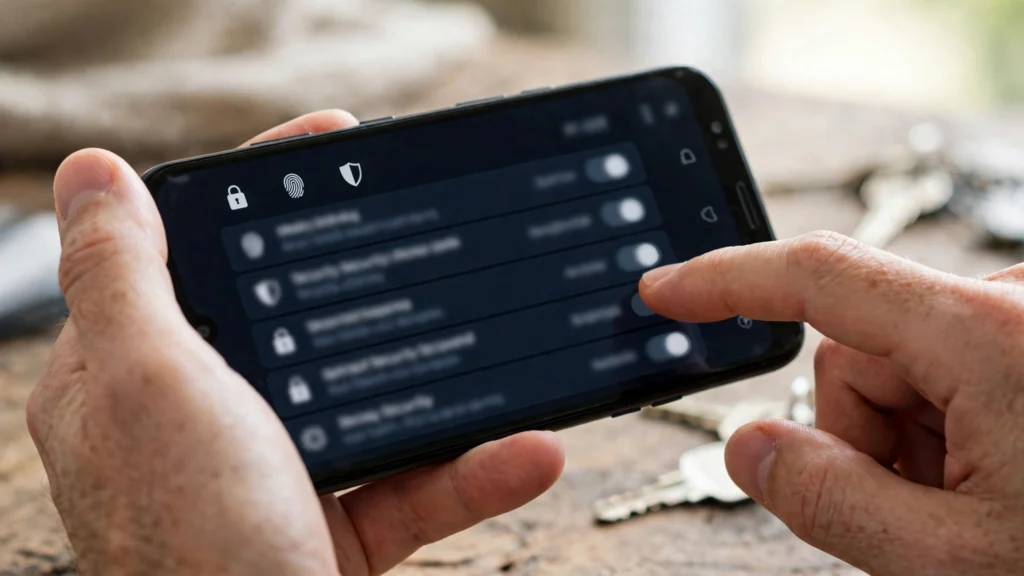
Setting up Google Password Manager on Android takes only a few minutes, and most of the work is checking that the right switches are turned on. The exact menu names can vary slightly by phone maker, but the path below works on Pixel, Samsung, and most other Android phones running a recent version of Android in 2026.
Step 1: Sign in to your Google account
Open Settings on your Android phone, tap Google, and confirm that you are signed in to the Google account you want to use for passwords. If you use more than one Google account, choose the main one you use for Chrome and the Play Store, because that is the account your passwords will sync to. If you are not signed in, tap Sign in and complete the sign-in with your password and two-step verification.
Step 2: Turn on Password Manager and autofill
Still in Settings, tap Google, then tap Autofill, and then tap Autofill with Google. Make sure the switch is on. This tells Android to offer saved usernames and passwords when you open an app or a website. Next, go back and tap Password Manager, or open Chrome, tap the three-dot menu, tap Settings, and then tap Password Manager. Confirm that the service is active for your account and that you can see the list of saved passwords, which may be empty if you are starting fresh.
Step 3: Set Google as your autofill service
Some phones offer more than one autofill service. To make sure Google Password Manager is the one that appears, open Settings, search for Autofill service, and select Google. On Samsung phones, you may find this under General management, then Passwords and autofill, then Autofill service. Once Google is selected, your phone will suggest saved logins in apps and in Chrome, and it will offer to save new logins when you create them.
Step 4: Check your screen lock and biometrics
Google Password Manager relies on your phone lock to keep other people out. Open Settings, tap Security and privacy, and then tap Device lock or Screen lock. Set a PIN, pattern, or password if you do not have one, and turn on fingerprint or face unlock if your phone supports it. This matters because anyone who can unlock your phone could open your saved passwords, so a strong lock is not optional. You should also make sure your Google account itself has two-step verification switched on, which you can check in your Google account security settings.
Step 5: Test saving and filling a password
Open Chrome on your phone and sign in to a website you already use, or create a test account on a site you trust. When you type a new password, Chrome should show a prompt asking if you want to save it. Tap Save. Then sign out, return to the sign-in page, tap the username field, and choose the saved login from the suggestion above the keyboard. If the details fill in correctly and you can sign in with one tap, your Android setup is working. If no prompt appears, return to Chrome Settings, tap Password Manager, tap Settings, and make sure Offer to save passwords is turned on.
How to Set Up Google Password Manager in Chrome on Desktop
Related: How to Use Chrome Password Checkup on Android in 2026
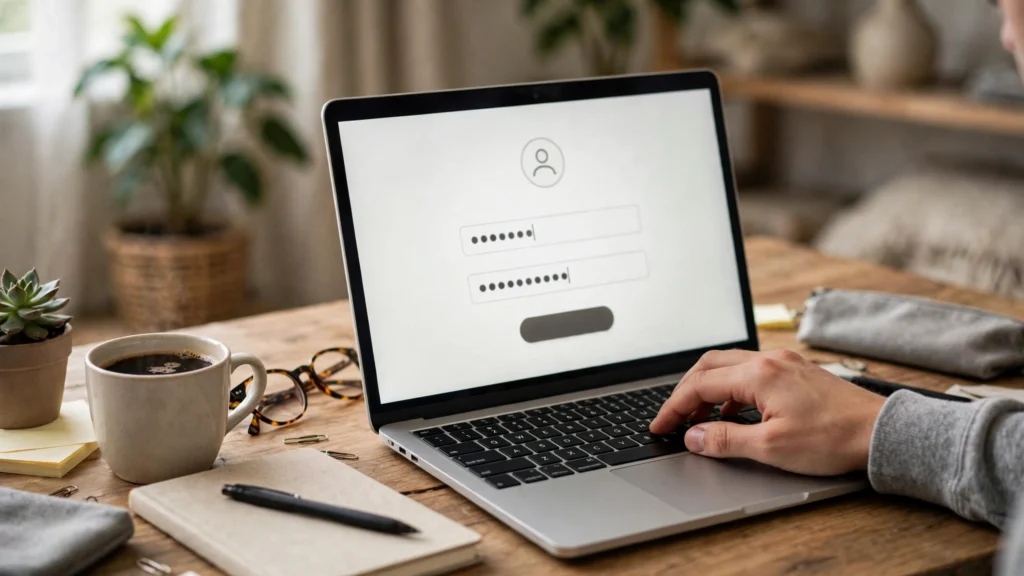
Setting up Google Password Manager in Chrome on a computer follows the same idea: sign in, turn on saving and autofill, and test it on a real site. The steps below work on Windows, Mac, and Chromebook.
Step 1: Sign in to Chrome
Open Chrome, click the profile icon in the top-right corner, and sign in with the same Google account you use on your phone. Signing in to Chrome is what turns on sync, so your passwords, bookmarks, and settings follow you between devices. If you have been using Chrome without signing in, signing in now will start syncing your saved passwords to your Google account, which is what makes them available on Android as well.
Step 2: Open Password Manager settings
Click the three-dot menu in the top-right corner, click Settings, and then click Autofill and passwords, followed by Google Password Manager. You can also type chrome://password-manager/settings into the address bar. On this page, you will see toggles for Offer to save passwords and Sign in automatically. Turn both on. Offer to save passwords makes Chrome ask to save each new login, while Sign in automatically lets Chrome fill in saved details without asking every time.
Step 3: Turn on sync and check your options
In Chrome Settings, click You and Google, then click Sync and Google services. Make sure Sync is on and that Passwords is selected in the list of synced data. If you use a custom sync passphrase, you will need to enter it before passwords sync to a new device. This is an extra layer of protection, but it also means you must remember that passphrase, so keep it somewhere safe. You can find full guidance on the official Google Chrome password help pages if a setting looks different on your version of Chrome.
Step 4: Set up on-device encryption if you want extra protection
Chrome offers on-device encryption for saved passwords, which means your passwords are encrypted on your device before they are sent to Google. To check it, open Google Password Manager, click Settings, and look for the encryption option. Turning this on adds a small step when you sign in to Chrome on a new device, because you will need your device password or Google account password to unlock the saved data. For most people, the default protection is enough, but on-device encryption is a sensible choice if you share a computer or want the strongest available setting.
Step 5: Test it on a website
Visit a site you use regularly, sign out, and sign back in. Chrome should fill in your username and password automatically or offer the saved login when you click the field. When you create a new account, Chrome should suggest a strong password and offer to save it. If the suggestion does not appear, click the password field and look for the Suggest strong password option. Save the login when Chrome asks, and check that it appears in Google Password Manager afterwards.
How to Save, Edit, and Delete Passwords
Once Google Password Manager is set up, managing passwords becomes routine. When you sign in to a new site and Chrome or Android asks if you want to save the password, tap Save or click Save. The login is stored with the website address, your username, and the password. You can view it later by opening Google Password Manager, searching for the site, and tapping the entry. You will need to unlock your device or enter your Google account password to see the password in plain text, which is a deliberate security step.
To edit a saved password, open the entry in Password Manager, tap Edit, change the username or password, and tap Save. Do this after you change a password on a website, so the saved copy stays in sync. If Chrome keeps filling in an old password, it almost always means the saved entry was not updated. To delete a password you no longer need, open the entry and tap Delete. You can also delete several entries at once on the desktop version by selecting them in the list.
If you change a password on a site and Chrome offers to update the saved password, accept the update straight away. If it does not offer, change the password on the site first, then update the saved entry by hand. Keeping saved passwords current is what stops the frustrating loop of failed sign-ins and repeated password resets, and it is worth doing carefully for banking, email, and shopping accounts first.
How to Import Passwords from Another Browser or Manager
Many people switch to Google Password Manager from another browser or from a separate password manager. Importing saves you from retyping dozens of passwords by hand, and it is supported on Chrome for desktop. Start by exporting your passwords from your old browser or manager as a CSV file. In Chrome, that usually means opening the old browser’s password settings, choosing Export, and saving the file to your computer. In a third-party manager, look for an export or backup option in its settings.
Next, open Chrome on your computer, go to Google Password Manager, click Settings, and then click Import passwords. Choose the CSV file you exported and confirm the import. Chrome will read the site, username, and password columns and add each entry to your Google account. After the import, open Password Manager and check a few entries to make sure the usernames and passwords landed in the right fields. Then delete the CSV file from your computer, because a plain-text file full of passwords is a serious security risk if anyone else gains access to your device.
If you are moving from a browser that stores passwords locally without a CSV export, you can often import directly from that browser during Chrome setup. Chrome can import saved passwords from Edge, Firefox, Safari, and other browsers when you first install it or from the import settings page. Try that route first if a CSV export is not available. After any import, run a password checkup, which is covered below, to find duplicates and weak passwords the import brought with it.
How to Set Up Google Password Manager Passkeys
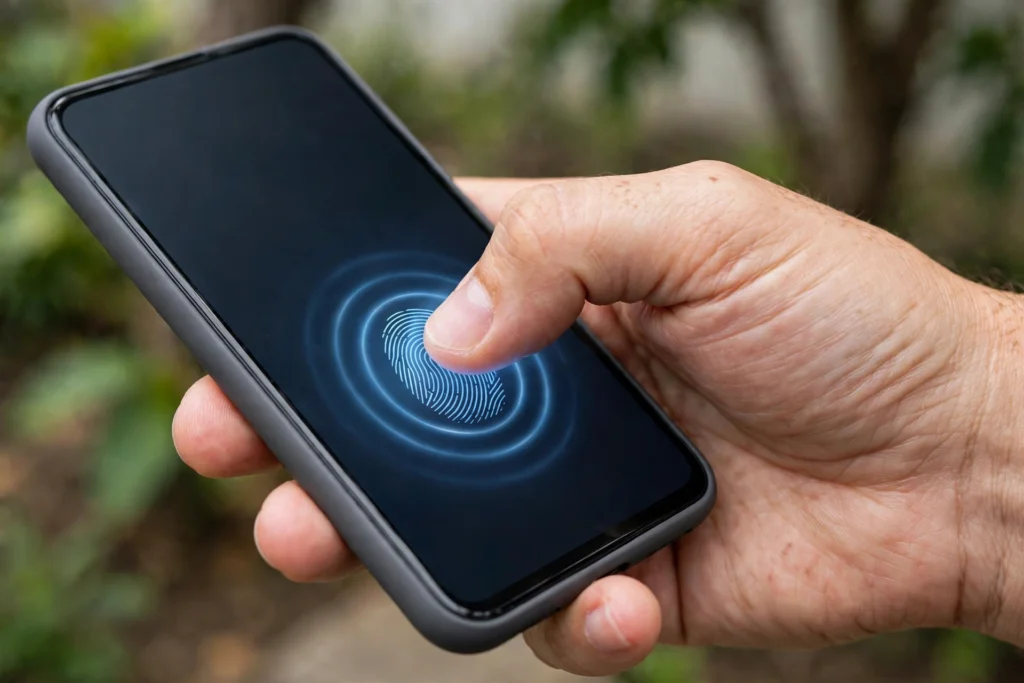
Passkeys are the modern replacement for passwords on many sites. Instead of a password you have to remember, a passkey is a secure credential stored on your device and unlocked with your fingerprint, face, or PIN. Google Password Manager can create and store passkeys, sync them across your Android and Chrome devices, and fill them in when you sign in. In 2026, Google, Microsoft, Apple, Amazon, and many banks and shopping sites support passkeys, and the list keeps growing.
To create a passkey for your Google account, sign in to your Google account on your phone or computer, go to Security, and look for the passkey option under How you sign in to Google. Follow the prompts to create a passkey on your device. You will be asked to confirm with your fingerprint, face, or screen lock. Once it is created, you can sign in to Google with the passkey instead of typing your password, and you can use it on other devices by scanning a QR code with your phone.
To create a passkey on another website, sign in to that site, open its security or account settings, and look for Passkey, Sign in with a passkey, or Add a passkey. When you choose to create one, Chrome or Android will ask if you want to save the passkey in Google Password Manager. Tap Save, confirm with your biometrics, and the passkey is stored. The next time you sign in to that site, you will see a passkey option instead of a password field. If a site does not yet offer passkeys, keep using a strong saved password and check back later, because support is being added all the time. For more on securing your Google account with modern sign-in methods, see our guide on how to secure Gmail with passkeys.
How to Run a Password Checkup
A password checkup is one of the most useful features in Google Password Manager, and it is worth running every few months. It reviews every saved password and flags three problems: passwords that have appeared in a known data breach, passwords that you reuse across more than one site, and passwords that are weak because they are short, simple, or easy to guess. Fixing these three problems removes most of the risk that a single breach exposes many of your accounts at once.
To run a checkup on Android, open Chrome, tap the three-dot menu, tap Settings, tap Password Manager, and then tap Checkup. On a computer, open Google Password Manager in Chrome and click Checkup in the left-hand menu. You can also go directly to Google Password Checkup and sign in. Google will show a summary with the number of compromised, reused, and weak passwords, and a list of the affected sites.
Work through the list starting with the compromised passwords, because those are the most urgent. For each one, click or tap the entry, open the site, change the password to a new strong password suggested by Chrome, and let Google Password Manager save the new version. Then move to reused passwords and give each site its own unique password. Weak passwords come last, but do not leave them for months. Changing a password takes only a few minutes per site, and after the checkup your summary should show far fewer warnings. Set a reminder to repeat the checkup every three months.
Autofill Settings You Should Know About
Autofill is what makes Google Password Manager feel fast, but it has several settings worth understanding. On Android, you can control which service fills in passwords, whether Chrome offers to save new logins, and whether biometric confirmation is needed before a password is filled. On desktop Chrome, you can control whether Chrome signs you in automatically, whether it offers to save passwords, and whether it shows the password manager shortcut in the toolbar.
A useful setting to check is the requirement to confirm your identity before a saved password is used. On Android, open Password Manager settings and look for the option to require device unlock or biometric confirmation. Turning this on means someone who picks up your unlocked phone still cannot fill in your passwords without your fingerprint or PIN. On a shared computer, turn off automatic sign-in so Chrome asks before filling a password, and consider signing out of Chrome when you finish.
You can also manage autofill for addresses and payment methods in the same part of Chrome settings. These are separate from passwords, but they use the same autofill system. Keep your saved addresses current, remove old payment cards you no longer use, and check that Chrome is not saving a card you only wanted to use once. If autofill ever fills the wrong details, open the saved entry, correct it, and save it, rather than typing over it every time.
Sharing a Password Safely with Family
Google Password Manager now lets you share a saved password with a family member in your Google family group, without sending it by text or email. This is useful for a shared streaming account, a household utility account, or a family shopping account where more than one person needs to sign in. To share, open Google Password Manager, find the login, tap Share, and choose the family member you want to share it with. They will receive the login in their own Password Manager and can use it to sign in.
Only share passwords with people you trust completely, and only share the specific login they need. Do not share your email password, your bank password, or your Google account password, even with family, because those accounts can be used to reset many other accounts. If a shared password stops being needed, remove the sharing from the same menu. If you are not in a Google family group, you can set one up in your Google account settings, but remember that family sharing is for a small trusted group, not for sharing logins with friends or colleagues.
For accounts that support it, a better option than sharing a password is to add the other person as a separate user or to use the service’s own family plan. Streaming services, music apps, and cloud storage often have family plans that give each person their own login. Use those where they exist, and reserve password sharing for the few accounts that genuinely need one shared login.
Security Tips for Google Password Manager in 2026
Google Password Manager is secure when it is set up well, but a few habits make it much stronger. First, protect your Google account itself, because it holds the keys to everything else. Turn on two-step verification, use a strong unique password for Google, and review the devices signed in to your account every few months. Our guide on how to protect your Google account from hackers walks through these steps in detail.
Second, use a different password for every site. This is the single most important rule. If one site is breached and you reused its password elsewhere, attackers will try it on your email, bank, and shopping accounts within hours. Let Chrome suggest strong passwords and save them, so uniqueness does not depend on your memory. Third, never save passwords on a public or shared computer, and always sign out of Chrome and your Google account when you use someone else’s device.
Fourth, be careful with phishing. Google Password Manager only fills in a password on the real website it was saved for, so if you land on a lookalike site and Chrome does not offer your saved login, treat that as a warning and check the address carefully before typing anything. Fifth, keep Chrome and Android updated, because security fixes for the browser and the operating system protect the password manager as well. Finally, review your saved passwords once or twice a year and delete old accounts you no longer use, so a forgotten account cannot become a way into your email later.
You should also think about what happens if you lose your phone. With Google Password Manager, your passwords are tied to your Google account, not only to the phone, so you can sign in on a new device and recover them, provided you can still sign in to Google. That is another reason to set up recovery options for your Google account now, including a recovery email and phone number, and to keep two-step verification working. For extra protection on your most sensitive accounts, consider using an authenticator app as well, as explained in our guide on how to use Google Authenticator for two-factor authentication.
Common Problems and How to Fix Them
Even a well-set-up password manager can run into small problems. The most common is Chrome not offering to save a password. This usually means the Offer to save passwords toggle is off, or the site uses a sign-in form Chrome does not recognise. Check the toggle in Password Manager settings, reload the page, and try signing in again. If Chrome still does not offer, you can add the login by hand in Password Manager by tapping Add password and entering the site, username, and password yourself.
Another common problem is autofill offering the wrong login when you have more than one account on the same site. Tap the field, look for the list of saved logins, and choose the right one. If the list is long, delete old or duplicate entries so only the current logins remain. If Chrome fills in an old password after you changed it, open Password Manager, find the entry, and update the password to match the new one.
Sync problems are also common after setting up a new phone or computer. If a password saved on your phone does not appear on your laptop, check that both devices are signed in to the same Google account and that sync is turned on for passwords. Sign out of Chrome and sign back in, then wait a minute and check again. If a passkey does not work on a second device, check that the passkey was saved to Google Password Manager and not only to the device, because device-only passkeys do not sync.
Finally, if you stop receiving save prompts on Android, check that Google is still your autofill service and that Chrome has permission to show suggestions above the keyboard. A phone update or a new browser install can reset these settings, so it is worth checking them after a major update. If you want to reduce tracking while you tidy up your browser settings, our guide on how to stop Google tracking your activity explains the privacy controls that sit alongside password settings.
Key Takeaways
- How to set up Google Password Manager starts with signing in to Chrome and Android with the same Google account and turning on Offer to save passwords and autofill with Google.
- Use a strong screen lock and two-step verification, because your Google account protects every saved password.
- Let Chrome suggest a unique strong password for every new account and save it automatically.
- Use passkeys where sites offer them, and store them in Google Password Manager so they sync across devices.
- Run a password checkup every few months and fix compromised, reused, and weak passwords first.
- Share passwords only through the built-in family sharing feature, and never share your email or bank password.
- Delete the CSV file after any import, and keep Chrome and Android updated.
Frequently Asked Questions
Is Google Password Manager free to use?
Yes. Google Password Manager is free with a Google account. There is no subscription, no limit on the number of passwords you can save, and no charge for passkeys, password checkup, or syncing across Android and Chrome. You only need a Google account and a device running Chrome or Android.
Is Google Password Manager safe?
Yes, when it is set up properly. Saved passwords are encrypted, access requires your device lock or Google account sign-in, and you can add two-step verification and on-device encryption for extra protection. The main risk is a weak Google account password or no screen lock, so fix those two things first and the manager itself is a major improvement over reusing passwords or writing them down.
How do I find my saved passwords on Android?
Open Settings, tap Google, and tap Password Manager, or open Chrome, tap the three-dot menu, tap Settings, and tap Password Manager. Search for the site, tap the entry, and unlock your phone with your fingerprint, face, or PIN to see the username and password.
Can I use Google Password Manager without Chrome?
You can view and manage saved passwords at passwords.google.com from any browser, but saving and autofilling work best in Chrome on desktop and in Chrome and supported Android apps on mobile. If you use another browser as your main browser, you can still use the website to look up a password and copy it by hand.
What happens to my passwords if I lose my phone?
Your passwords are stored in your Google account and synced, so you can sign in to Google Password Manager on a new phone or computer and recover them, as long as you can still sign in to your Google account. This is why recovery email, recovery phone, and two-step verification matter. If you cannot sign in to Google, use Google account recovery to regain access.
Should I use passkeys or passwords?
Use passkeys where a site offers them, because they are resistant to phishing and you do not have to remember anything. Keep strong unique passwords for sites that do not yet support passkeys. Google Password Manager can store both, so you do not have to choose one system for everything.
Can Google Password Manager generate strong passwords?
Yes. When you create a new account in Chrome, it can suggest a long random password and save it automatically. On Android, Chrome offers the same suggestion in the password field. Accept the suggestion instead of inventing a shorter password, because the generated password is far harder to guess.
How do I stop Chrome from saving a password?
When Chrome asks to save a password, click or tap Never or the close button instead of Save. If you saved a password by mistake, open Google Password Manager, find the entry, and delete it. You can also turn off Offer to save passwords in settings, but that removes the convenience of the manager, so it is better to decline saving only for specific sites.
Conclusion
Knowing how to set up Google Password Manager is a small job with a large payoff. In under half an hour, you can move from reused and forgotten passwords to a system where every account has its own strong password or passkey, your logins fill in automatically, and a regular checkup warns you about breaches and weak passwords before they cause real harm. Start on your phone, repeat the same steps in Chrome on your computer, import any old passwords, and run your first checkup today. If you also want to cut battery drain while you are tidying up Chrome on Android, our guide on how to stop Chrome draining battery on Android is a useful next step. Once the manager is running, the hardest part of staying safe online becomes the easiest part, because Google remembers the passwords so you do not have to.