How to Use Android Auto in Your Car in 2026: Complete Guide
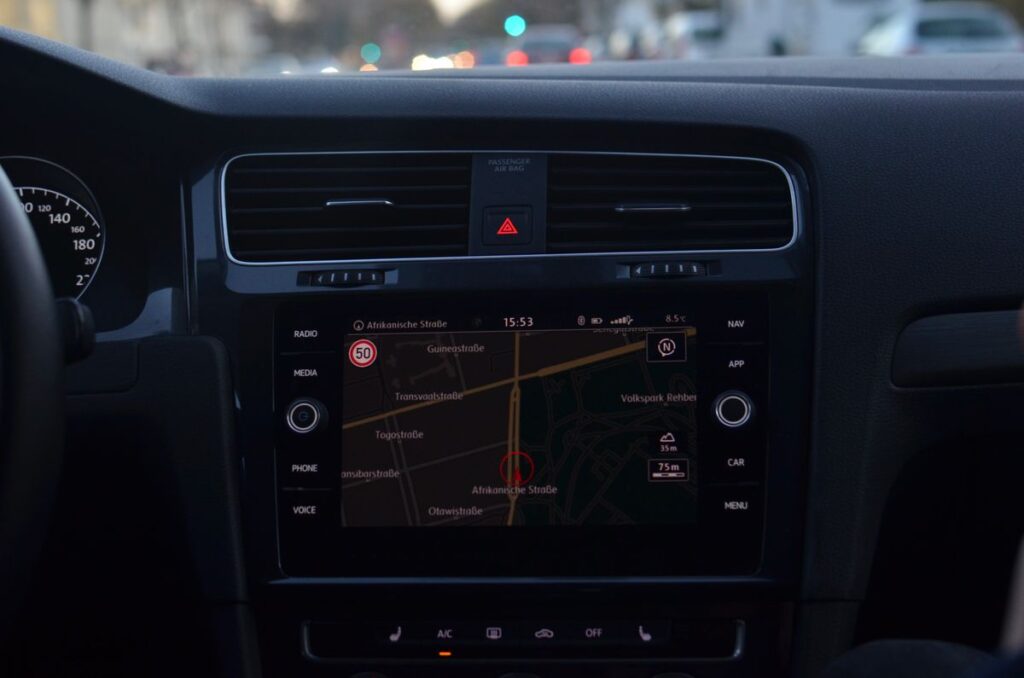
If you drive with an Android phone, learning how to use android auto in your car can make every journey safer and simpler. Android Auto puts the parts of your phone you actually need while driving — navigation, calls, messages and music — onto your car’s display in a large, simplified interface that is designed to be glanced at, not studied. You control it by touch, by steering-wheel buttons where your car supports them, or by voice with Google Assistant, so you can keep your attention on the road. This complete guide explains how to set it up wired and wirelessly, how to use each feature, how to customise it, and how to fix the connection problems that frustrate many first-time users.
Before you start, it is worth understanding what Android Auto is and is not. It is not a separate navigation system built into your car, and it does not replace your car’s own controls for heating, lights or driving settings. Instead, it mirrors selected phone apps onto the car’s screen. Your phone does the work — running Maps, playing music, handling calls — and the car display shows a driving-friendly version of those apps. That means you need a compatible phone, a compatible car or aftermarket head unit, and in most cases a USB cable or a wireless connection. It also means that keeping your phone’s apps updated matters, because Android Auto features improve through phone updates rather than car updates.
Safety is the reason Android Auto looks so simple. While driving, you should not be typing addresses, scrolling through long lists or reading messages on a small phone screen. Android Auto limits what you can do while the car is moving, shows large buttons, reads messages aloud, and encourages voice control. That is deliberate. Even with Android Auto, the safest approach is to set your destination and playlist before you drive, use voice commands for anything you need on the move, and pull over safely if you need to do something that requires real attention. No in-car system makes phone use while driving risk-free; Android Auto reduces distraction, it does not remove it.
How to Use Android Auto in Your Car: What You Need First
Learning how to use android auto in your car starts with checking compatibility. Most Android phones running a recent version of Android support Android Auto, and many cars built in the last decade include it, either as standard equipment or as an option. Wireless Android Auto has additional requirements: your phone and your car’s head unit must both support wireless mode, and some older cars support only wired Android Auto. If you are unsure, check your car’s manual or the manufacturer’s website, or check Google’s official Android Auto compatibility information, which lists supported cars and aftermarket units. If your car does not have Android Auto built in, an aftermarket head unit from a reputable maker can add it, but that is a bigger purchase and installation job, so check compatibility carefully before buying.
You will also need the right cable if you plan to use wired Android Auto. Use a good-quality USB cable that supports data, not just charging — some cheap cables only charge and will not carry the Android Auto connection. If your car has multiple USB ports, only one may be the Android Auto port, usually marked with a phone or CarPlay/Android Auto symbol, or identified in the manual. Try that port first. Keep the cable reasonably short and undamaged, and avoid loose adapters that can cause intermittent disconnections. For wireless Android Auto, you need Wi-Fi and Bluetooth on your phone, and your car’s wireless system must be set up correctly, which is covered in the setup section below.
On your phone, make sure Android Auto is ready. On recent Android phones, Android Auto is built into the system and you will find it in Settings, often under Connected devices or a similar menu. Older phones used a separate Android Auto app, which is no longer the normal route. Update Google Maps, your music apps and Google Assistant through the Play Store, and make sure your phone has a mobile data connection for live navigation and traffic. If your phone is low on battery, a wired connection will also charge it, which is a practical advantage of wired mode on long journeys, even if your car supports wireless.
How to Use Android Auto in Your Car with a Wired Connection
Wired setup is usually the most reliable first step, even if you later switch to wireless. Start the car, unlock your phone, and connect it to the car’s Android Auto USB port with a data-capable cable. The car display should prompt you to start Android Auto, or show Android Auto as a source you can select. On your phone, you may see a permission prompt asking you to allow Android Auto to access your phone while connected. Accept it, and follow any on-screen setup steps, which may include allowing notifications, contacts and location access. Those permissions are what let Android Auto show your messages, contacts and navigation, so declining them will limit what works.
If nothing happens when you plug in, work through the simple causes first: try the car’s other USB port, try a different cable, make sure the phone is unlocked, and check that the car is not in a mode that blocks USB data. Some cars require you to enable Android Auto in the car’s own settings menu before it will appear. Others require the handbrake to be on for first setup, for safety reasons. If your phone shows a USB options notification, make sure it is set to file transfer or Android Auto mode rather than charging only. Restarting both the phone and the car’s infotainment system — usually by turning the car off and on, or by holding the infotainment power button where offered — also resolves many first-connection problems.
Once connected, the Android Auto home screen appears on the car display. It typically shows a navigation card, a music card and suggested destinations or recent apps. The bottom or side bar lets you switch between navigation, phone, music, messages and the app list. Take a few minutes while parked to explore this layout, because learning it while stationary is far safer than learning it at speed. Try opening Maps, starting a route to a familiar place, playing a song, and making a test call to voicemail or a family member, so you know how each feature behaves before you need it on a real journey.
Setting Up Wireless Android Auto
Wireless Android Auto removes the cable, but it needs a correct first pairing. Make sure Bluetooth and Wi-Fi are on in your phone, and that your car is in pairing or wireless Android Auto mode — the exact steps are in your car’s manual, and they often involve selecting Android Auto in the car’s Bluetooth or phone menu and confirming a pairing code. On your phone, go to Settings, then Connected devices, then Android Auto or Connection preferences, and look for wireless or previously connected cars. Select your car when it appears and confirm the pairing. After the first successful wireless connection, the car should reconnect automatically when you start it with your phone nearby, although the first connection after a phone update can occasionally need a manual reconnection.
Wireless mode has trade-offs. It is more convenient, especially for short trips where plugging in feels like a chore, and it leaves your phone free to sit in a pocket or on a charging pad. However, it uses more phone battery than wired mode, because Wi-Fi and location are running continuously, so a wireless charging pad or a separate charger is useful on longer trips. If battery drain becomes a wider problem, check our guide to checking Android battery health before assuming the car connection is at fault. Wireless connections can also be more sensitive to interference and to phone battery optimisation settings that put background services to sleep. If wireless Android Auto disconnects frequently, try the wired connection to confirm the car system itself works, then focus on wireless-specific fixes: forget and re-pair the car, turn off aggressive battery optimisation for Android Auto and Google Play services, and make sure your phone’s Wi-Fi is not set to turn off automatically.
Some cars that do not support wireless Android Auto natively can gain it with a wireless adapter that plugs into the car’s USB Android Auto port. These adapters can work well, but quality varies, and they add another device that needs firmware updates and can introduce lag. If you consider one, check reviews for your specific car model, buy from a reputable seller with a return policy, and test it thoroughly while parked and on short trips before relying on it for a long journey. A good cable remains the most reliable option for many drivers, and there is no shame in preferring it.
Navigating with Google Maps on Android Auto
Navigation is the feature most drivers use first, and Google Maps on Android Auto is designed for it. You can start navigation by voice — say “Hey Google, navigate to” followed by a place — by tapping the search icon and typing while parked, or by choosing a recent destination or a saved place from your Google account. Maps shows turn-by-turn directions, estimated arrival time, live traffic and alternative routes. It will also show speed limits and speed-camera warnings where that data is available in your region, although you should always obey road signs rather than relying solely on the display.
Before a long journey, it is worth setting up Maps properly on your phone. Save your home and work addresses, star places you visit regularly, and download offline maps for areas with poor mobile coverage, so navigation can continue if you lose signal. Our guide to using Google Maps offline on Android explains how to download and manage offline areas. On Android Auto itself, you can zoom the map, switch between route options and add a stop, such as a petrol station, by using voice commands or the on-screen controls while parked. Avoid trying to add complex multi-stop routes while driving; set them before you leave or ask a passenger to help.
Live traffic and rerouting are genuinely useful, but they depend on a data connection. If you drive through a rural area with weak signal, Maps may lose live traffic updates while still following your downloaded route. That is normal, and it is another reason to download offline maps for remote trips. If navigation voice guidance is too loud, too quiet or missing, check the volume in Maps settings and on the car stereo separately: Android Auto navigation volume, media volume and call volume are often controlled independently, and turning up the radio will not necessarily turn up navigation prompts. Test the volumes while parked so you are not fumbling with controls on the road.
Calls, Messages and Voice Control While Driving
Hands-free calls are straightforward on Android Auto. Tap the phone icon, choose a recent call or a contact, or say “Hey Google, call” followed by a name. The call plays through the car’s speakers and uses the car’s microphone, or your phone’s microphone if the car does not have one. If a contact has several numbers, Assistant will usually ask which one to use. For incoming calls, you can accept or decline from the car display or steering-wheel controls. Keep calls short while driving, and if a conversation needs real concentration, pull over — hands-free is safer than holding a phone, but it is not the same as full attention on the road.
Messages are handled by voice to reduce distraction. When a message arrives, Android Auto can read it aloud and let you reply by voice, without showing the full text on screen while driving. Say “Hey Google, read my messages” or respond to the prompt when a message arrives, then dictate your reply and confirm it before sending. This works with SMS and with supported messaging apps, although the exact apps supported can change with updates. Always listen to the dictated reply before confirming, because speech recognition errors can change meaning, especially with names and numbers. Never try to type a message on the car display while driving; if voice reply is not working, wait until you are parked.
Google Assistant is the key to using Android Auto safely. Beyond navigation and calls, you can ask it to play music, read the news headlines, set a reminder, check the weather at your destination, or control compatible smart-home devices, such as turning on lights before you arrive home. Speak naturally and keep commands short. If Assistant does not understand you, try a simpler phrasing rather than repeating the same long sentence louder. Make sure “Hey Google” detection is enabled in your phone’s Assistant settings if you want hands-free activation, and check that the car’s microphone is not muted in the car’s own settings, which is a surprisingly common cause of “Assistant is not listening” complaints.
Music, Podcasts and Audio on Android Auto
Music and podcasts work through your phone’s audio apps, shown in a simplified Android Auto interface. Spotify, YouTube Music, BBC Sounds, Audible and many other apps support Android Auto, and you can switch between them from the music screen. You can browse playlists, albums and podcasts while parked, use voice commands to play a specific artist, album or podcast while driving, and control playback from steering-wheel buttons where your car supports them. Audio quality depends on your phone’s data connection for streaming, so downloading playlists and podcast episodes for offline listening before a long trip avoids buffering in areas with poor signal.
Sound settings deserve a quick check. If music is too quiet compared with navigation prompts, or vice versa, adjust the separate volume levels in the car and in the app. Some cars have a setting that lowers music volume automatically when navigation speaks, which is helpful and worth turning on if available. If audio stutters on wireless Android Auto but works fine wired, the wireless connection or Wi-Fi interference is likely the cause; try wired mode for that journey. If one music app works but another does not appear on Android Auto at all, update the app, check that it is enabled for Android Auto in its settings where offered, and restart your phone.
For drivers who use their phone for a lot of audio, accessories matter. A good phone mount, even when using Android Auto, keeps your phone visible and charged if you need it for a toll app or parking app that is not on Android Auto. A wireless charging pad, if your car has one, helps offset wireless Android Auto battery use. And if you are choosing new audio gear for the car, our guide to the best wireless earbuds for Android phones in the UK is useful for listening outside the car, although earbuds should not be worn while driving where they would block road sounds or break local rules — check the law in your area.
Customising Android Auto and Managing Apps
Android Auto can be customised from your phone, not just from the car. On your phone, open Settings, then Connected devices, then Android Auto, and look for customisation options. You can usually choose which apps appear on the car display, reorder them, change the layout, and choose whether to show weather, use day or night mode, or show media controls. Keeping only the apps you actually use while driving on the car display makes it faster to find what you need and reduces distraction. Remove apps you never use in the car, even if you like them on your phone, because a shorter app list is easier to navigate at a glance.
Notifications need attention too. By default, Android Auto may show message previews and other notifications, but you can control which apps can send notifications to the car display, and whether message content is shown or only announced. For safety, many drivers prefer to allow only calls and messages, and to silence social and news notifications while driving. You can also use Do Not Disturb on your phone, with exceptions for important contacts, if you want a quieter drive. Check these settings while parked and test them with a message from a family member, so you know exactly what will appear and what will be read aloud on a real journey.
Keeping Android Auto working well over time is mostly about updates and cable care. Update your phone system, Google Maps, Assistant and music apps regularly, and check for car infotainment updates from your dealer or manufacturer when you have the car serviced. Replace a frayed or unreliable cable promptly, because a cable that works for charging may still fail intermittently for data. If Android Auto starts behaving oddly after a phone update, check Google’s support pages for known issues with that update, and try forgetting and re-pairing the car before assuming the car system is faulty. Many post-update problems are resolved by a fresh pairing.
Fixing Common Android Auto Connection Problems
The most common problem is Android Auto not starting at all when you plug in. Work through the checklist: use the correct USB port, use a data-capable cable, unlock the phone, allow the permission prompt, and enable Android Auto in the car’s settings if needed. If it worked before and suddenly stopped, try a different cable first, because cables fail more often than car systems. Then restart the phone and the car infotainment, forget the car in Android Auto settings on the phone, and pair it again from scratch. Also check that Android Auto and Google Play services are not restricted by battery optimisation, which can prevent them from starting reliably.
Frequent disconnections usually point to a cable, a port or a wireless interference problem. For wired mode, a loose port, a damaged cable or a phone case that prevents the cable from seating fully are common causes. Remove the case and test, try another cable, and check the car’s USB port for dust or damage. For wireless mode, interference from other Wi-Fi devices, a phone that is too far from the car’s receiver, or a pending phone update can cause drops. Moving the phone closer to the dashboard, turning off Wi-Fi on other devices temporarily for testing, and updating the phone can help identify the cause.
Other common issues include no sound, Assistant not responding, and Maps not showing your location. No sound often means the car is on the wrong audio source, or media volume is muted separately from call volume — switch the car to Android Auto or Bluetooth audio and check each volume. Assistant not responding often means the microphone is muted, “Hey Google” is off, or Assistant permissions were declined — check all three. Maps showing the wrong location often means location permission is off, location accuracy is set to low, or GPS signal is weak in a car park or tunnel — drive to an open area, check location settings, and turn on high-accuracy location if available. If none of these fixes work, check your car’s manual for a factory reset of the infotainment system as a last step, and back up any car settings first.
Frequently Asked Questions
Does Android Auto work with every Android phone and car?
Most recent Android phones and many cars from the last decade support Android Auto, but wireless mode has extra requirements for both phone and car. Check Google’s compatibility information and your car’s manual before assuming wireless will work, and test wired mode first.
Do I need mobile data for Android Auto?
You need mobile data for live traffic, search and streaming music, but downloaded offline maps and downloaded music or podcasts can work without a live connection. A data connection is strongly recommended for navigation on unfamiliar routes.
Why does my Android Auto keep disconnecting?
The most common causes are a faulty or charge-only USB cable, a loose port, a phone case blocking the cable, wireless interference, or battery optimisation restricting Android Auto. Try a new data cable, remove the case, and check battery optimisation settings.
Can I use Android Auto wirelessly?
Yes, if both your phone and your car support wireless Android Auto. Pair them once via Bluetooth and Wi-Fi, and the car should reconnect automatically afterwards. Wireless uses more battery, so charging on long trips is advisable.
Is it legal to use Android Auto while driving?
Rules vary by country, but in general, using a hands-free system is permitted where holding a phone is not. You must still drive with due care and attention, set destinations before driving where possible, and never type or read messages while moving. Check local road rules for your area.
Can I watch videos on Android Auto?
No, Android Auto is designed for driving and does not support video playback while driving. Video apps are intentionally limited to audio or to use while parked, depending on the app and car. Do not try to bypass these limits, as they exist for safety.
What should I do if Android Auto worked before but stopped after an update?
Try a new cable, restart the phone and car, forget and re-pair the car in Android Auto settings, and check for app and system updates. If the problem persists, check Google’s support pages for known issues with that update before resetting the car’s infotainment system.
Key Takeaways
- Android Auto mirrors navigation, calls, messages and music from your phone onto your car’s display in a driving-friendly layout.
- Use a data-capable cable and the car’s Android Auto USB port for wired setup, and pair once via Bluetooth and Wi-Fi for wireless setup.
- Set destinations, playlists and volumes while parked, and use Google Assistant voice commands for anything you need while driving.
- Download offline maps and offline music or podcasts before long or rural trips to avoid signal problems.
- Customise the app list and notifications on your phone so the car display shows only what you actually need while driving.
- For connection problems, check the cable, port, permissions and battery optimisation first, then forget and re-pair the car.
Conclusion
Learning how to use android auto in your car is straightforward once the first connection works, and the payoff is a calmer, safer drive with navigation, calls and music all within easy reach. Start wired with a good cable, learn the layout while parked, set up voice control, and only then switch to wireless if your car supports it. Keep your apps updated, download what you need for offline use before long trips, and keep your app list short and your notifications under control. With those habits, Android Auto becomes something you barely think about — it simply works, journey after journey, leaving you free to focus on the road.
For official guidance, see Android Auto setup help, wireless Android Auto requirements and Android Auto on android.com. Compatibility, features and menu names may vary by phone, car and region, so check the official pages and your car’s manual if a setting looks different.