How to Use Google Calendar Effectively in 2026: Complete Guide

Learning how to use Google Calendar effectively is one of the highest-return productivity skills you can build, because almost every part of modern life — work meetings, family commitments, deadlines, workouts, and travel — runs through a calendar, and Google Calendar is the tool most people already have free on their phone and computer. Yet most users barely scratch its surface: they add the occasional meeting and ignore time blocking, shared calendars, tasks, reminders, working hours, and the dozens of small features that turn a passive diary into an active productivity system. Used properly, Google Calendar does not just record your life; it protects your time, reminds you of what matters, and makes space for the work that actually moves you forward.
This complete guide shows you how to use Google Calendar effectively in 2026, from the fundamentals to the advanced workflows. We will cover setting up your calendars, time blocking your day, sharing calendars with family and colleagues, using tasks and reminders properly, integrating Gmail and Google Meet, managing multiple time zones, using the mobile app’s best features, and building a weekly planning routine that takes fifteen minutes and saves hours. Whether you are a student, a freelancer, a busy parent, or a professional juggling back-to-back meetings, these techniques will help you take control of your schedule instead of letting it control you.
How to Use Google Calendar Effectively: Start With the Right Setup
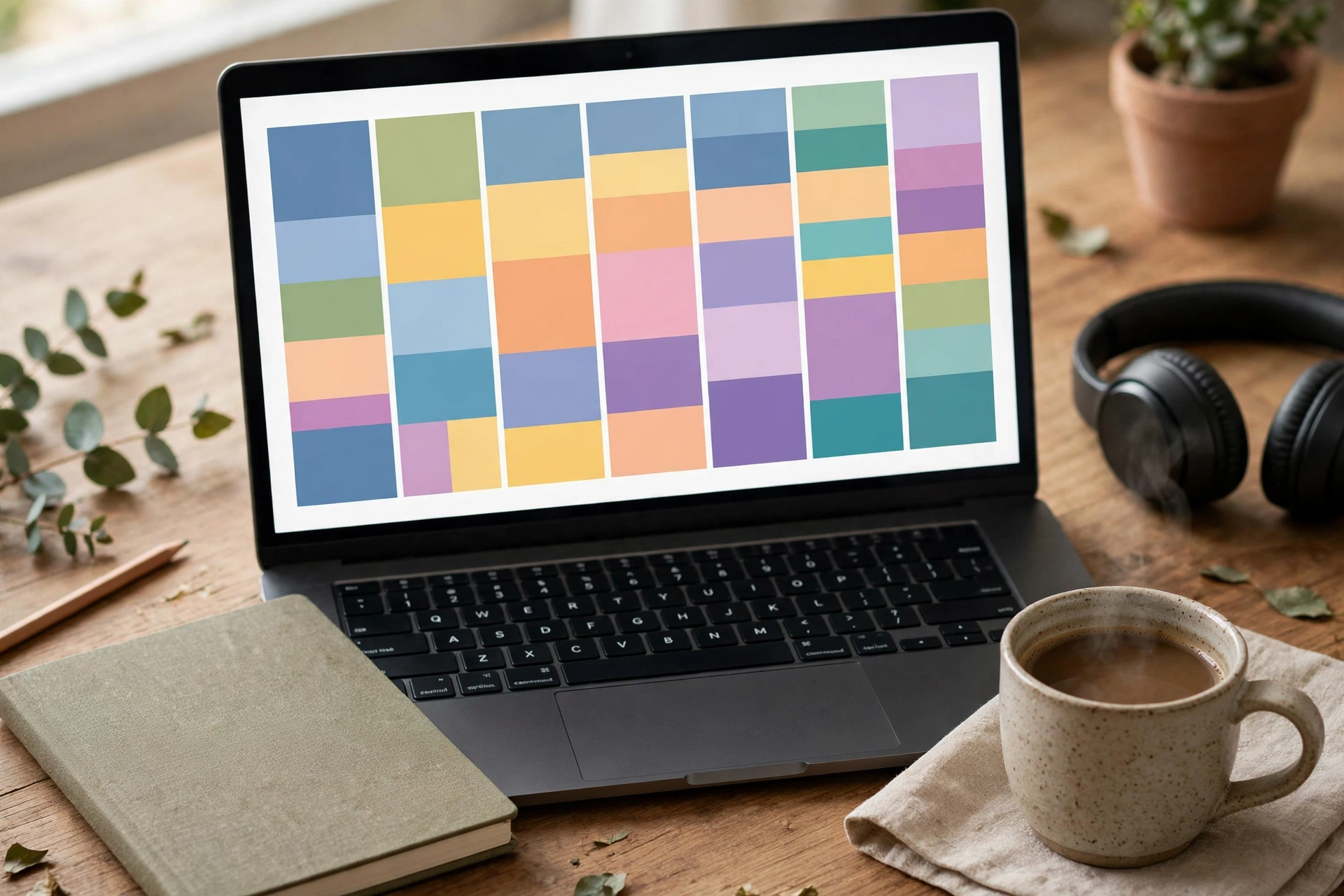
The first step in learning how to use Google Calendar effectively is setting up a structure that matches your life. Most people start with a single calendar and cram everything into it, which quickly becomes an unreadable wall of coloured blocks. A better approach is to create separate calendars for the major areas of your life: Work, Personal, Family, and Health, for example. Each calendar gets its own colour, so at a glance you can see whether your week is dominated by work or whether you have actually protected time for exercise, family, and rest.
To create a new calendar on a computer, open Google Calendar in your browser, look for “Other calendars” in the left sidebar, click the plus icon, and choose “Create new calendar”. Give it a clear name and a distinct colour. On the mobile app, you can toggle calendars on and off from the sidebar, which is useful when you want to focus: hide your work calendar on a Sunday, for instance, and your weekend looks calm again. The key principle is that a calendar you cannot read at a glance is a calendar you will stop using, so keep the number of calendars small — four to six is ideal for most people — and keep the colours consistent everywhere.
Next, set your working hours. In Google Calendar settings, under “Working hours”, tell the calendar when you are normally available. Colleagues who try to book you outside those hours will see a warning, which quietly protects your evenings without an awkward conversation. Also set your default event duration and your time zone correctly — especially if you travel or work with people abroad, since a wrong time zone is the single most common cause of missed meetings. Google Calendar’s official help centre has step-by-step guides for working hours, time zones, and every setting covered in this article. Google Calendar handles time-zone conversion automatically once your settings are right, and you can add a second time zone to the sidebar if you regularly work across zones.
Time Blocking: The Technique That Changes Everything

If there is one technique that separates effective Google Calendar users from everyone else, it is time blocking: scheduling specific blocks of time for specific kinds of work, rather than keeping a vague to-do list and hoping you get to it. The idea is simple. Instead of writing “write report” on a list, you put “Write quarterly report” on your calendar from 9:00 to 11:00 on Tuesday, with notifications on, and you treat that block like a meeting you cannot skip. Research on focus and productivity consistently shows that planned, protected blocks produce far more deep work than unstructured days.
Start with three kinds of blocks. First, focus blocks: ninety-minute sessions for your most important work, ideally at the time of day when you concentrate best — morning for most people. Second, admin blocks: thirty minutes for email, messages, and small tasks, batched together rather than scattered through the day. Third, personal blocks: exercise, reading, family time, and rest, scheduled with the same seriousness as a work meeting. When personal time is on the calendar, it stops being the thing that gets squeezed out whenever work overruns.
A practical weekly template might look like this: Monday morning for planning and the week’s hardest task; Tuesday and Thursday mornings for focus blocks; Wednesday afternoon for meetings; Friday afternoon for admin, wrap-up, and next week’s planning. You do not need to follow this exact pattern — the point is to design a week deliberately rather than letting other people’s meetings design it for you. And be realistic: a calendar packed wall-to-wall with no gaps is a plan that will fail by Tuesday. Leave buffer time between meetings, especially before important ones, so overruns do not cascade through your day.
Time blocking tips that actually stick
- Block your most important task first, before other people fill your day.
- Use ninety-minute focus blocks with a short break afterwards — longer blocks tend to collapse.
- Batch similar tasks together: all your calls in one block, all your email in another.
- Leave at least fifteen minutes of buffer between meetings for notes and preparation.
- Protect one “no meeting” block per week for deep work, and defend it firmly.
- Review your blocks each Friday: what worked, what got moved, and what to change next week.
Sharing Calendars With Family, Friends and Colleagues

Google Calendar’s sharing features solve one of the most common sources of domestic and workplace friction: nobody knowing what anyone else is doing. Sharing a family calendar means school runs, appointments, holidays, and birthdays are visible to everyone who needs them, without a single group-chat message asking “what time is the dentist again?” To share a calendar, open its settings, add the person’s email address, and choose whether they can only see free and busy times or can view and edit full event details. For family, full access usually works best; for colleagues, free-and-busy is often enough.
At work, shared calendars make scheduling dramatically faster. Instead of an email chain trying to find a meeting time, colleagues can see your availability and propose a slot that works. The “Find a time” feature in event creation shows everyone’s availability side by side, and Google Calendar will even suggest times when all guests are free. If you manage a team, a shared team calendar for deadlines, leave, and key dates keeps everyone aligned without constant status meetings.
One underused feature is the ability to subscribe to calendars others have published. Public holiday calendars for your country, sports fixture calendars for your team, and school term calendars can all be added from the “Browse calendars of interest” section, so those dates appear automatically without manual entry. This is a small setup step that saves dozens of manual entries a year. For managing the notes and documents that go with your events, our guide on how to use Google Keep notes effectively pairs naturally with Calendar, and our guide on how to use Google Drive offline on Android helps when you need event documents without internet access.
How to Use Google Calendar Effectively With Tasks and Reminders
Google Calendar works best when it is paired with Google Tasks, which is built into the same app and sidebar. The distinction matters: calendar events are things that happen at a specific time, while tasks are things that need doing by a deadline but do not require a fixed slot. Putting every task on your calendar creates a cluttered, stressful view; putting time-specific commitments on a task list means you forget them. Use each tool for its job: meetings, appointments, and time blocks go on the calendar; to-dos with deadlines go in Tasks, where you can set a date and time for a reminder without blocking out your day.
To use Tasks effectively, create task lists for your main areas — Work, Personal, Shopping, for example — and add tasks with due dates. Tasks with a date appear on your calendar on that day, so your daily view shows both your timed events and your due tasks together. When you complete a task, mark it done; the small satisfaction of clearing tasks is a genuine motivator, and your completed list becomes a record of what you achieved. For recurring tasks such as weekly reports or monthly bills, set them to repeat so they reappear automatically.
Reminders deserve a brief note because Google has changed how they work over the years. In current Google Calendar, reminders are largely handled through Tasks and through event notifications. Set notifications thoughtfully: a reminder thirty minutes before a meeting, plus a day-before reminder for important appointments, is usually enough. Too many notifications train you to ignore them all, which defeats the purpose. For critical events — flights, exams, medical appointments — add a second, earlier notification as a safety net, and consider a location-based reminder on your phone as well.
Gmail, Meet and Mobile: Making the Ecosystem Work Together
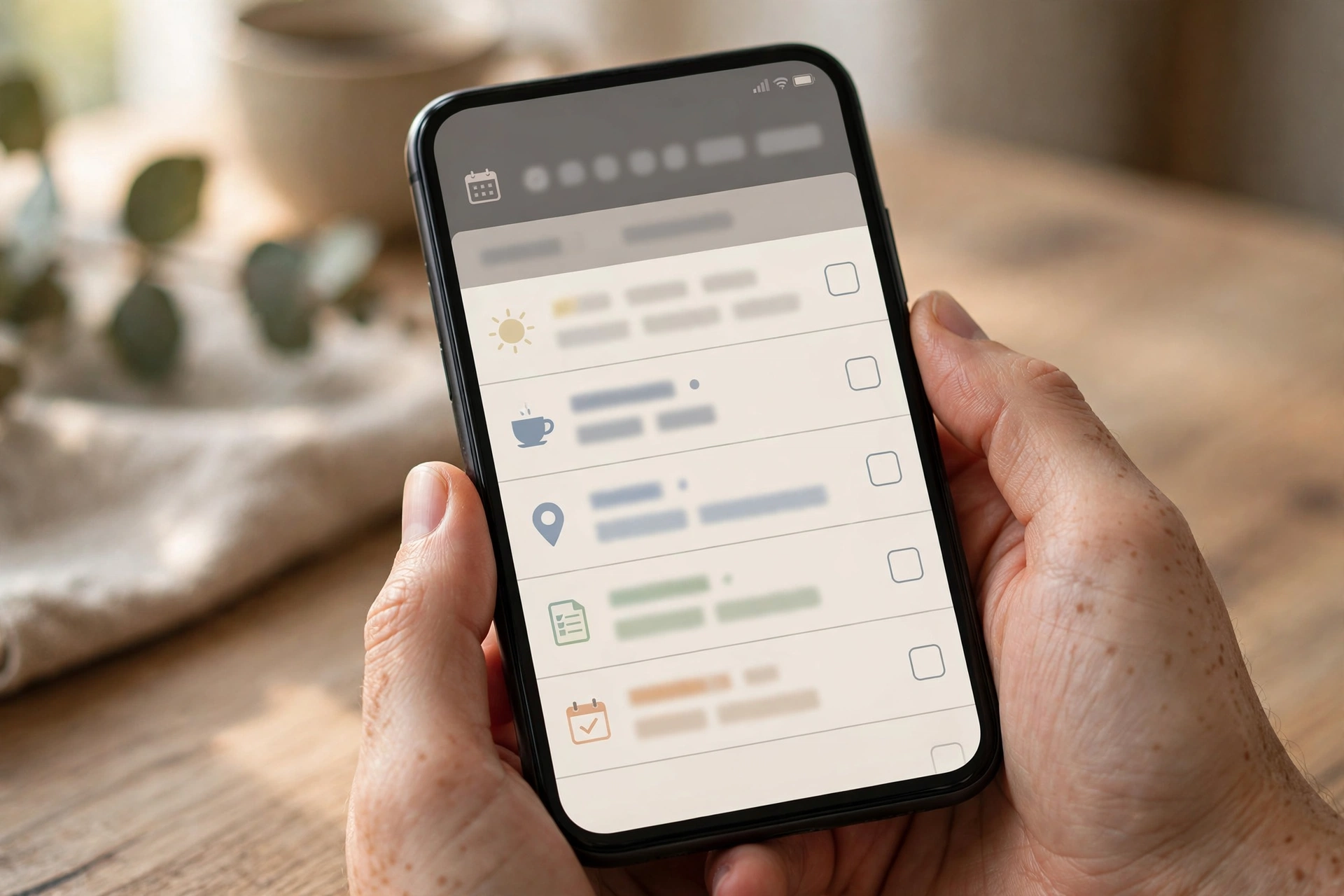
One of Google Calendar’s greatest strengths is how tightly it connects to the rest of Google’s tools. When someone emails you about a meeting, Gmail often suggests adding it to your calendar automatically, and flight, hotel, and restaurant bookings from your email can appear as calendar events without you lifting a finger. Check that this feature is enabled under Settings, then “Events from Gmail”, and review the events it creates — occasionally it guesses wrong, but most of the time it saves real effort.
Google Meet integration is equally seamless. Every event you create can include a Meet video link with one click, which is invaluable for remote and hybrid work. When you accept a meeting invitation, the Meet link is right there in the event, on both computer and phone, so joining takes seconds. For teams, Google Workspace adds shared calendars, resource booking, and admin controls on top of the free Calendar. If you use Calendar on Android, the app also integrates with your phone’s notifications and widgets: add a Calendar widget to your home screen showing today’s agenda, and you will check your day at a glance instead of opening the app. Our guide on how to set up Google Authenticator two-factor authentication is worth reading alongside this, since your calendar contains sensitive life details and your Google account deserves strong protection.
On mobile, a few power features are worth learning. You can create an event by long-pressing a date, duplicate an event by copying it, and use the Schedule view to see a clean list of upcoming events rather than a grid. The search function is powerful: search for a person’s name to find every meeting with them, or search for a keyword such as “dentist” to find past and future appointments. And if you travel, Google Calendar’s automatic time-zone handling means your 3pm meeting stays at 3pm local time as you cross zones — provided your phone’s time zone is set to automatic.
How to Use Google Calendar Effectively: The Weekly Planning Routine
All of these features only pay off if you review your calendar regularly, and the best habit for that is a short weekly planning session. Fifteen minutes every Sunday evening, or Friday afternoon if you prefer, is enough. Open your calendar, look at the week ahead, and ask five questions. What are the three most important outcomes this week? Are there any conflicts or double-bookings? Is there enough focus time, or is the week all meetings? Are personal commitments — exercise, family, rest — actually on the calendar? And is there anything from last week that needs carrying forward?
During this review, move or decline meetings that no longer matter, add time blocks for the week’s important work, and confirm travel time for appointments that need it. Google Calendar lets you add a “travel time” note to events, but many users simply block the travel as its own event — either way, the point is that a 2pm appointment across town is not a 2pm commitment, it is a 1:15pm one. This single habit prevents the most common planning failure: arriving late because the calendar showed only the meeting, not the journey.
At the end of each day, a two-minute review is equally valuable. Glance at tomorrow: what is first, what needs preparation, and is anything missing? This tiny habit means you never wake up surprised by your own schedule, and you can prepare for the day’s hardest task the night before. Over weeks and months, these small reviews compound into a feeling of control that no productivity app purchase can replicate — because the tool was already in your pocket.
Common Google Calendar mistakes to avoid
- Putting every task on the calendar, which turns it into a stressful, unreadable list.
- Never declining meetings — a calendar full of other people’s priorities is not a plan.
- Forgetting buffer and travel time, so one overrun derails the whole day.
- Using a single calendar for everything instead of colour-coded calendars per life area.
- Ignoring notifications settings, then missing meetings because alerts were silenced.
- Not setting working hours, so colleagues book you at any hour by default.
For keeping your broader digital life organised alongside your calendar, see our guides on how to manage Google Photos storage space and how to stop Google tracking your activity, which help you stay in control of the data behind the tools you use every day.
Frequently Asked Questions
Is Google Calendar free?
Yes. Google Calendar is free with any Google account, on the web, Android, and iPhone. Paid Google Workspace accounts add business features such as shared team resources, but the core calendar is fully free.
How do I share my Google Calendar with someone?
Open the calendar’s settings, choose “Share with specific people”, add their email address, and set their permission level — see-only, or view and edit. They will receive an invitation to add your calendar to their own view.
What is the difference between Google Calendar events and Tasks?
Events happen at a specific time, such as a meeting at 2pm. Tasks are to-dos with a deadline but no fixed time slot, such as “submit report by Friday”. Use events for timed commitments and Tasks for flexible to-dos.
Can Google Calendar handle multiple time zones?
Yes. Set your primary time zone in settings, and add a secondary time zone to the sidebar if you work across zones. Events display in your local time automatically, and you can create events in a guest’s time zone.
How do I stop Google Calendar from adding events from Gmail?
Go to Settings, then “Events from Gmail”, and turn it off. You can also delete individual auto-created events, or leave the feature on and simply review what it adds.
Can I use Google Calendar offline?
The mobile apps cache your recent events and work offline for viewing, and changes sync when you reconnect. The web version has limited offline support through browser extensions, so the mobile app is the better offline option.
How do I set working hours in Google Calendar?
In Settings, under “Working hours”, select the days and times you are normally available. People booking you outside those hours will see a warning, which helps protect your personal time.
Key Takeaways
- Use separate colour-coded calendars for Work, Personal, Family, and Health — not one cluttered calendar.
- Time blocking is the single most powerful technique: schedule focus, admin, and personal blocks deliberately.
- Share calendars with family and colleagues to end scheduling confusion and email chains.
- Use Google Tasks for to-dos and Calendar for timed events — each tool for its own job.
- Let Gmail and Meet integration do the routine work of creating events and video links.
- Run a fifteen-minute weekly review every Sunday or Friday to plan the week ahead.
- Set working hours, notifications, and time zones correctly so the calendar protects your time automatically.
Conclusion
Learning how to use Google Calendar effectively is not about mastering every feature — it is about building a small set of habits around a tool you already own. Separate calendars by life area, block time for your most important work, share calendars with the people who need them, use Tasks for to-dos, and review your week for fifteen minutes every Sunday. Do those five things consistently, and your calendar stops being a record of what happened to you and becomes a plan for what you intend to do. In a world where everyone’s time is under pressure, that shift — from reactive to intentional — is worth more than any new app. Start this week: create your calendars, block tomorrow’s focus time, and notice how different a planned day feels.