How to Use Google Gemini on Android for Everyday Tasks in 2026
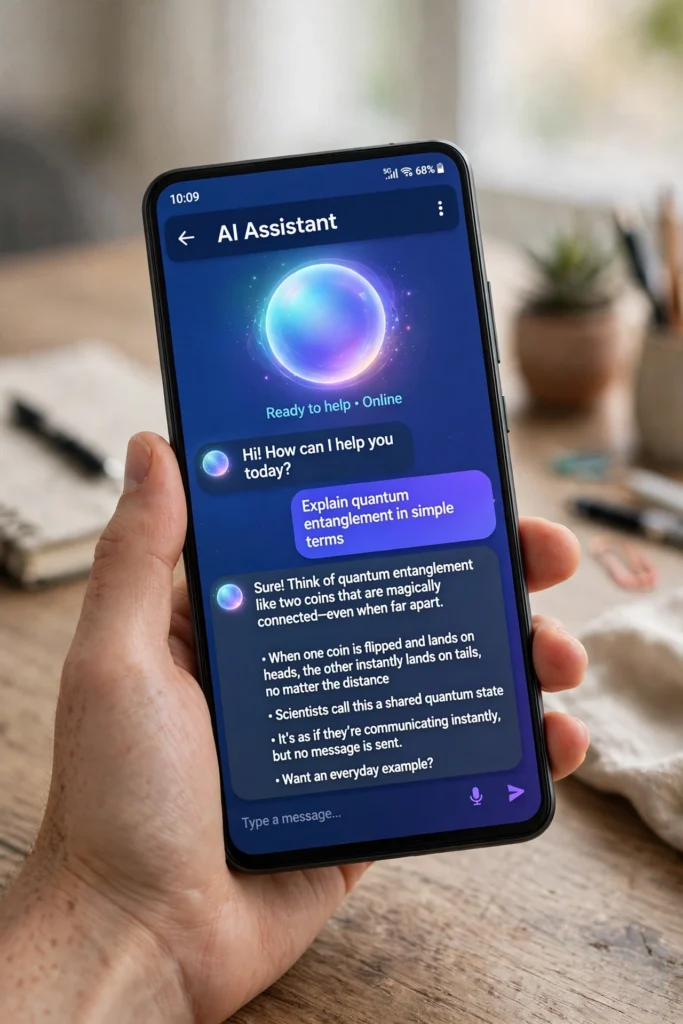
Learning how to use Google Gemini on Android is one of the quickest ways to make your phone genuinely more useful in 2026. Gemini is Google’s AI assistant, built into Android phones and available as a standalone app, and it can answer questions, write messages, summarise documents, plan trips, control smart home devices, and help with everyday tasks that used to take several apps and several minutes. If you have used Google Assistant before, Gemini is its smarter successor, and switching over takes only a few minutes.
This guide explains how to use Google Gemini on Android for everyday tasks in 2026. It covers setup and replacing Google Assistant, voice, text, and image prompts, Gemini Live conversations, integration with Gmail and Google Docs, planning trips, summarising long content, controlling your smart home, privacy controls, and practical tips for getting reliable results. Everything here is based on the features available on Android phones in 2026, and every step uses official Google apps and settings.
How to Use Google Gemini on Android: Setup and Getting Started

The first step in learning how to use Google Gemini on Android is making sure it is available on your phone. On most Android phones sold in 2026, Gemini is pre-installed or available as a free download from the Google Play Store. Search for “Google Gemini” in the Play Store, install the app, and sign in with your Google account. The app is free, although Google also offers an optional paid Gemini Advanced tier with access to more powerful models and extra features.
Once the app is installed, open it and follow the setup prompts. Gemini will ask for permission to access your microphone, and it may ask whether you want it to replace Google Assistant as your default assistant. Accepting this makes Gemini the assistant that responds when you say “Hey Google” or long-press the power button, depending on your phone’s settings. You can change this later in your phone’s settings if you decide to go back.
Before you start, check that your phone is running a recent version of Android and that the Google app is updated. Gemini works best on Android phones with the latest system updates, and some features, such as Gemini Live and deep integration with Google apps, require recent versions. The official Google Gemini support pages list the current requirements and explain which features are available on your device.
Replacing Google Assistant with Gemini
Replacing Google Assistant with Gemini is straightforward. When you first open the Gemini app, it will offer to become your default digital assistant. Tap the option to switch, and Gemini will take over the assistant role. Your existing “Hey Google” voice activation will then trigger Gemini instead of the older Assistant, and the power-button shortcut will open Gemini as well.
The switch is not permanent. If you prefer the older Assistant for certain tasks, you can switch back at any time through your phone’s Settings, under Apps and then Default apps, where you can choose your digital assistant app. Most users who switch find that Gemini handles the tasks Assistant did, plus considerably more, so the switch tends to stick. However, a few features that relied on the older Assistant, such as some routines and third-party integrations, may behave differently, so it is worth testing your most-used commands after switching.
One practical tip is to spend ten minutes after setup trying the tasks you do most often: setting a timer, sending a message, checking the weather, and playing music. This quickly shows you what Gemini handles well and where you might need to adjust how you phrase requests. Our guide on how to use Google Gemini Live on Android goes deeper into the live conversation mode, which is one of the biggest differences from the older Assistant.
How to Use Google Gemini on Android with Voice, Text, and Image Prompts

Gemini accepts three kinds of input: voice, text, and images. Voice is the fastest for hands-free use: say “Hey Google” or open the app and tap the microphone, then speak your request naturally. You do not need to use special command words. Asking “What is the weather like tomorrow in Manchester?” or “Remind me to call Sarah at six” works just as it would in a normal conversation.
Text prompts are better for longer or more detailed requests. Type your question or task into the Gemini app, and be specific about what you want. Instead of “write an email,” try “write a short, polite email to my landlord asking for the heating to be repaired this week.” The more detail you give, the better the result. Gemini can also handle follow-up questions, so you can refine a draft by saying “make it shorter” or “make it more formal.”
Image prompts are one of Gemini’s most useful features. You can take a photo or upload an image and ask Gemini about it. Point your camera at a plant to identify it, photograph a restaurant menu to get a translation, or snap a picture of a handwritten note to turn it into editable text. You can also upload a screenshot of an error message and ask Gemini what it means and how to fix it. This visual ability is what sets Gemini apart from the older generation of voice assistants.
Writing Better Prompts for Everyday Tasks
The quality of Gemini’s answers depends heavily on the quality of your prompts. A few habits make a large difference. First, give context: “I am cooking for four people, one of whom is vegetarian” produces a far better recipe suggestion than “give me a dinner recipe.” Second, state the format you want: “give me a bullet list” or “summarise this in three sentences” tells Gemini exactly what shape the answer should take. Third, ask for steps when you need them: “explain how to change a tyre step by step” is more useful than “how do I change a tyre?”
It also helps to treat Gemini as a drafting partner rather than an oracle. Ask it to draft a message, a shopping list, or a plan, then review and edit the result. For factual questions, especially about dates, prices, or current events, check the answer against a reliable source, because AI assistants can occasionally produce confident-sounding information that is out of date or incorrect. For more on getting reliable results from Google’s AI in search, see our guide on how to use Google AI Mode in Search.
How to Use Google Gemini on Android: Gemini Live Conversations

Gemini Live is the feature that makes Gemini feel most different from a traditional assistant. Instead of asking a single question and getting a single answer, Gemini Live lets you have a flowing, back-and-forth conversation. You can interrupt it, change direction mid-sentence, and ask follow-up questions naturally, much as you would with a person. It is useful for brainstorming, practising a presentation, working through a problem, or simply talking through a decision.
To start Gemini Live, open the Gemini app and tap the Live icon, which looks like a sound wave. Speak naturally, and Gemini will respond in spoken form. You can pause the conversation, and you can switch between voice and text at any time. Gemini Live also supports multiple languages in a single conversation on many devices, which is helpful if you switch between languages at home.
Gemini Live is particularly useful for tasks that need thinking aloud. Try it for preparing for a job interview by asking Gemini to play the interviewer, for rehearsing a difficult conversation, or for brainstorming ideas for a birthday present. The conversation mode is also good for learning: ask Gemini to explain a topic simply, then ask follow-up questions until you understand it fully. Because the conversation is spoken, it works well while you are walking, driving, or doing chores.
How to Use Google Gemini on Android with Gmail and Google Docs

One of Gemini’s biggest strengths is its integration with Google’s own apps. In Gmail, Gemini can summarise long email threads, draft replies, and help you find information buried in your inbox. Open an email thread, tap the Gemini icon, and ask it to summarise the conversation or draft a reply. It can also help you write a new email from scratch: tell it the recipient, the purpose, and the tone, and it will produce a draft you can edit before sending.
In Google Docs, Gemini can help you write, edit, and summarise documents. Ask it to draft a letter, a report outline, or a meeting agenda, and it will produce a starting point in your document. It can also summarise a long document, suggest improvements to your writing, or rewrite a paragraph in a different tone. For students and office workers, this integration saves a significant amount of time on routine writing tasks.
Gemini also works with Google Calendar and Google Keep. Ask it to check your schedule, create a calendar event, or add an item to a shopping list. Our guide on how to use Google Calendar effectively covers the calendar features that pair well with Gemini, and our Google Keep guide explains how to organise the notes and lists that Gemini can create for you.
Planning Trips with Gemini
Planning a trip is one of the best everyday uses for Gemini. Ask it to suggest a three-day itinerary for a city, including sights, restaurants, and transport, and it will produce a structured plan. You can then refine it by asking for budget options, family-friendly activities, or alternatives for rainy days. Gemini can also help with practical travel tasks: converting currencies, explaining local customs, translating phrases, and summarising travel advice.
For the best results, give Gemini the details that matter: your dates, your budget, who is travelling, and what you enjoy. “Plan a weekend in Edinburgh for two adults, budget around 300 pounds, interested in history and food” produces a far more useful itinerary than “plan a trip to Edinburgh.” Once you have a plan, ask Gemini to save the key details to a Google Doc or a Keep note so you have them offline while travelling.
How to Use Google Gemini on Android to Summarise and Learn
Summarising is one of the most practical everyday uses of Gemini. Paste a long article, a PDF, or a block of text into the app and ask for a summary. You can specify the length: “summarise this in five bullet points” or “give me a one-paragraph summary.” This is useful for research, for catching up on long reports, and for understanding complex topics quickly.
Gemini can also help you learn. Ask it to explain a concept at different levels: “explain how mortgages work as if I am a complete beginner” or “explain quantum computing to a teenager.” It can create quizzes to test your understanding, generate study notes from a textbook chapter, or help you practise a language by holding a conversation and correcting your mistakes.
For students, a useful routine is to paste lecture notes into Gemini and ask for a summary, a set of revision questions, and a one-page study guide. For professionals, the same approach works with meeting notes, reports, and industry articles. The key is to check the summary against the original for anything important, because summarising involves judgement about what matters, and Gemini’s judgement will not always match yours.
How to Use Google Gemini on Android for Smart Home Control
If you have smart home devices, Gemini can control them by voice. Ask it to turn off the lights, set the thermostat, lock the door, or start the robot vacuum. You can also set up routines, such as a “good night” command that turns off the lights, locks the doors, and sets an alarm. Gemini works with Google Home devices and with many third-party smart home products that integrate with Google Home.
Setting up smart home control starts in the Google Home app, where you add and organise your devices into rooms. Once the devices are set up there, Gemini can control them through the same Google account. Be specific in your commands: “turn off the living room lights” is more reliable than “turn off the lights” when you have lights in several rooms. You can also ask Gemini for the status of your devices: “is the front door locked?” or “what is the temperature in the bedroom?”
Smart home control through Gemini is convenient, but it is worth reviewing the privacy settings for any device with a camera or microphone. The Google Home app lets you control what data each device collects and how long it is stored, and the privacy section of this guide explains the key settings to check.
Privacy Controls: What Gemini Knows and How to Manage It
Because Gemini works with your emails, documents, calendar, and location, understanding its privacy controls matters. Google provides a Gemini Apps Activity page where you can see your conversation history, delete individual conversations, or turn off activity saving altogether. You can also set activity to auto-delete after three, eighteen, or thirty-six months.
To manage these settings, open the Gemini app, go to your profile, and look for Gemini Apps Activity. From there you can review what has been saved, delete it, or pause saving. Turning off activity saving means Gemini will not keep a record of your conversations, although Google may still retain some data temporarily for safety and service improvement. The official guidance on the Gemini support pages explains exactly what is stored and for how long.
A few practical privacy habits are worth adopting. Avoid pasting sensitive personal information, such as passwords, bank details, or identity documents, into any AI assistant, including Gemini. If you use Gemini at work, check your employer’s policy on AI tools before pasting work documents into it. And review the microphone permission for the Gemini app, so that voice activation only works when you want it to. For a broader look at controlling what Google knows about you, see our guide on how to stop Google tracking your activity.
Managing Your Gemini Activity History
Your Gemini activity history is separate from your general Google activity, and it is worth reviewing it regularly. Open the history page, look through recent conversations, and delete anything you do not want kept. You can delete single conversations or clear a whole period at once. If you share your phone with family members, consider turning off activity saving or using a separate Google account for shared devices.
Gemini also lets you give feedback on its answers by tapping the thumbs up or thumbs down icons. This feedback helps Google improve the service, and it is optional. You can also ask Gemini to forget a particular conversation by deleting it from your history, although this does not remove data that Google retains for safety purposes, which is explained in the support documentation.
How to Use Google Gemini on Android: Everyday Tips and Shortcuts
A few small habits make Gemini significantly more useful day to day. First, use the home screen widget: it gives you one-tap access to voice, text, and image prompts without opening the app. Second, learn the power-button shortcut on your phone, because long-pressing the power button to summon Gemini is faster than finding the app icon. Third, use the “Hey Google” hotword when your hands are busy, such as when cooking or driving.
Another useful habit is to ask Gemini to do multi-step tasks in a single request. For example, “check my calendar for tomorrow, tell me the weather, and remind me to take an umbrella if it will rain” combines three tasks into one prompt. Gemini can handle these combined requests well, and they save time compared to asking each question separately.
Finally, keep Gemini updated. Google adds features regularly, and the app updates through the Play Store. Turning on automatic updates for the Gemini app and the Google app ensures you get new features as soon as they are available. The Google blog announces major Gemini updates, and the Android website covers new features as they arrive on Android phones.
Key Takeaways
- Install the free Gemini app from the Play Store and sign in with your Google account to get started.
- You can replace Google Assistant with Gemini, and switch back at any time through your phone’s settings.
- Gemini accepts voice, text, and image prompts, and it handles follow-up questions naturally.
- Gemini Live offers flowing, spoken conversations for brainstorming, practice, and problem-solving.
- Integration with Gmail, Docs, Calendar, and Keep makes Gemini useful for drafting, summarising, and planning.
- Use Gemini to plan trips, summarise long documents, learn new topics, and control smart home devices.
- Manage your privacy through Gemini Apps Activity, and avoid pasting sensitive personal information into any AI assistant.
- Use the home screen widget and power-button shortcut for fast access, and keep the app updated.
Frequently Asked Questions
Is Google Gemini free on Android?
Yes. The Gemini app is free to download and use on Android, and it includes the core features described in this guide. Google also offers an optional paid Gemini Advanced tier, which provides access to more powerful models and additional features, but the free version covers everyday tasks well.
How do I replace Google Assistant with Gemini?
Open the Gemini app and accept the prompt to make it your default digital assistant. Your “Hey Google” voice activation and power-button shortcut will then open Gemini. You can switch back at any time through Settings, under Apps and then Default apps.
What is Gemini Live and how do I use it?
Gemini Live is a conversational mode that lets you have flowing, spoken back-and-forth conversations with Gemini. Open the Gemini app, tap the Live icon, and speak naturally. You can interrupt it, change direction, and ask follow-up questions, which makes it useful for brainstorming, interview practice, and learning.
Can Gemini read my Gmail and Google Docs?
Yes, with your permission. Gemini can summarise email threads, draft replies, and help with documents in Google Docs when you ask it to. This integration is controlled through your Google account settings, and you can manage what Gemini can access and review your activity in the Gemini Apps Activity page.
Does Gemini work on all Android phones?
Gemini works on most recent Android phones, and it is available as a free download from the Play Store. Some features, such as Gemini Live and deep integration with Google apps, require recent versions of Android and the Google app. Check the Gemini support pages for the current requirements for your device.
Is my data private when I use Gemini?
Google stores your Gemini conversations in your Gemini Apps Activity unless you turn off saving or set it to auto-delete. You can review and delete your history at any time. Avoid pasting passwords, bank details, or other sensitive information into any AI assistant, and review your privacy settings regularly.
Can Gemini control my smart home devices?
Yes. Gemini can control smart home devices that are set up in the Google Home app, including lights, thermostats, locks, and vacuums. Use specific commands such as “turn off the living room lights,” and set up routines in the Google Home app for multi-device actions.
What is the difference between Gemini and Google Assistant?
Gemini is Google’s newer AI assistant, built on more advanced AI models. It understands natural language better, handles images as well as voice and text, supports flowing conversations through Gemini Live, and integrates more deeply with Gmail, Docs, and other Google apps. Google Assistant is the older system that Gemini is replacing.
Conclusion
Learning how to use Google Gemini on Android in 2026 is less about mastering a complicated tool and more about building a few good habits: install the app, make it your default assistant, and start with the tasks you already do every day. Draft an email in Gmail, summarise a long article, plan a weekend trip, ask a question while your hands are busy, or have a spoken conversation with Gemini Live. The more specific your prompts, the better the results, and the more you use it, the more natural it becomes. Keep an eye on your privacy settings, check important facts against reliable sources, and keep the app updated so you get new features as they arrive. Gemini will not replace your judgement, but used well, it can take care of the routine work and leave you more time for the things that actually need you.