How to Use Google Wallet on Android in the UK in 2026
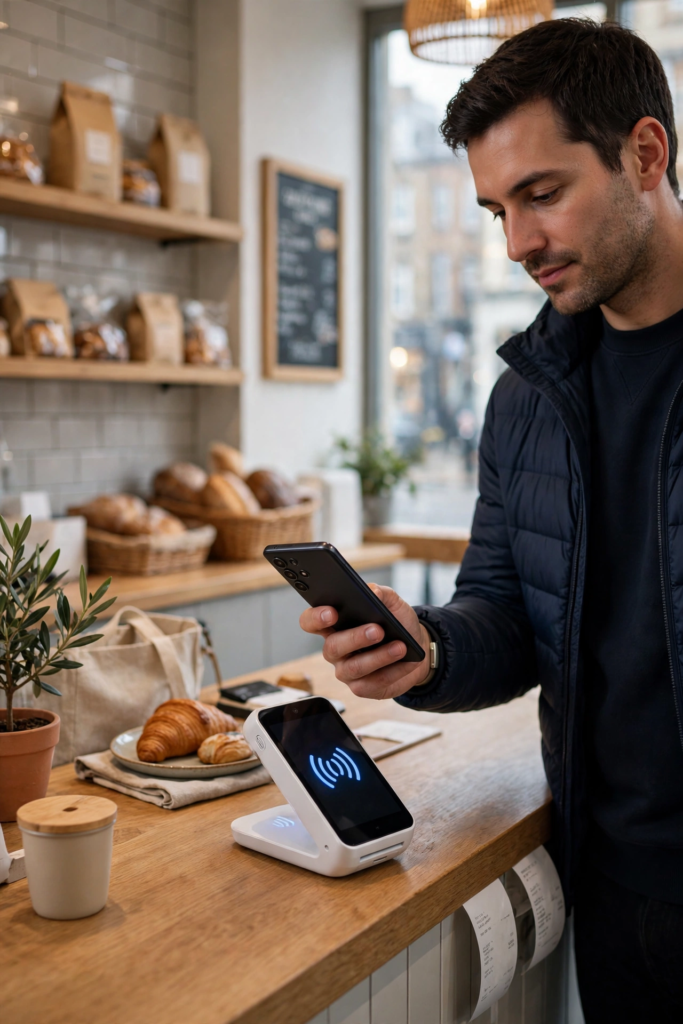
Learning how to use google wallet on android in the uk is one of the simplest ways to leave your physical wallet at home. With Google Wallet installed on your Android phone, you can pay by tapping your phone on a card reader, store loyalty cards and travel passes, keep boarding passes and event tickets in one place, and check out online without typing your card number every time. In the United Kingdom, contactless payment is accepted almost everywhere, from supermarkets and coffee shops to buses, trains and taxis, which makes a phone-based wallet genuinely useful rather than a novelty. This guide explains the whole process step by step, from checking that your phone and bank are compatible to adding your first card, paying in shops, using passes and tickets, and fixing the problems that most commonly trip people up.
It is worth clearing up one point of confusion first. Google Wallet is the app where your cards, passes and tickets live, while Google Pay is the payment system that moves the money when you tap or check out online. On many Android phones you will see both names, and older guides may use them interchangeably. In practice, you open Google Wallet to manage everything, and Google Pay works quietly in the background when you pay. You do not need to install two separate apps or keep two separate balances. Your money stays with your bank; Google Wallet simply gives you a secure way to use your existing debit and credit cards from your phone, along with digital versions of other cards and passes you carry.
Before you set anything up, it helps to know what you will need. You will need an Android phone running a reasonably recent version of Android with near-field communication, usually called NFC, built in. Almost all Android phones sold in the UK in the last several years include NFC, but a few very cheap models do not, so it is worth checking your phone’s specifications or settings before you start. You will also need a Google account, a screen lock such as a PIN, pattern, fingerprint or face unlock, and a debit or credit card from a bank that supports Google Wallet in the UK. Most major UK banks and many smaller banks and card providers support it, including high street banks, challenger banks and major credit card issuers, but support can change, so Google’s official list of supported banks is the best place to confirm your bank before you begin.
How to Use Google Wallet on Android in the UK: Checking Compatibility
The first step in learning how to use google wallet on android in the uk is confirming that your phone can actually make contactless payments. Open Settings on your Android phone and search for “NFC”. If you find an NFC setting, make sure it is switched on. You may also see a setting called “Contactless payments” or “Default payment app” under Connected devices or a similar menu; the exact menu names vary by manufacturer, so Samsung, Pixel, Xiaomi and other brands organise these settings slightly differently. If your phone has no NFC setting at all, it probably does not support tap to pay, although you can still use Google Wallet to store loyalty cards, passes and tickets that are shown as barcodes or QR codes.
Next, check your Android version and your Google Play services. Google Wallet requires a recent Android version and up-to-date Google Play services, both of which are normally updated automatically. Open Settings, then About phone, to see your Android version, and open the Play Store to check for updates to the Google Wallet app itself. If Google Wallet is not already installed, download it free from the Play Store and sign in with your Google account. If you use more than one Google account on your phone, choose the account you want to use for payments, because cards and passes are tied to that account and will not automatically appear under a different account.
Security settings matter here, and Google Wallet will insist on them. You must have a screen lock set before you can add a payment card. This is not optional, and it is a good thing: if your phone is lost or stolen, the screen lock is the first barrier protecting your cards. A fingerprint or face unlock combined with a strong PIN or password is the most convenient combination for most people. If you have not set a screen lock yet, your phone will prompt you to add one during setup. Take a moment to choose something you will remember but that is not easy for someone else to guess, such as your date of birth or a simple sequence.
Setting Up Google Wallet and Adding Your First Card
Once compatibility is confirmed, setup takes only a few minutes. Open the Google Wallet app and tap “Add to Wallet”, then choose “Payment card”. You can add a card in two ways: by pointing your phone’s camera at the card so the app reads the number, or by entering the details manually. The camera method is faster, but check the numbers carefully afterwards, because glare or a worn card can cause a misread digit. You will also need to enter the expiry date, the cardholder name exactly as it appears on the card, and sometimes the security code from the back of the card, depending on your bank’s process.
After you enter the card details, your bank will need to verify that you are the genuine cardholder. This usually happens through your banking app, a text message code, an email code, or a phone call, and the exact method depends on your bank. Follow the prompt in Google Wallet, complete the verification in your banking app or by entering the code, and wait for confirmation. Some banks approve a card instantly, while others take a few minutes or, occasionally, a day. If verification fails, double-check that the name, number and expiry date match your card exactly, and that you are using the phone number or email address your bank has on file. If it still fails, your bank’s support team can usually resolve it quickly, because the block is normally on their side rather than Google’s.
When your first card is verified, it becomes your default payment card, which is the card used when you tap to pay unless you choose another one first. You can add more cards the same way and switch the default at any time by opening Google Wallet, tapping the card you want to use by default, and choosing the option to set it as default. This is handy if you keep one card for everyday spending and another for travel or business expenses. Business users who juggle several accounts may also find it helpful to keep their everyday tools organised, and our guide to using Google Calendar effectively covers a similar approach to keeping daily essentials in one place.
Paying in Shops with Tap to Pay
Paying in a shop is the part most people care about, and it is refreshingly simple. When you reach the till, wake your phone and hold it near the contactless reader, just as you would hold a contactless card. You do not normally need to open the Google Wallet app first, although opening it and selecting a card first is useful if you want to pay with a card that is not your default. For smaller purchases, the payment usually goes through with no further step. For larger purchases, typically over the UK contactless card limit, you may be asked to unlock your phone with your fingerprint, face or PIN to confirm the payment. This is a security feature, not a fault, and it is one reason phone payments can be safer than a physical card, which anyone holding it could tap for a small amount.
A few practical habits make tap to pay smoother. Hold the phone flat against the reader for a second or two rather than waving it quickly past, because the NFC connection needs a brief moment to complete. If the reader does not respond, check that NFC is switched on and that Google Wallet is set as your default payment app, because some phones ship with a manufacturer’s own payment app set as default instead. Remove thick metal phone cases or card-holder cases that place other contactless cards directly behind the phone, since those cards can interfere with the signal or even cause the wrong card to be charged. If a payment is declined, check in Google Wallet whether the card is still verified, and check with your bank whether the card itself is blocked or over its limit, because a declined phone payment almost always reflects the underlying card rather than the phone.
After a successful payment, Google Wallet shows a confirmation and usually a notification with the amount and the shop name, and your banking app will show the transaction as well. Keeping an eye on these notifications is good practice, because it lets you spot unfamiliar transactions quickly. If you ever see a payment you do not recognise, contact your bank immediately using the number on the back of your card or in your banking app, and check whether the card in Google Wallet needs to be suspended while the bank investigates. You can remove a card from Google Wallet at any time without cancelling the physical card itself.
Using Loyalty Cards, Travel Passes and Tickets
Google Wallet is about much more than bank cards. Many UK loyalty schemes, such as supermarket, coffee shop and pharmacy programmes, can be added to Google Wallet so you can collect points by showing a barcode on your phone instead of carrying a plastic card. To add one, open Google Wallet, tap “Add to Wallet”, choose the type of item, and either search for the programme or scan the barcode on your existing card. At the till, open the loyalty card in Google Wallet and show the barcode to be scanned, or tap if the scheme supports it. This is a small change that clears several cards out of a physical wallet very quickly.
Travel is another area where Google Wallet shines in the UK. Some transport operators support tickets and passes in Google Wallet, and boarding passes from many airlines can be saved there too. A saved boarding pass shows a QR code or barcode that airport staff or a gate scanner can read, along with flight times and gate information where the airline provides it. Event tickets from supported sellers can also be stored the same way, which means concert, theatre and sports tickets sit alongside your payment cards rather than buried in an email inbox. Availability varies by operator and ticket seller, so check at the time of booking whether a “Save to Google Wallet” or “Add to Wallet” button is offered, because not every ticket type supports it yet.
Keeping tickets and passes organised matters when you are travelling. Before a journey, open Google Wallet and confirm that the ticket or pass you need is visible and that any barcode is displaying correctly, especially if you will have limited mobile signal at a station or venue. Screenshots can help as a backup, but a screenshot of a barcode is not always accepted, so the live pass in Google Wallet should be your first choice. If a pass disappears or fails to display, re-adding it from the original booking email or the operator’s app usually restores it. For longer trips, our guide to using Google Keep effectively is a useful companion for keeping booking references, check-in times and packing lists in one synced place.
Paying Online and in Apps with Google Pay
Beyond shops, Google Pay checkout is available on many UK websites and apps. When you see a Google Pay button at checkout, tapping it lets you pay with a card stored in Google Wallet without typing the full card number, expiry date and billing address. You can choose which card to use, confirm the delivery address if needed, and authenticate with your fingerprint, face or PIN. This is faster than manual checkout and reduces the risk of mistyping a card number, although you should still check the order total and delivery details before confirming, because a fast checkout makes it easy to rush past a mistake.
Security is the same principle as in shops: your real card number is not handed to the shop. Instead, Google Pay uses a virtual account number, sometimes called a token, which represents your card for that transaction. If a shop’s systems were ever breached, the token alone would be of limited use to a thief, whereas a stored real card number would be far more valuable. You can also review and manage your payment methods in your Google account settings on the web, where you can see which cards are stored and remove one if you stop using it. If you change banks or receive a replacement card, update Google Wallet promptly so you are not caught out at a till with an expired card.
Subscriptions and recurring payments deserve a brief note. Adding a card to Google Wallet does not by itself create subscriptions, but if you use that card for a subscription through Google Pay or a website, the subscription will continue under your bank’s normal rules even if you later remove the card from Google Wallet, unless you cancel the subscription itself. Always cancel a subscription through the service that set it up, rather than assuming that deleting a card from your phone ends it. The same caution applies to free trials: note the renewal date when you sign up, and check it before the trial ends.
How to Use Google Wallet on Android in the UK Safely
Security is where phone wallets genuinely improve on a physical wallet, but only if you use the protections available. The most important is your screen lock, which we covered during setup. The second is keeping your phone’s software updated, because Android security updates patch vulnerabilities that could affect payment apps. Enable automatic updates where possible, and do not ignore a pending system update for weeks. The third is being careful about which apps you install: only download Google Wallet itself from the Play Store, and be suspicious of any message, email or website that asks you to “verify” your wallet by entering card details outside the official app or your banking app, because that is a classic phishing pattern.
If your phone is lost or stolen, act quickly. You can use Google’s Find Hub service from another device to locate, lock or erase your phone, and you can also remove payment cards from Google Wallet remotely through your Google account on the web. Contact your bank as well, so it can block the physical cards if needed. Because phone payments require an unlocked phone for larger amounts, a thief who finds a locked phone cannot simply tap away large sums, but you should still treat a lost phone as urgent, just as you would a lost physical wallet. Protecting the Google account itself is equally important, since that account controls your wallet, email and much more, and our guide to protecting your Google account from hackers covers two-step verification and recovery options in detail.
It is also sensible to review your wallet regularly. Once a month, open Google Wallet and check which cards, passes and tickets are stored, remove anything you no longer use, and confirm that your default card is still the one you want. If you have changed phones, check that old devices no longer hold your cards: signing out of your Google account on an old phone, or remotely removing it, normally removes wallet access from that device. When selling or giving away a phone, factory-reset it first and remove your Google account, so the next owner cannot access anything tied to your account.
Practical Tips for Everyday Use in the UK
A few everyday tips make Google Wallet noticeably smoother. First, set your most-used card as the default and learn how to switch cards quickly before you reach the till, because fumbling at a busy checkout is stressful. Second, keep your phone charged: a phone with a dead battery cannot pay, so if you rely on your phone for travel tickets as well as payments, carry a small power bank on long days out. Third, remember that some places still prefer or require a physical card, such as certain car hire desks, hotels placing a deposit, or older parking machines, so carrying one physical card as a backup is still wise, even if you rarely use it.
Fourth, understand the UK contactless landscape. Most shops accept contactless payments, but individual retailers set their own policies, and some small businesses have minimum card spends or prefer cash for very small amounts. Transport systems vary too: in London, you can generally use contactless bank cards and phone payments directly on buses and the Underground, while other cities and train operators may require a specific ticket or smartcard instead. Check the operator’s guidance before travelling, rather than assuming your phone will work everywhere in exactly the same way. Fifth, if you travel abroad, Google Wallet works in many countries wherever contactless payments are accepted, but your bank may charge foreign transaction fees, so check your bank’s travel terms before you go.
Finally, keep your receipts and records in order. Google Wallet shows recent transactions, and your banking app shows the full picture, but for business expenses or tax records you may want to save receipts separately. A quick photo of a paper receipt, stored in a notes app or a dedicated folder, is usually enough. Staying organised about money is closely related to staying organised about storage and messages on your phone, and our guide to freeing up Gmail storage space covers a similar clear-out habit for an inbox that, like a wallet, quietly accumulates clutter over time.
Fixing Common Google Wallet Problems
The most common problem is a payment that does not go through at the till. Start with the basics: is NFC switched on, is Google Wallet the default payment app, and is the phone unlocked where required? Then check whether the card in Google Wallet is verified and not expired, and whether your bank has placed any hold on the card. If one card fails repeatedly, try another card to find out whether the problem is with a specific card or with the phone setup generally. Restarting the phone resolves a surprising number of temporary NFC problems, and removing and re-adding a troublesome card, followed by fresh bank verification, fixes most persistent card issues.
Another frequent issue is a card that will not add or verify. This is usually a bank-side problem: the name or address on your Google account may not match the bank’s records, the bank may not support that particular card type in Google Wallet, or the bank may require verification through its own app rather than by text message. Open your banking app and look for a digital wallet or Google Pay section, because some banks prefer you to add the card from inside their app, which completes verification in the same step. If the bank confirms the card should work, check that Google Play services and the Wallet app are fully updated, and try again on Wi-Fi rather than mobile data, in case a weak connection interrupted verification.
Missing passes or tickets are usually simpler to fix. If a boarding pass or event ticket does not appear, check that you saved it to the same Google account you are signed into in Google Wallet, and look in the original booking email for a “Save to Google Wallet” button to add it again. If a loyalty card barcode will not scan at the till, increase your screen brightness and hold the phone steady at the distance the scanner expects, because a dim screen or a moving phone is the usual cause. If a pass shows an error, the ticket seller or operator is the right contact, because they control the pass data itself. As a last resort, uninstalling and reinstalling Google Wallet, then signing back in, restores the app to a clean state, although you may need to re-verify payment cards afterwards, so keep your banking app handy.
Frequently Asked Questions
Is Google Wallet free to use in the UK?
Yes, Google Wallet itself is free to download and use. You pay no fee to Google for adding cards or tapping to pay. Your bank’s normal charges still apply, such as interest on a credit card balance or foreign transaction fees abroad, but Google does not add a separate charge for wallet payments.
Which UK banks support Google Wallet?
Most major UK high street banks, challenger banks and credit card issuers support Google Wallet, but the list changes over time as banks join or update their support. Check Google’s official supported-banks page or your bank’s website or app before adding a card, because support can vary by card type as well as by bank.
Do I need an internet connection to tap to pay?
No, you do not normally need an internet connection at the moment of payment, because the phone and the reader communicate directly over NFC. You do need internet for setup, adding and verifying cards, and updating passes, so complete those steps on Wi-Fi before you head out.
What happens if my phone battery dies?
A phone with a dead battery cannot make tap payments or display passes, so it is wise to carry a backup physical card and a power bank on long days out. Some phones reserve a small amount of power for express transit in certain cities, but this is not a general substitute for a charged phone in the UK.
Is tapping with my phone safer than using a physical card?
In most respects, yes. Phone payments use a virtual account number instead of your real card number, larger payments require unlocking the phone, and you can remove cards remotely if the phone is lost. A physical card, by contrast, can be tapped by anyone holding it for smaller amounts. Good screen-lock and account habits are still essential.
Can I use Google Wallet on more than one phone?
Yes, you can add the same card to Google Wallet on more than one Android phone or device, subject to your bank’s verification each time. Each device stores its own secure token for the card, so removing the card from one device does not remove it from another.
Why was my payment declined when my card works in a shop?
Common causes are an unverified or expired card in Google Wallet, NFC being switched off, another payment app set as default, or a bank hold on the card itself. Check the card status in Google Wallet first, then check with your bank, and try a different card to narrow down whether the problem is the card or the phone setup.
Can I store ID documents in Google Wallet in the UK?
Digital ID support in Google Wallet varies by country and document type, and UK availability is limited compared with some other countries. Check the Google Wallet app and Google’s official UK guidance for the current position before relying on a digital version of any identity document, and always carry the physical document where it is legally required.
Key Takeaways
- Google Wallet stores your bank cards, loyalty cards, travel passes and tickets on your Android phone, while Google Pay handles the payment itself.
- Check NFC, a screen lock and your bank’s support before setup, then add cards in the app and complete your bank’s verification step.
- Tap to pay works at most UK contactless readers without opening the app, with phone unlock required for larger purchases.
- Loyalty cards, boarding passes and event tickets can live in Google Wallet alongside payment cards, reducing what you carry.
- Phone payments use a virtual account number rather than your real card number, and lost phones can have cards removed remotely.
- Carry one physical card and a power bank as backup, and check transport and retailer policies before assuming tap to pay works everywhere.
Conclusion
Learning how to use google wallet on android in the uk turns your phone into a genuinely practical wallet: faster at the till, lighter in your pocket, and safer than a handful of plastic cards in several important ways. Set it up carefully, verify your first card, practise a small tap payment somewhere quiet, and then add loyalty cards and tickets as you need them. Keep your phone updated, your screen lock strong and your Google account protected, and carry a physical card as backup for the places that still need one. Within a week, tapping your phone will feel as natural as tapping a card ever did, and you will wonder why you carried so much plastic for so long.
For the latest official steps and the current list of supported UK banks, see Google’s support pages for setting up Google Wallet, Google Pay contactless payments and passes and tickets in Google Wallet. Features and bank support vary over time, so check the official pages if a setting or a supported bank looks different on your phone.