How to Use Google Gemini on iPhone in 2026
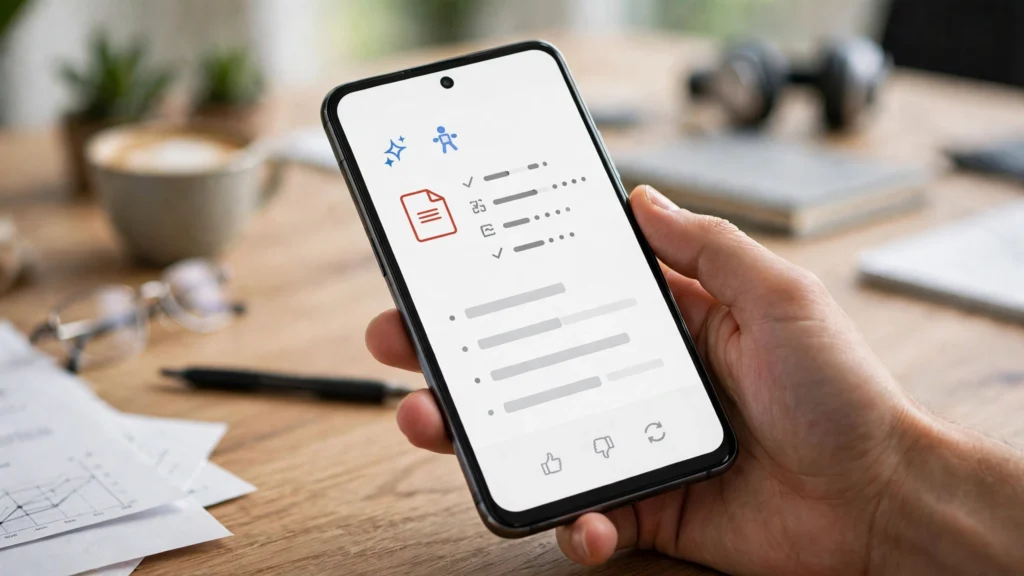
Google Gemini is now one of the most capable AI assistants you can run on an iPhone, and learning how to use Google Gemini on iPhone is straightforward once you know where it lives. Gemini is available as a dedicated app on the App Store, it is built into the Google app, and it works with your existing Google account — which means your Gmail, Google Docs, Google Drive, YouTube and Calendar can all feed into it. Whether you want to draft an email, summarise a long document, plan a trip, identify something in a photo, brainstorm ideas or simply have a spoken conversation with an AI, Gemini on iPhone can do it, and this guide explains how to use Google Gemini on iPhone step by step, from installation and setup to Gemini Live voice conversations, image generation, app integrations, privacy settings and troubleshooting.
Gemini has changed quickly. What began as a chatbot has become a full assistant with voice, vision, image generation and deep connections into Google’s own services. On iPhone it sits alongside Siri and Apple Intelligence rather than replacing them, and the comparison between the three is worth understanding before you decide which assistant to reach for in each situation. By the end of this guide you will know exactly how to install Gemini, how to talk to it, how to connect it to your Google apps, and how to get genuinely useful work out of it every day.
What Is Google Gemini on iPhone?
Google Gemini is Google’s family of AI models, and on iPhone it appears as an assistant you can chat with by text, voice or image. The Gemini app is a free download from the App Store, and it gives you a conversational interface where you can ask questions, request written content, analyse images, generate new images, summarise documents and get help with everyday tasks. Gemini also appears inside the Google app, where a Gemini tab or button opens the same assistant without installing a separate app.
Gemini on iPhone is powered by Google’s servers, not by your phone, which means it works on older iPhones as well as the latest models. You need an internet connection and a Google account, and some advanced features — such as the most capable model tier and the highest-quality image generation — require a Google AI subscription, though the free tier covers a large share of everyday use. The free version is genuinely useful, and you should try it thoroughly before deciding whether a paid plan is worth it for you.
How to Use Google Gemini on iPhone: Installation and Setup
Getting started with Gemini on iPhone takes about five minutes. There are two routes — the dedicated Gemini app and the Google app — and both lead to the same assistant. The dedicated app is the better choice for most people, because it is faster to open, it supports Gemini Live voice conversations, and it keeps your AI chats separate from your web searches. The steps below cover both options.
Step 1: Install the Gemini App
Open the App Store on your iPhone and search for “Google Gemini”. Tap the app published by Google LLC, then tap Get to install it. The app is free and works on iPhones running a recent version of iOS. If you cannot find it, make sure your iPhone’s software is up to date by going to Settings, then General, then Software Update, and installing any available update.
Alternatively, you can use Gemini inside the Google app. If you already have the Google app installed, open it and look for the Gemini tab or the Gemini button near the top of the screen. Tapping it switches the app from search to Gemini, and you can chat with the assistant without installing anything new. This is a good option if you are short on storage or prefer to keep your apps to a minimum.
Step 2: Sign In with Your Google Account
Open the Gemini app and sign in with your Google account — the same account you use for Gmail, YouTube or Google Drive. If you have more than one Google account, pick the one whose Gmail, Docs and Drive you want Gemini to be able to reach, because the assistant’s integrations follow the account you sign in with. You can switch accounts later from the profile menu, but the connected apps and history follow the signed-in account.
After signing in, Gemini will ask for a few permissions. It may request access to your microphone for voice input and your camera and photo library for image-based questions. Grant the permissions you are comfortable with — you can change them later in your iPhone’s Settings app under the Gemini entry — but note that voice input and photo questions need those permissions to work.
Step 3: Set Up Gemini Live and Voice
Gemini Live is the voice conversation mode, and it is one of the most useful features on iPhone. Tap the Live button or the waveform icon in the Gemini app to start a spoken conversation. You can talk naturally, interrupt Gemini mid-sentence, and ask follow-up questions without tapping anything. The first time you use it, the app will ask for microphone access — allow it, and you are ready to talk.
Gemini Live is ideal for hands-free situations: cooking, driving, walking or brainstorming while your phone is in your pocket. You can ask it to explain a topic, help you prepare for a meeting, practise a presentation, or work through a problem out loud. The conversation feels natural because Gemini responds in real time, and you can end the session at any moment by tapping the stop button or closing the app.
Step 4: Connect Gemini to Your Google Apps
The real power of Gemini on iPhone comes from its connections to your Google apps. In the Gemini app, open Settings and look for the extensions or connected apps section. From there you can connect Gmail, Google Docs, Google Drive, Google Calendar, YouTube, Google Maps and Google Flights, depending on what is available in your region. Once connected, you can ask Gemini to find an email, summarise a document in Drive, check your calendar, or plan a route — all from inside the chat.
Connections are optional, and you can switch any of them off at any time. Only connect the apps you actually want Gemini to read, and remember that everything Gemini accesses stays within your Google account. For a deeper look at Gemini on Android, including features that also apply on iPhone, see our guide on how to use Google Gemini on Android for everyday tasks.
How to Use Google Gemini on iPhone for Everyday Tasks
Once Gemini is set up, the question becomes what to ask it. The range is wide, but the most useful everyday tasks fall into a few groups, and the examples below will give you a feel for what Gemini does well. The key skill is writing a clear prompt: say what you want, give the context Gemini needs, and say what format you want the answer in.
Writing and Editing
Gemini is strong at drafting and editing text. Ask it to write a professional email, a cover letter, a social media caption, a product description or a short speech, and tell it the tone you want — formal, friendly, concise or persuasive. Give it the key facts it needs, and it will produce a draft you can edit. You can also paste text you have written and ask Gemini to proofread it, shorten it, simplify it, or rewrite it in a different tone. For longer writing, work in sections rather than asking for a whole essay at once, and check the result carefully before you use it.
Summarising Documents and Web Pages
Gemini can summarise long documents, articles and PDFs, which is one of its most practical uses on iPhone. Upload a file or paste a link, and ask for a summary of a specific length — a one-paragraph overview, a bullet list of key points, or a detailed summary with the main arguments. This is useful for work documents, research papers, terms and conditions, and long articles you do not have time to read in full.
If you work with PDFs regularly, our guide to using Google Gemini to summarise PDFs covers the technique in detail, and the same approach works on iPhone through the Gemini app’s file upload feature.
Images: Identification, Analysis and Generation
Gemini on iPhone can see. Tap the camera or image button in the Gemini app to take a photo or upload one from your library, then ask a question about it. You can identify a plant, a landmark, a product or a piece of text, translate a sign in another language, get help with a maths problem from a photo of the working, or ask what is in a picture and what it means. This visual ability is one of the biggest differences between Gemini and a traditional search box.
Gemini can also generate images from a text description. Describe the image you want — the subject, the style, the colours and the mood — and Gemini will create it. Image generation is useful for social media, presentations, blog illustrations and creative projects, though you should check the result carefully and remember that generated images can contain errors, especially with text, hands and fine detail.
Planning, Research and Learning
Gemini is a capable research and planning partner. Ask it to plan a trip with a day-by-day itinerary, compare two products with a table of features, explain a difficult concept in simple language, or quiz you on a topic you are studying. For trip planning it can pull in information from Google Maps and Google Flights, and for research it can search the web and cite its sources — though you should always verify important facts independently, because AI assistants can make mistakes.
For studying and learning, try asking Gemini to explain a topic at different levels, to create practice questions, or to turn your notes into flashcards. The interactive, conversational style makes it easier to stay engaged than reading a static page, and you can keep asking follow-up questions until the idea is clear.
Gemini Live: Voice Conversations on iPhone
Gemini Live deserves its own section, because it changes how you use an assistant on iPhone. Instead of typing, you talk, and Gemini talks back in a natural voice. You can interrupt it, change the subject, ask it to slow down or explain again, and it keeps up. The experience is closer to a phone call with a knowledgeable friend than to a search engine.
To get the most from Gemini Live, speak naturally and give it context up front. Instead of “tell me about the weather”, try “I am visiting Edinburgh this weekend — what should I pack, and what is the weather likely to be?” Instead of “write an email”, try “help me draft a polite email to my manager asking for Friday off, explaining that I have a family commitment”. The more context you give, the better the answer.
Gemini Live also works with images. While you are in a Live conversation, you can point your camera at something and ask about it in real time — a useful trick for identifying objects, reading signs, or getting help with something in front of you. Note that Gemini Live uses mobile data or Wi-Fi, and long voice conversations will use your battery, so keep a charger nearby for extended sessions.
For more on voice features, see our guide to using Google Gemini Live, which covers the voice conversation features in detail.
Gemini vs Siri and Apple Intelligence
iPhone owners already have Siri and, on newer models, Apple Intelligence, so the natural question is how Gemini compares and whether you need it. The honest answer is that the three assistants are good at different things, and most people will end up using more than one.
Siri is best for device tasks: setting timers, sending messages, making calls, controlling smart home devices and opening apps. It is deeply integrated with iOS, it works offline for some tasks, and it is always available with a button press or a voice command. Apple Intelligence adds on-device writing tools, notification summaries and image tools, and it is designed around privacy, with much of its processing happening on the phone itself.
Gemini is best for knowledge, research, long-form writing, document analysis and open-ended conversation. Its connection to Google’s services and the web makes it stronger for research and for tasks that involve your Gmail, Docs and Drive, and its voice mode, Gemini Live, is more conversational than Siri for extended discussions. Gemini is also better at working with images and documents, and at generating new content from a description.
In practice, use Siri for quick device commands and Gemini for thinking tasks. You can keep both: Siri on the side button, Gemini as an app on your home screen. There is no need to choose one and delete the other, and each one makes the other more useful by covering the things it does poorly.
Privacy Settings and What Gemini Knows About You
Gemini is a cloud service, which means your conversations are processed on Google’s servers. That is worth understanding before you share sensitive information. By default, your Gemini activity may be saved to your Google account and used to improve Google’s services, though you can control this from your Google account settings.
To review and manage your data, open the Gemini app, go to Settings, and look for the activity and privacy options. You can turn off activity saving, delete individual conversations, or delete your Gemini activity for a period of time. You can also ask Gemini not to remember particular details, and you can review what is stored from the Google My Activity page in your browser. If you need step-by-step help with any Gemini feature, the official Gemini help centre covers setup, voice, images and account settings.
As a rule, do not paste passwords, financial details, medical records or other highly sensitive information into any AI assistant, including Gemini. Use it for work, study, planning and creativity, but keep your most private data out of the chat. Also be aware that Gemini’s answers can be wrong, especially on facts, figures and recent events, so verify anything important against an authoritative source before you rely on it.
For more on keeping your Google account secure, see our guide on setting up Google Password Manager, which explains how to manage passwords and security across Google’s services.
Tips for Getting Better Answers from Gemini
The quality of Gemini’s answers depends heavily on the quality of your prompts. A vague question gets a vague answer, while a specific question with context gets a specific, useful one. A few habits will improve your results noticeably.
First, be specific about what you want. Instead of “write a post about running”, try “write a 150-word Instagram caption about training for my first 10K, in an encouraging tone, with a call to action to follow my journey”. Second, give context: who the audience is, what the purpose is, and what constraints apply. Third, ask for a format: a bullet list, a table, a step-by-step guide or a short paragraph. Fourth, iterate — if the first answer is not quite right, say what to change rather than starting over. Finally, ask Gemini to show its reasoning or its sources when the answer matters, and check the facts yourself.
Save your best prompts. If you find a prompt that works well for a recurring task — a weekly report, a regular email, a standard summary — save it in your notes app and reuse it. Over time you will build a small library of prompts that turn Gemini from a novelty into a genuine productivity tool.
Troubleshooting Gemini on iPhone
Most problems with Gemini on iPhone have simple fixes. If the app will not open, force-close it and reopen it, then check the App Store for an update. If Gemini gives poor or outdated answers, check your internet connection and try rephrasing the question with more context. If Gemini Live will not start, check that the app has microphone permission in Settings, then Privacy and Security, then Microphone.
If the app cannot find your Gmail or Drive content, check that you are signed in with the right Google account, and that the relevant extension is switched on in the Gemini app’s settings. If images will not upload, check the app’s photo permission and try a smaller file. If the app is slow, close other apps, free up storage, and restart your iPhone. In most cases one of these steps solves the problem, and if it does not, uninstalling and reinstalling the app is a reliable last resort.
Key Takeaways
- How to use Google Gemini on iPhone: install the free Gemini app from the App Store or use the Gemini tab in the Google app, then sign in with your Google account.
- Gemini Live gives you natural voice conversations — talk, interrupt, ask follow-ups and point your camera at things while you chat.
- Connect Gmail, Docs, Drive, Calendar and YouTube in settings to let Gemini find emails, summarise documents and plan around your schedule.
- Gemini is strongest at writing, research, summarising, image analysis and open-ended conversation; Siri remains best for quick device tasks.
- Manage privacy in Gemini settings and your Google account: turn off activity saving, delete conversations, and never paste passwords or highly sensitive data into the chat.
- Write specific prompts with context and a requested format, then iterate on the answer rather than starting over.
Frequently Asked Questions
Is Google Gemini free on iPhone?
Yes, the Gemini app is free to download from the App Store, and the free tier covers chatting, Gemini Live voice, image analysis, image generation and connections to your Google apps. A paid Google AI subscription unlocks the most capable model, higher limits and extra features, but most everyday users will find the free tier sufficient.
How do I install Gemini on my iPhone?
Open the App Store, search for “Google Gemini”, tap the app by Google LLC, and tap Get to install it. Then open the app and sign in with your Google account. You can also use Gemini inside the Google app by tapping the Gemini tab, without installing a separate app.
Can Gemini on iPhone access my Gmail and Google Docs?
Yes, if you connect them. In the Gemini app’s settings, switch on the Gmail, Docs, Drive and Calendar extensions, and Gemini will be able to find emails, summarise documents and check your schedule. You can switch any connection off at any time, and connections follow the Google account you signed in with.
What is Gemini Live on iPhone?
Gemini Live is the voice conversation mode in the Gemini app. You talk naturally, Gemini replies in real time, and you can interrupt, change topic or ask it to explain again. It also works with your camera, so you can point it at something and ask about it while you talk.
Is Gemini better than Siri on iPhone?
They are good at different things. Siri is best for device tasks such as timers, calls, messages and smart home controls, while Gemini is stronger for research, writing, document analysis, image questions and long conversations. Most iPhone owners will use both, with Siri on the side button and Gemini as an app.
Is my data safe with Gemini on iPhone?
Gemini processes conversations on Google’s servers, and activity may be saved to your Google account by default. You can turn off activity saving, delete conversations, and manage what is stored from Gemini settings and Google My Activity. Avoid pasting passwords, financial details or other highly sensitive information into any AI assistant.
Conclusion
Learning how to use Google Gemini on iPhone takes minutes, but the payoff lasts far longer. Install the free app, sign in with your Google account, connect the apps you want it to reach, and try Gemini Live for a spoken conversation — then start using it for the tasks where it is strongest: drafting and editing, summarising documents, analysing images, planning trips and working through ideas out loud. Keep Siri for quick device commands, manage your privacy settings, verify important facts, and write specific prompts with context. Used that way, Gemini becomes less of a novelty and more of a daily tool — an assistant that is always in your pocket, ready whenever you need it.
Gemini is updated regularly, so check back here for the latest features and tips as Google adds them. For more Google and Android guides, see our articles on the best Google apps for Android productivity and using Google Lens to translate text instantly.